
Create a Measuring Point
Create a measuring point to track equipment condition and performance over time.
To create a measuring point:
-
In the Measuring Point tab, tap the Create
 icon at the bottom of the screen.
-
In the Create Measuring Point screen, enter the following details:
Figure 1. Create Measuring Point 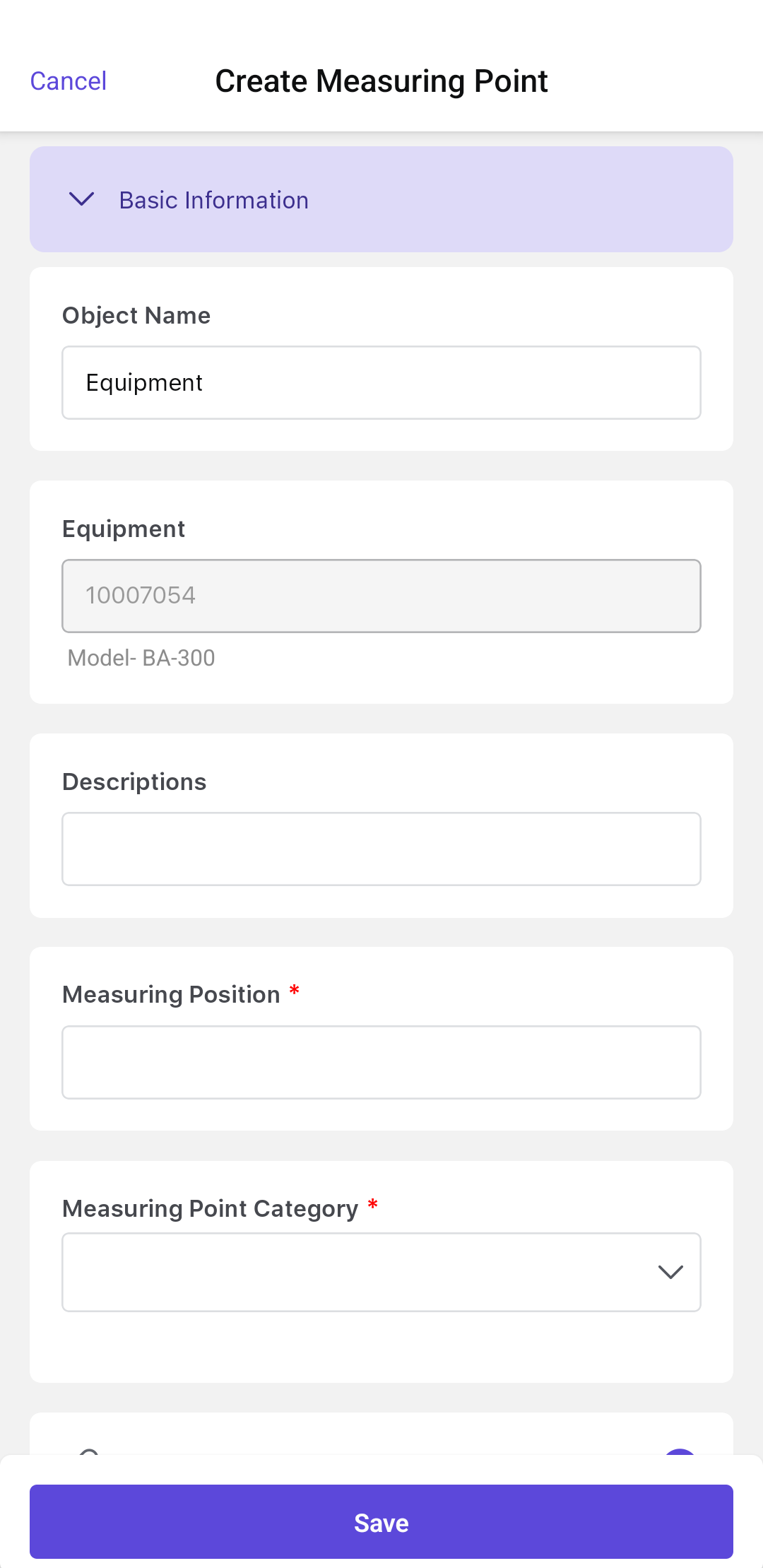
Basic Information- Description: Provide a name or identifier for the measuring point.
- Measuring Position: Specify the location on the equipment.
- Supporting Media: Tap the + icon to attach relevant files or images.
- Measurement Type: Select the type of measurement from the drop-down.
- Measuring Date & Time: Automatically filled with the current system date and time.
- Code Group: Choose the appropriate category for classification.
- Characteristic: Select the measurement characteristic from the drop-down.
- Object Category: Define the asset category for accurate tracking.
-
Counter Measuring Point: If applicable, enable the
Measuring Point is a Counter? toggle and enter:Note:You can enter a Counter Difference to automatically update both the Counter Reading and Total Reading. A visual Difference Indicator is displayed in the Measurement List, which helps you quickly identify incremental changes and gain better insights into measurement trends.
- Counter Reading (current value)
- Annual Estimate (expected yearly usage)
- Comments (additional details)
Measurement Range- Lower Range and Upper Range Limits: Define acceptable measurement thresholds.
The measuring point is created or submitted according to the user’s permission and synchronization state.
Next: Return to the operation and complete the remaining work before confirmation.