
Execute a Work Order
Review the configured safety and job prerequisites, perform the assigned operations, record the work, and complete the work order.
Note:
The tabs and prerequisite actions available for
a job depend on your organization's configuration and enabled iCWP products. A tab
that is not shown may not be required for that work order.
If you're unsure how to proceed, AI Assist reviews the work order details and suggests possible fixes based on similar past issues.
To start execution:
-
In the Work Order Details tab, tap Start
Job.
Figure 1. Start Job 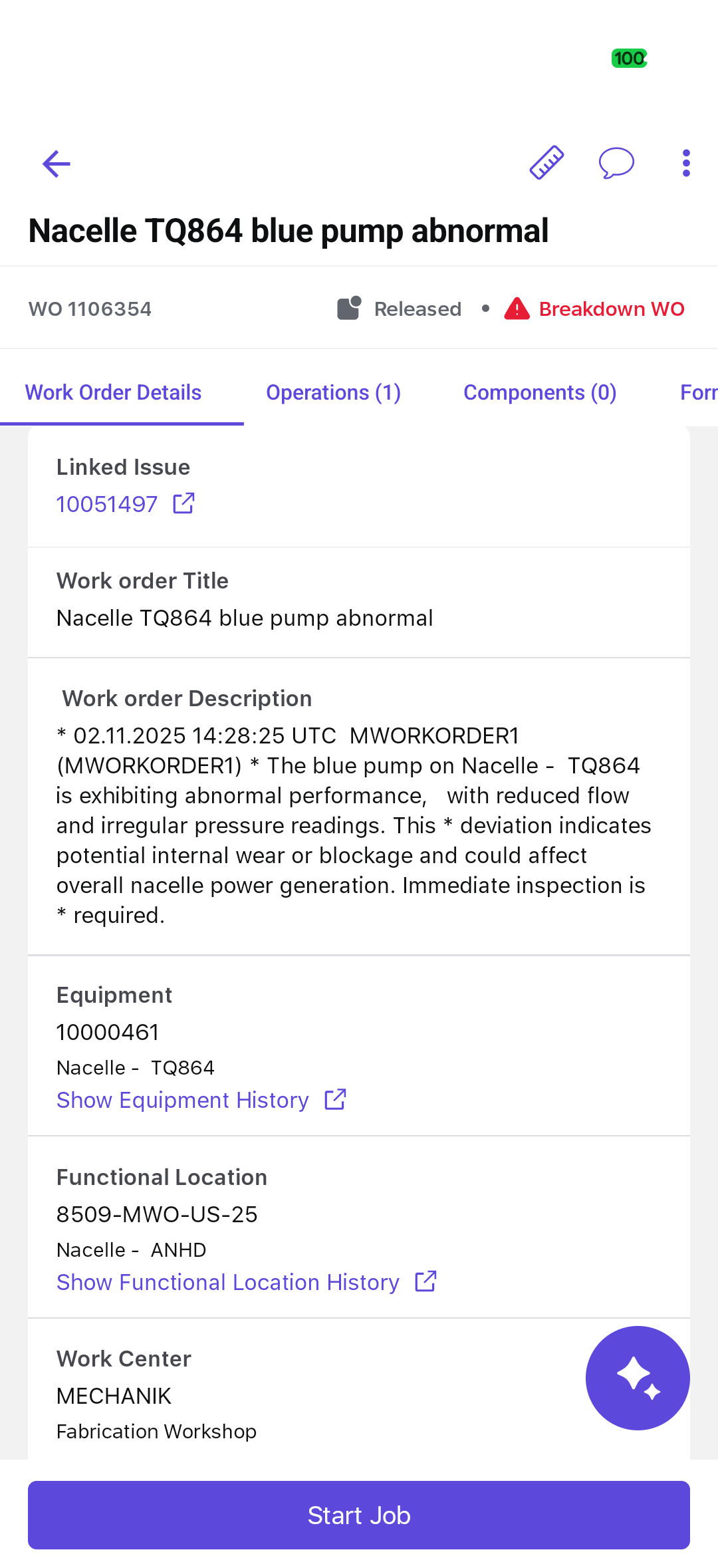
The work order is open for execution. Continue through the execution flow in the following order:
- Review operation status, confirmation, and time-recording behavior.
- Complete the permit, JHA, Work Instruction, and component prerequisites that are shown for the job.
- Start the assigned operation.
- Perform the work and complete configured forms, measurements, evidence, or follow-up actions.
- End and confirm the operation, surrender the permit when applicable, submit time, and complete the work order.
Use pause, resume, bulk confirmation, attachments, follow-up issues, emergency work, feedback, and synchronization recovery only when the situation requires them.
Available actions during execution:
-
Measuring Point
 icon — View and add the measuring point details.
 -
More
 icon — Edit the work order, raise a breakdown work order, raise a
follow-up issue, duplicate work order, or create a sub-work order.
icon — Edit the work order, raise a breakdown work order, raise a
follow-up issue, duplicate work order, or create a sub-work order. -
Chat
 icon — Message team members, share files, and use @mentions.
Navigation tabs:
- Work Order Details — View work order summary.
- Operations — View assigned operations.
- Components — View components list.
- Forms — View and access work order- and operation-specific forms.
- Attachments — View work order- and operation-level attachments (organized in separate sections).