
Access Work Orders and Issues Quickly with Smart Sync
Before the shift begins, set the synchronization scope, review notifications, find priority work, and confirm the required records are available.
Shift preparation follows this flow:
- Set the plant and date range used for synchronization.
- Run synchronization and review notifications for new or changed work.
- Search or filter the records that need attention.
- Confirm required records are available before entering a low-connectivity area.
Begin by setting the synchronization scope:
- Navigate to the More screen and select User Preferences.
- Under Global Data, choose your Planning Plant and Maintenance Plant, and review the displayed Main Work Center.
- Under Transactional Data, enter the number of days for Last and Next to define how far back and ahead data should synchronize.Note:Data synchronizes only within the specified range from the current date.
- Tap Save.
Figure 1. User Preferences 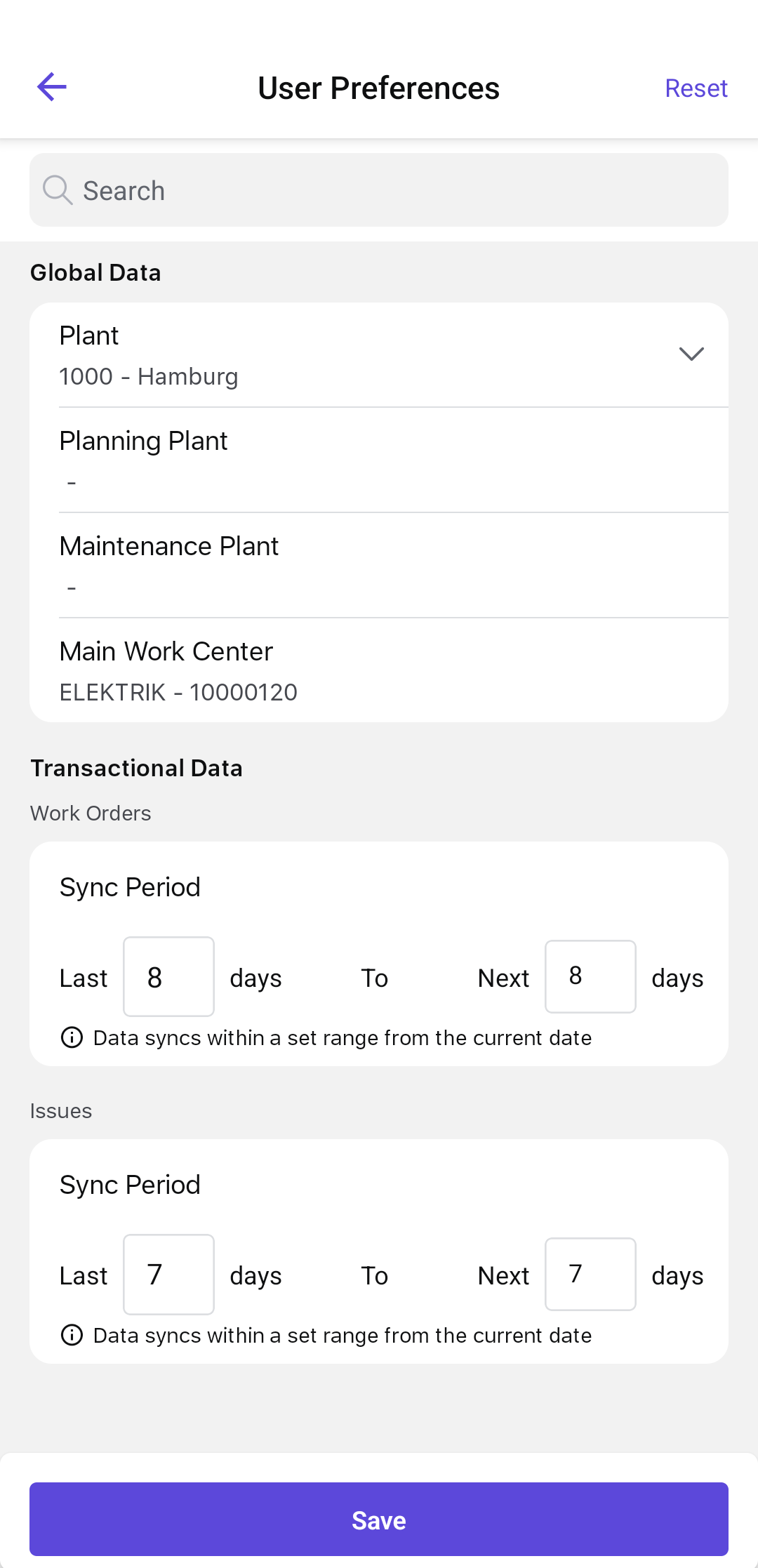
The synchronization scope is saved. Run synchronization, then review notifications for new or changed work.
Next: review notifications for work that requires attention.