
View Push Notifications
Push notifications alert you to assigned issues, task status changes, and updates from your team.
Check notifications as soon as they appear so you can act on time-sensitive updates.
To check notifications:
-
Navigate to the Alerts screen.
Figure 1. Alerts Screen 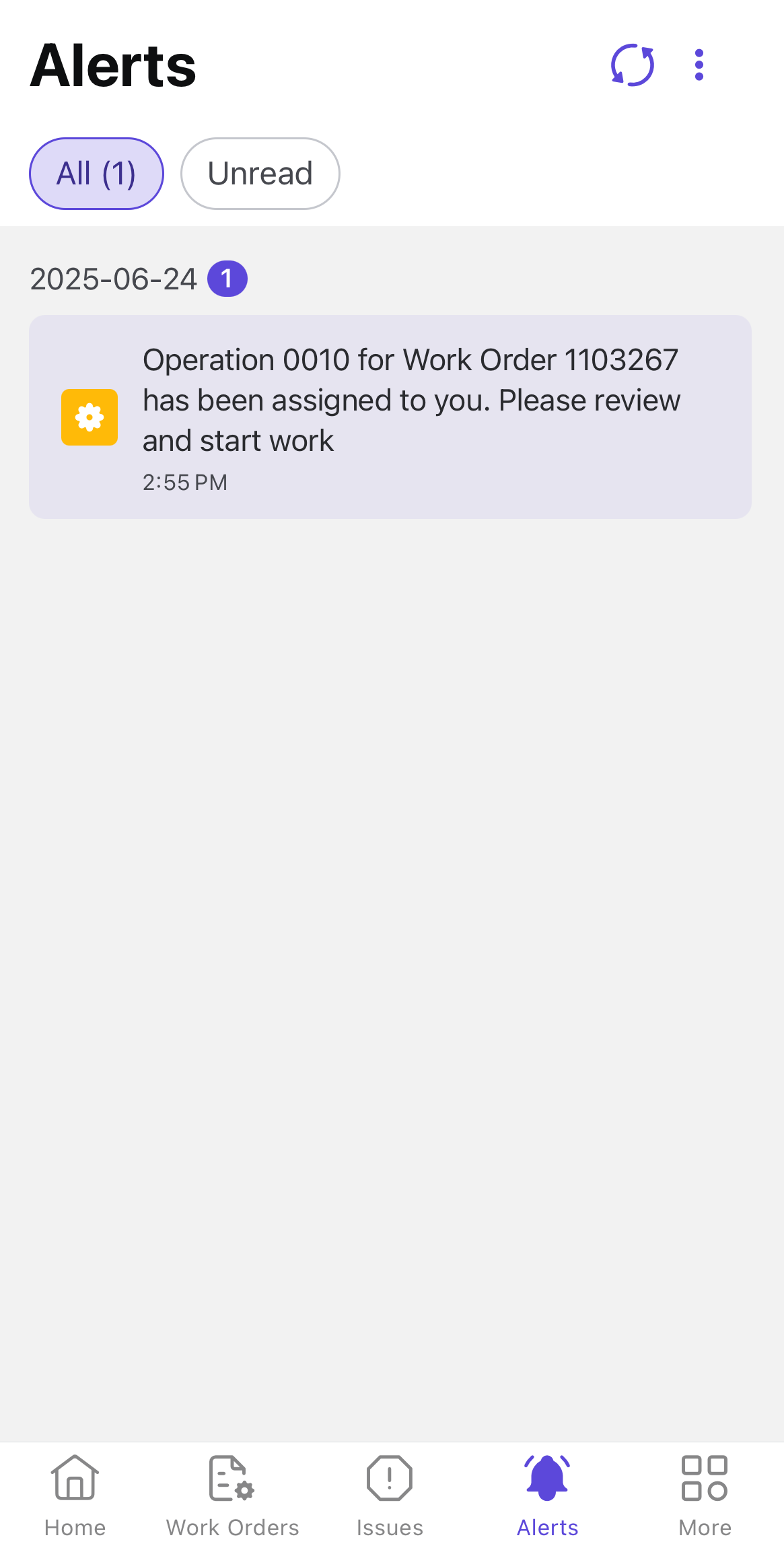
-
Tap the More
 icon on the top-right
corner and select Mark all as Read to mark as read.
icon on the top-right
corner and select Mark all as Read to mark as read.
-
Tap the More icon on the top-right
corner and select Clear All to clear the alerts.
Note:If no new alerts are available, a message stating No New Alerts appears.
The related record opens from the notification. Continue with the issue, work order, operation, or conversation that requires attention.