
Add Components
Add the components, such as spare parts and tools, required to complete a work order.
Add components during planning when the job requires specific materials, spare parts, or tools. Linking them to the work order or operation gives the technician the required quantity, material, operation, and recipient details before execution.
-
In the Components tab, tap the Add
 icon on the right side.
The pop-up offers two ways to add components:
icon on the right side.
The pop-up offers two ways to add components:- Add from BOM (Bill of Materials)
- Add Manually
Figure 1. Add Components 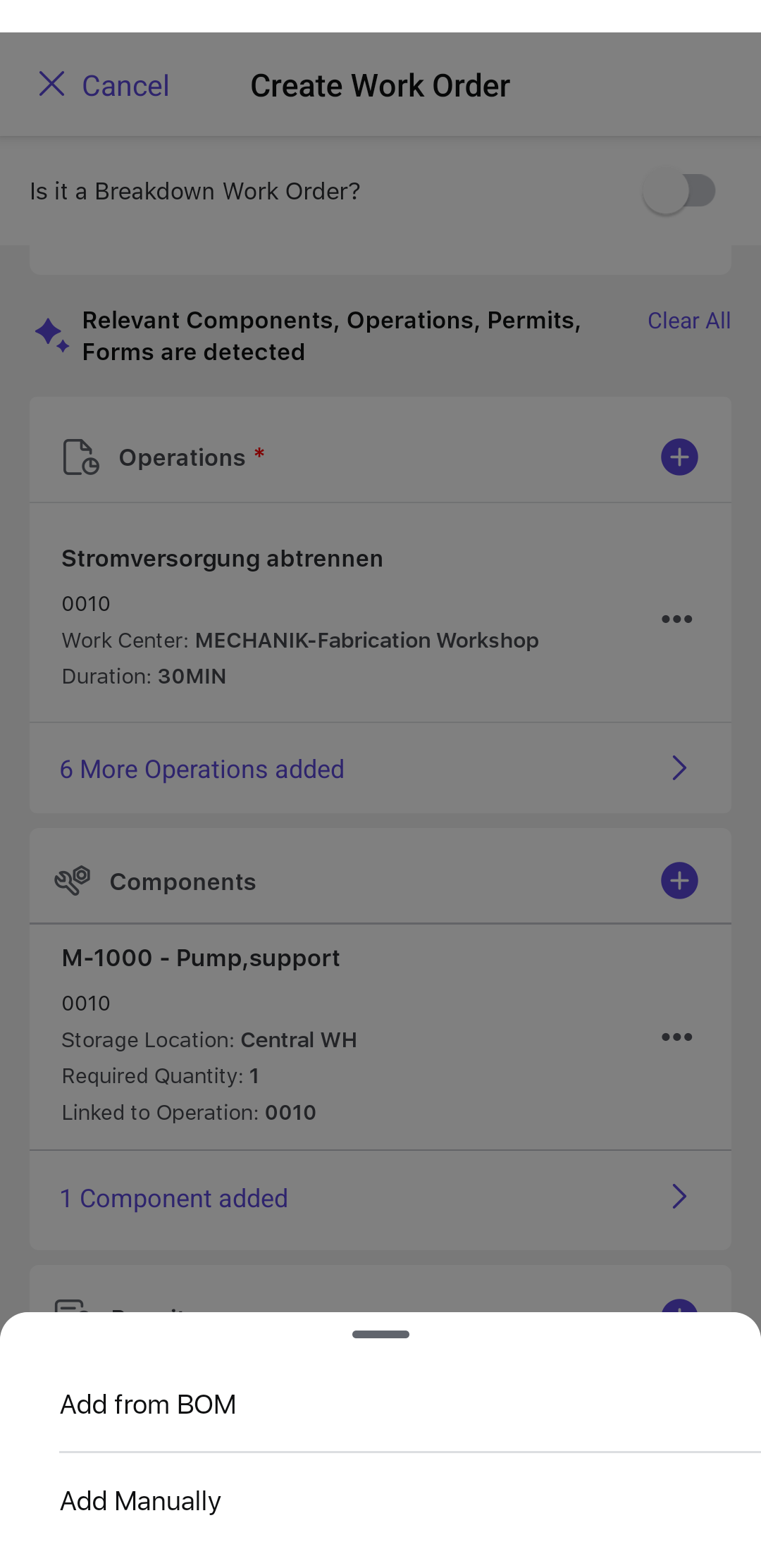
-
If you select Add from BOM, do the following:
-
Choose the relevant components from the list in the General,
Equipments, or Functional Locations tab.
Figure 2. Select Components from BOM 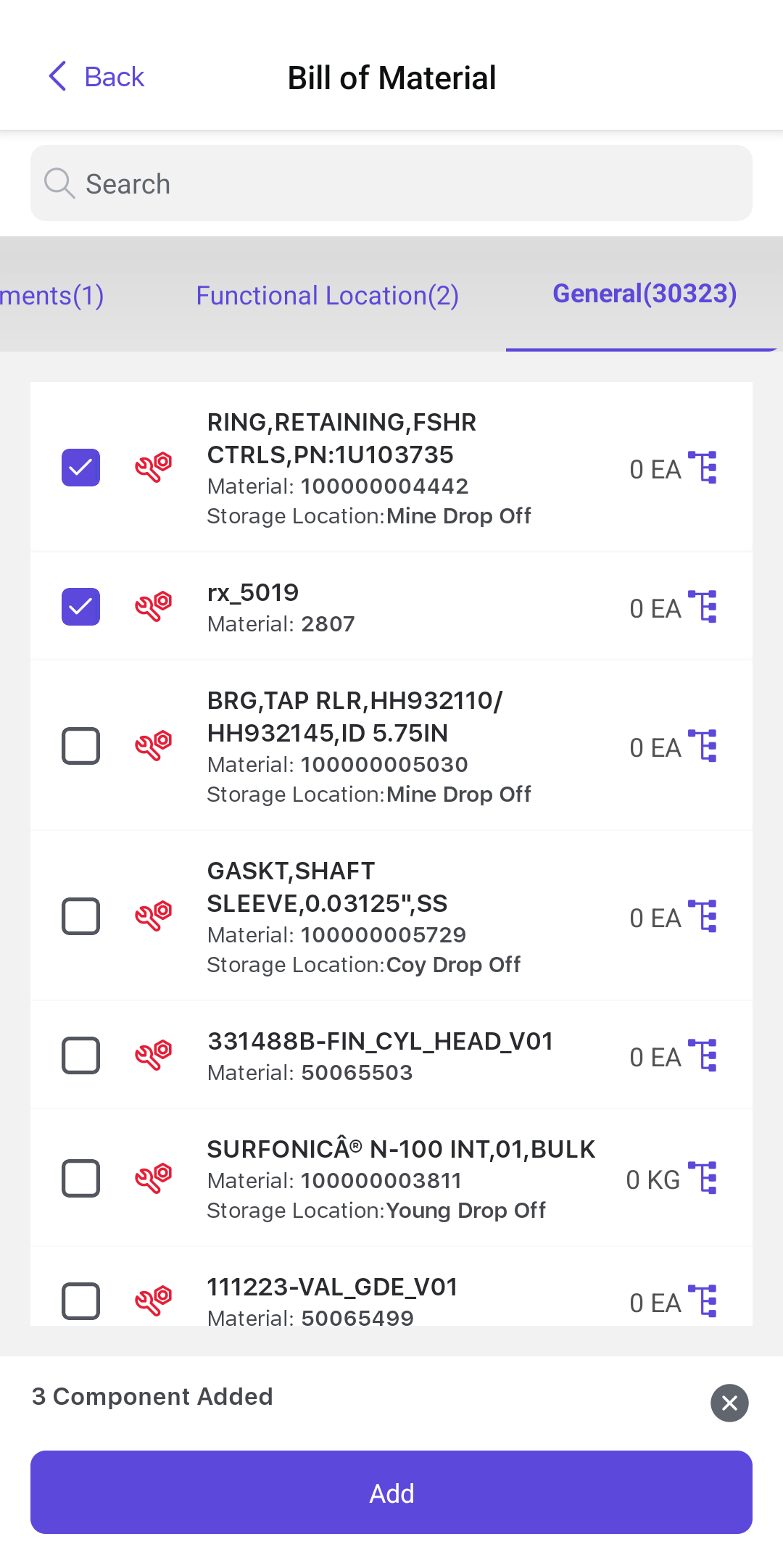
-
In the Components screen, review the list of components.
Figure 3. Components Screen 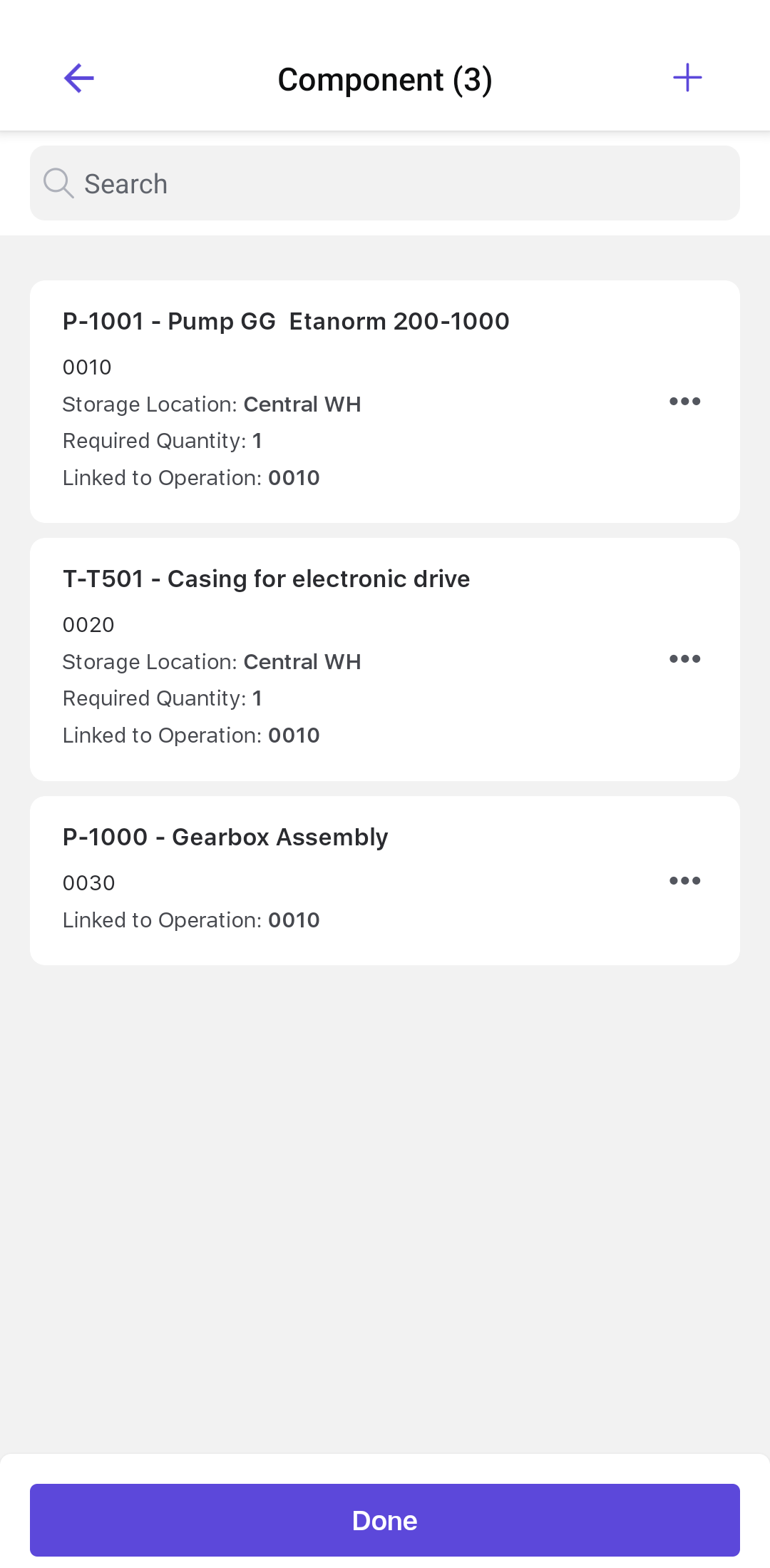
-
Tap the More
 icon next to the component and select
Edit.
icon next to the component and select
Edit.
Figure 4. More Options 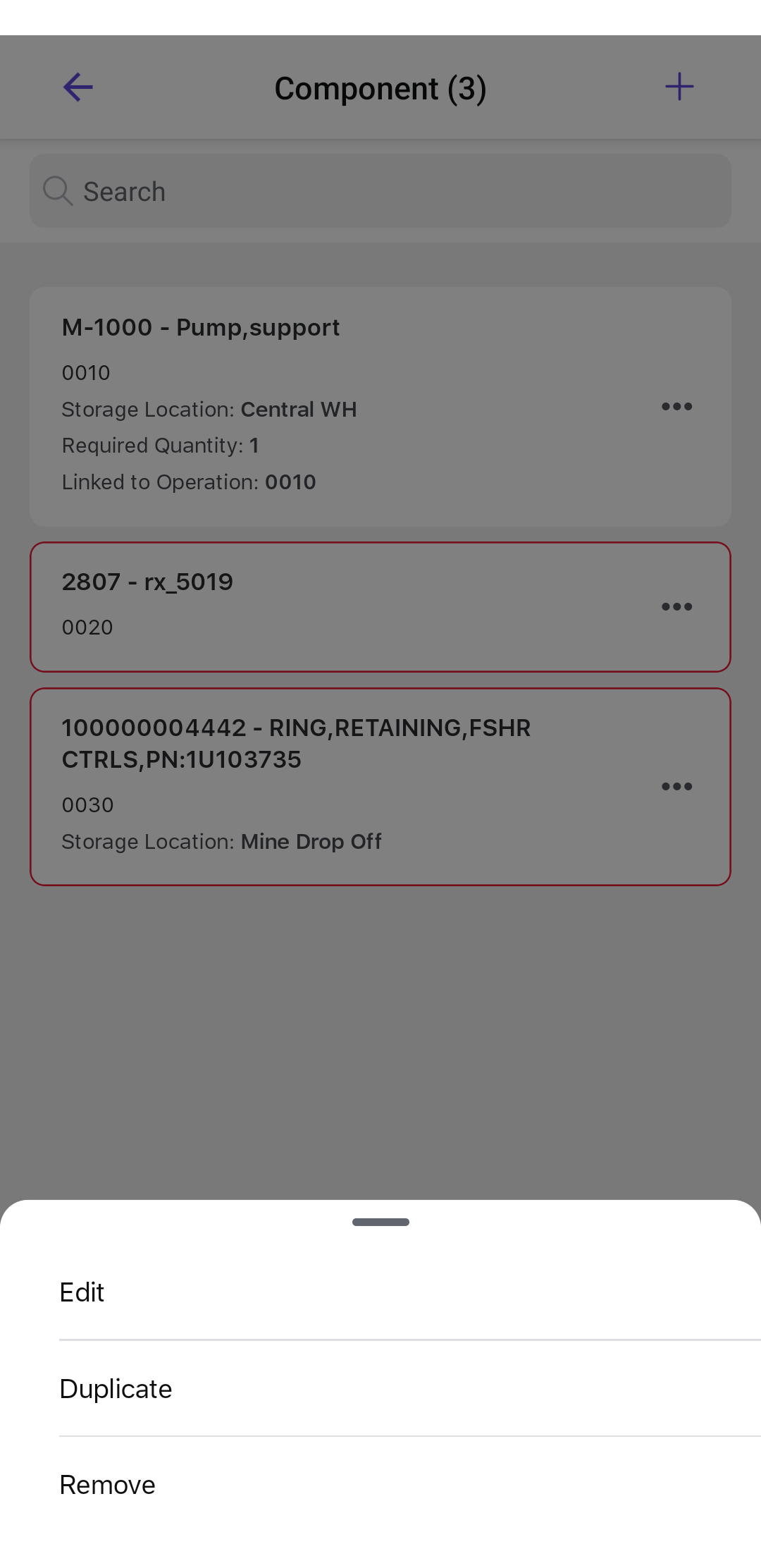
-
In the Component Details screen, change any of the following
details:
- Required Quantity
- MaterialNote:You can scan the barcode or the QR code next to the material to automatically populate the Material Number and Description.
- Unit of Measurement (Automatically populates based on selected Material)
- Category
- Goods Recipient (Records who receives the goods, for tracking purposes)
- Operation NumberNote:The Operation Number gets displayed automatically if the work order contains only one operation.
Figure 5. Edit Component Details 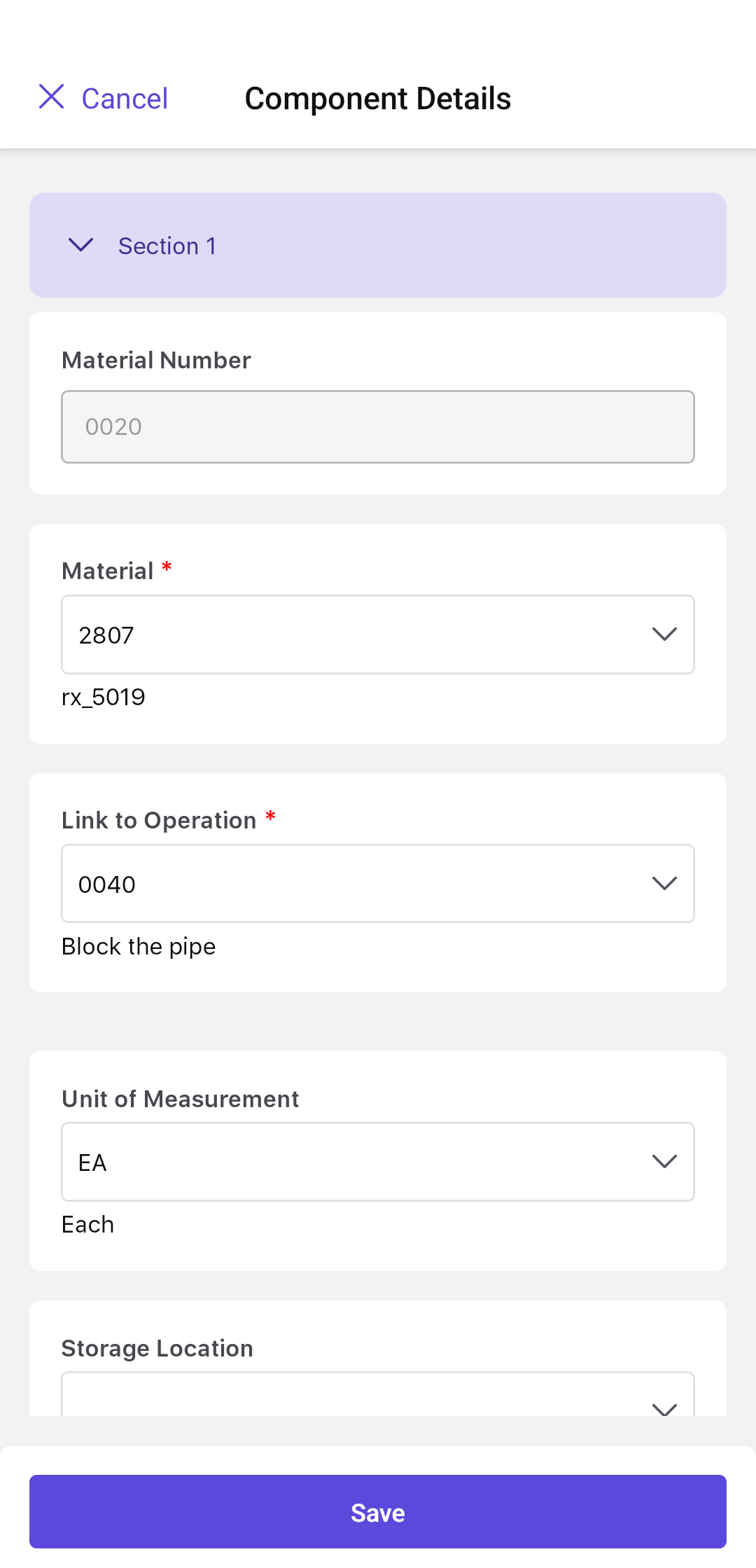
-
Once all the component details are filled in, tap Done.
In the Components screen, you can also tap the More icon next to a component and
select:
- Duplicate to duplicate the component.
- Remove to delete the component.
-
Choose the relevant components from the list in the General,
Equipments, or Functional Locations tab.
The component is added with the selected quantity, operation, and recipient information.
Review material availability, storeroom balances, planned materials, and Asset BOM information while selecting parts.
Next: when the remaining prerequisites are complete, Review Work-Order Readiness.