
Add Sub-Operations
Break down a complex operation into smaller sub-operations for easier tracking.
Sub-Operations divide an Operation into smaller units of work that can be managed, assigned, executed, and confirmed independently. Sub-Operations can be added manually or automatically included when a configured parent Operation is added from a task list.
A Work Order for overhauling an industrial air compressor can contain the
following sub-operations:
-
Operation: Dismantle the Compressor
- Sub-Operation 1: Remove external covers and panels.
- Sub-Operation 2: Disconnect electrical connections.
- Sub-Operation 3: Detach motor and compressor unit.
-
Operation: Inspect and Service Components
- Sub-Operation 1: Check bearings for wear.
- Sub-Operation 2: Inspect and replace seals.
- Sub-Operation 3: Clean and lubricate moving parts.
Adding sub-operations makes complex maintenance tasks easier to manage, execute, and track.
-
In the Operations tab, tap the More
 icon next to the operation and select Add Sub
Operation.
icon next to the operation and select Add Sub
Operation.
Figure 1. Add Sub Operation 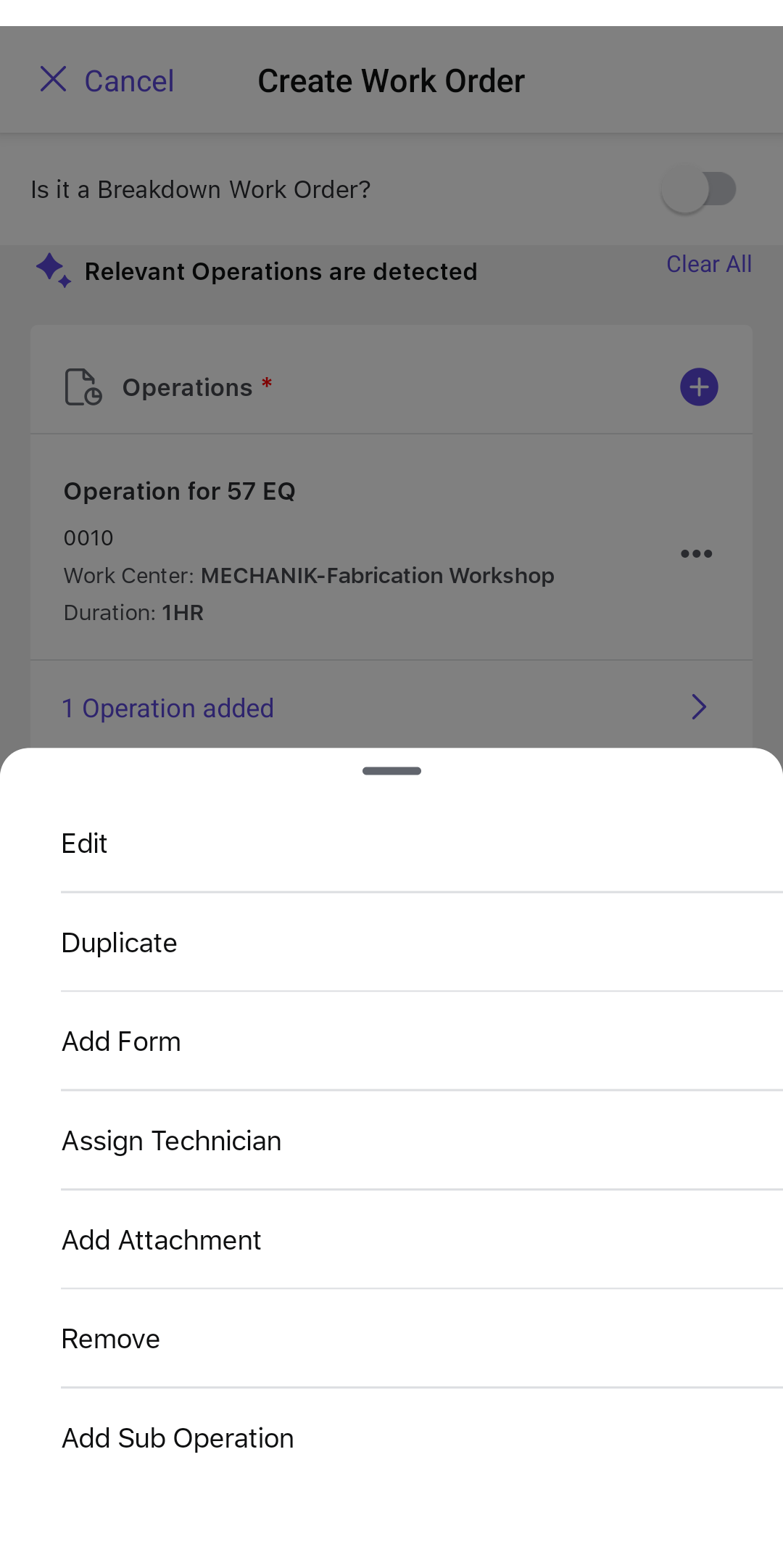
The sub-operation is added under the selected operation.
Next: when the remaining prerequisites are complete, Review Work-Order Readiness.