
Assess Items Using Loose Inventory Audit
Create a Loose Inventory Audit record for batch managed items (Sterile) or for non-batch managed materials (Non-Sterile).
-
Tap the type of Loose Inventory Audit that matches your items:
- To create Loose Inventory Audit for batch managed items: tap Loose Inventory Audit - Sterile.
Figure 1. Loose Inventory Audit for batch managed items 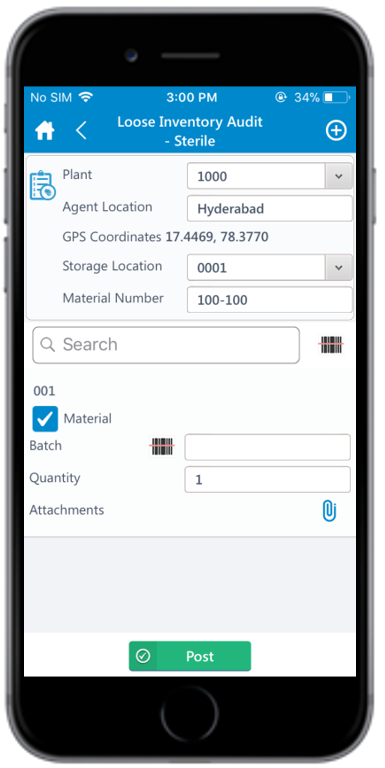
- To create Loose
Inventory Audit for non-batch managed materials: tap Loose Inventory Audit - Non-Sterile.
Figure 2. Loose Inventory Audit for non-batch managed items 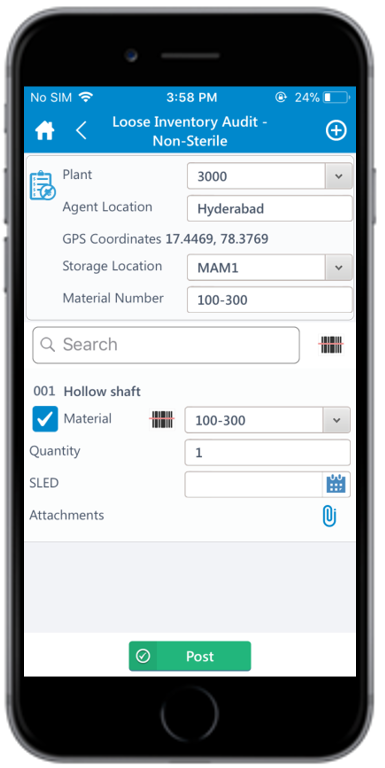
- To create Loose Inventory Audit for batch managed items: tap Loose Inventory Audit - Sterile.
-
In the line items section:
- Select the Material checkbox.
- Enter the Quantity of physical inventory.
- Sterile: Tap the Scan icon to scan the Batch number or tap to enter the Batch number. This is a mandatory field.
- Non-Sterile: Tap the Scan icon to scan the Material number or tap to enter the Material number. This is a mandatory field.
- Tap the Attachment
 icon to add attachments.
 - Tap the Add
 icon to add line items. For Non-Sterile: By default, a line
item is displayed.
icon to add line items. For Non-Sterile: By default, a line
item is displayed.
The Loose Inventory Audit record is created.