
Generate and Print Barcode Labels
Use the Label Printing module to generate and print barcode labels for Outbound Delivery-Handling Unit, Purchase Order/Stock Transport Order, Bin and Return Delivery.
- Enter the values that need to be displayed on the barcode label such as PO#, Material#, Batch#, and so on.
- Select a field for which the barcode label should be generated.
- Configure these parameters for a label using RACE:
- Barcode Type
- Barcode Position
- Elements of Barcodes
- No. of Labels
- Orientation (landscape)
- Configure screen and fields using RACE to print custom labels like Material Label. See RACE configurations for mInventory Guide.
To print barcode labels:
-
Select the Label Type:
Table 1. Label Types Name Description OD-HU Label Printing Outbound Delivery-Handling Unit PO/STO Label Printing Purchase Order/Stock Transport Order Bin Label Printing Bin Label Printing RO Label Printing Return Delivery Material Label Printing Material Label Printing Figure 1. Label Printing Details 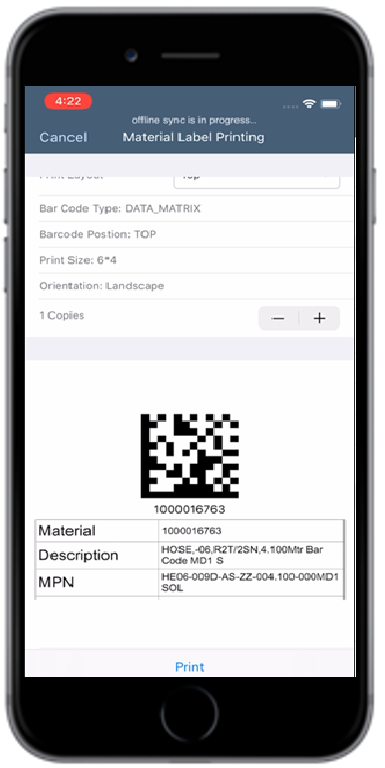
-
Enter these print parameters:
- Print Layout: Tap the drop-down to select the print layout, such as Top, Right, Left, and Bottom.
- Barcode Type: This field is auto-populated and grayed out.Note:You can configure Barcodes like GS1, QR Code, and Data Matrix using RACE™. See, Configure mInventory using RACE™ guide for details
- Barcode Position: This field is auto-populated and grayed out.
- Print Size: A standard print size, as per RACE configuration, is displayed. This field is auto-populated and grayed out.
- Orientation: This field is auto-populated with a value Landscape and grayed out, as per RACE configuration.
- Copies: Tap the
 icon to modify the number of copies to
print.
icon to modify the number of copies to
print.