
Transfer Stock Within Warehouse

Transfer stock from one bin to another in a warehouse, in Foreground or Background mode.

You can transfer stock from one bin to another in a Warehouse using the following ways:

  • Foreground: Record stock transfer when you do an actual transfer of the material from one bin to another within a storage location.
  • Background: When you want to move the stock, specify the material quantity that needs to be moved. The system then checks the bin that can accommodate the material quantity and allocates it to a specific bin.
Note:
A stock type indicator is displayed when stock exists in different stock types (Unrestricted, Quality Inspection, or Blocked) within the same or different bins.

Follow steps 1 to 9 for Foreground mode or steps 10 to 18 for Background mode.

Foreground: To record stock transfer from one Bin to another (Foreground Transfer):
  1. In the Home screen, tap Transfer Posting/Stock Transfer.
  2. Tap Bin to Bin.
  3. Enter the search criterion such as the Warehouse Number, Storage Bin, and Material Number.
    Figure 1. Bin to Bin Search Screen
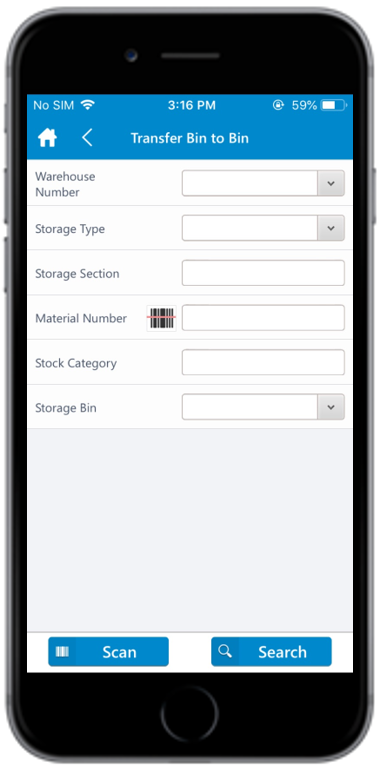
    Bin to Bin Search Screen

  4. Tap Search.
    Tap Scan to scan the barcode based on the dynamic combo string. On scanning, you are navigated to the posting screen wherein you can edit or post the data. This feature can be configured using RACE.
  5. In the Bin to Bin screen, tap on the Foreground tab.
    You can sort and filter the records. For more information, see Sort Records and Filter Records.
  6. Select the line item checkboxes corresponding to the storage bins.

    You can deselect the checkboxes which are not required.

    Figure 2. Storage Bins in Warehouse (Foreground)
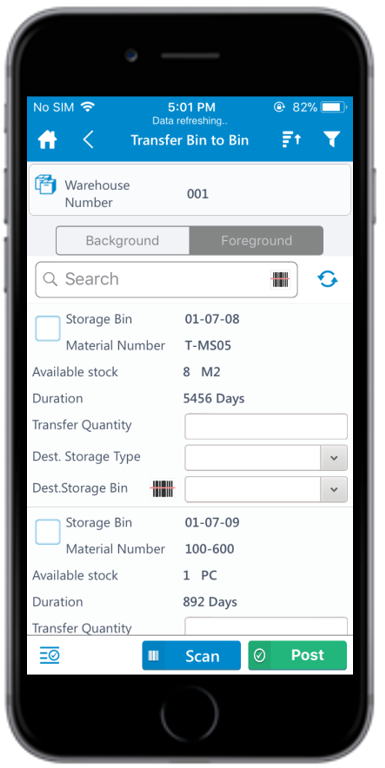
    Storage Bins in Warehouse (Foreground)

    Note:
    The checkbox corresponding to the storage bins is selected/checked automatically, if the SINGLERECORDSELECTION is set to true in RACE.
  7. Enter this information:
    • Transfer Quantity: Tap to enter the amount of material that must be transferred.
    • Dest. Storage Type: Tap to select the destination storage type.
    • Dest. Storage Bin: Tap to select the storage bin to which the stock is transferred. When you scan the Destination Storage Bin, the corresponding Destination Storage Type is auto-populated (only if one storage type is defined for that bin).
    • UoM: Tap to add the UoM (Unit of Measurement).
  8. Tap Confirm.
    A message appears asking whether you want to post the transfer order.
  9. Tap OK.
    A message appears confirming that the transfer order is successfully posted.
Background: To record transfer order for moving from one Bin to another (Background Transfer):
  1. In the Home screen, tap Transfer Postings.
  2. Tap Bin to Bin.
  3. Enter the search criterion such as the Warehouse Number, Storage Bin and Material Number.
    Figure 3. Bin to Bin Search Screen

    Bin to Bin Search Screen

  4. Tap Search.
    Tap Scan to scan the barcode based on the dynamic combo string. On scanning, you are navigated to the posting screen wherein you can edit or post the data. This feature can be configured using RACE.
  5. In the Bin to Bin screen, tap on the Background tab.
    You can sort and filter the records. For more information, see Sort Records and Filter Records.
  6. Tap the checkbox corresponding to the storage bins.
    Note:
    The checkbox corresponding to the storage bins is selected/checked automatically if the SINGLERECORDSELECTION is set to true in RACE.
  7. Enter this information:
    • Batch: Tap to enter the batch.
    • Alternate UoM: Tap to edit or tap the drop-down to select the Alternate Unit of Measure from the list.
    • Transfer Quantity: Tap to enter the quantity to be transferred.
    • Src. Storage Type: Tap to select the storage type of the source.
    • Storage Section: Tap to select the storage section.
  8. Tap Post.
    A message appears asking whether you want to post the transfer order.
  9. Tap OK.
    A message appears confirming that the transfer order is successfully posted.

The transfer order for the bin-to-bin transfer is posted.