
Spare Parts Control Center
The Spare Parts Control Center (SPCC) is one of six modules in the Connected Back Office (CBO) application. It is integrated with the mInventory application and helps you track material or pick-list status and assign pick-lists to technicians.
As a Supervisor or Manager, you use SPCC to manage upcoming work orders and spare parts needs, and to track the kitting status of all work orders so maintenance teams receive the right parts at the right time.
Once a work order is created in the mWorkOrder application, it is displayed in SPCC with a Kits Required status. You then assign a picker to a technician and notify them when material is ready for pick up. The technician picks up the required material or spare parts using the mInventory application.
This feature helps you assign tasks remotely, make better inventory planning decisions, gain better visibility of spare parts, and decrease inventory carrying costs.
A Breakdown/Emergency filter is also available to help you quickly identify and prioritize breakdown work orders separately from the standard picking queue. Breakdown requests are identified by SAP work order type and can be configured according to the requirement.
- Click the Spare Parts Control Center module in the left-side pane.
- Click the Hamburger menu at the top-left of the screen.
- Click the Expand icon to see sub-modules.
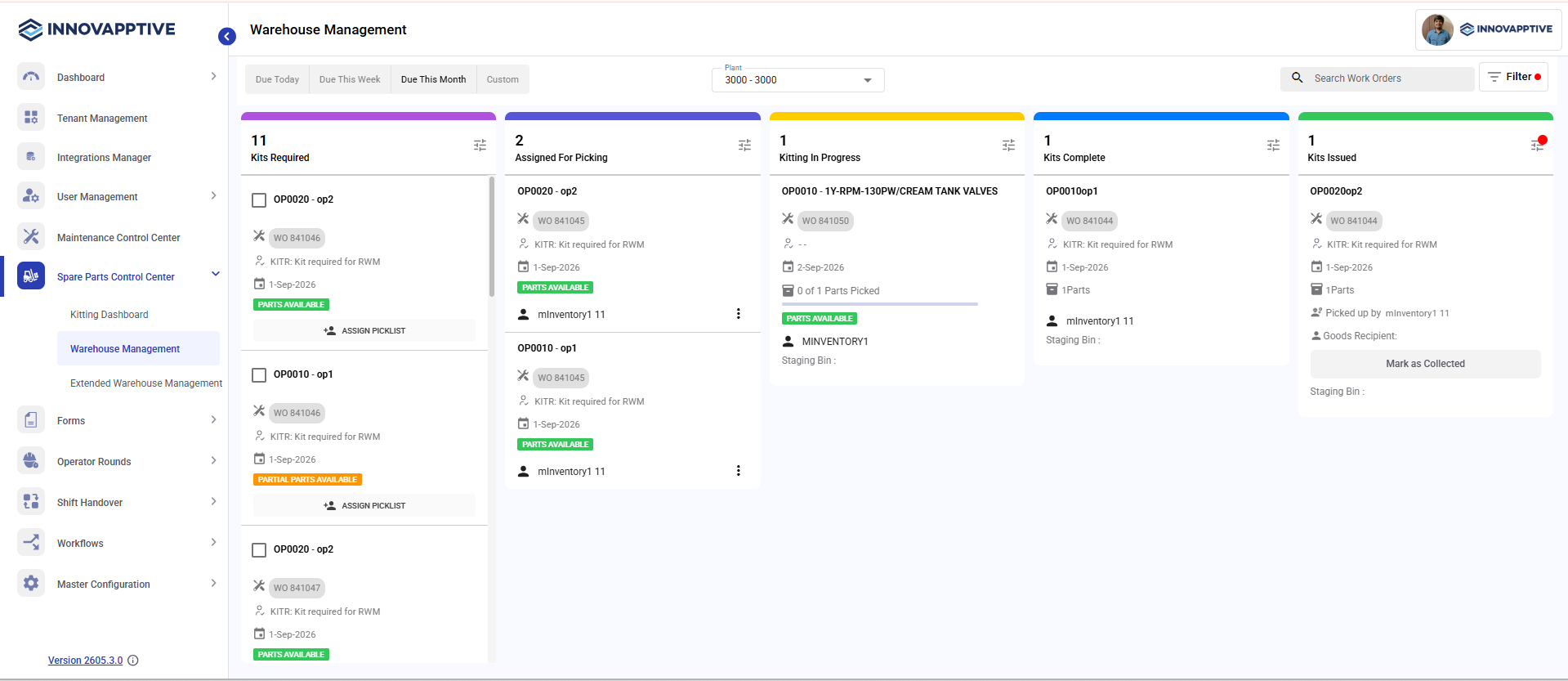
SPCC Status Stages
| Status | Meaning |
|---|---|
| Kits Required | Displayed when a work order is created and released. |
| Assigned for Picking | Displayed when a picker is assigned to a technician to pick material/spare parts; ready for picking. |
| Kitting In Progress | Displayed when material is partially staged or picked in the Kitting module of mInventory (e.g., 2 of 5 items staged). |
| Kits Complete | Displayed when all required material or spare parts have been staged or picked in mInventory. |
| Kits Issued | Displayed when the items are issued / goods issue is completed. |
Capabilities within SPCC
- View work orders using the Search Work Orders bar.
- Filter work orders using the Filter icon.
- View work orders using date filters: Due Today, Due This Week, Due This Month, or Custom.
- Filter work orders based on Plants and Work Centers.
- View work order priority: Very High, High, Medium, and Low.
- View Kitting Status: Waiting on Parts, Parts Available, and Kit Ready.
- View the work order released-to date.
- View the number of materials or parts staged or picked.
- Assign a picklist to technicians to pick up materials for the work order.