
Create JHA Template
This section explains how to create and configure a Job Hazard Analysis (JHA) template in iPermits, including defining job steps, hazards, control measures, and PDF output.
Create JHA Template:
- Expand the EHS module and click Authoring.
-
Go to the JHA tab.
The JHA tab is displayed with a list of JHA templates.
-
Click the Create Manually button at the top right.
Figure 1. JHA Template 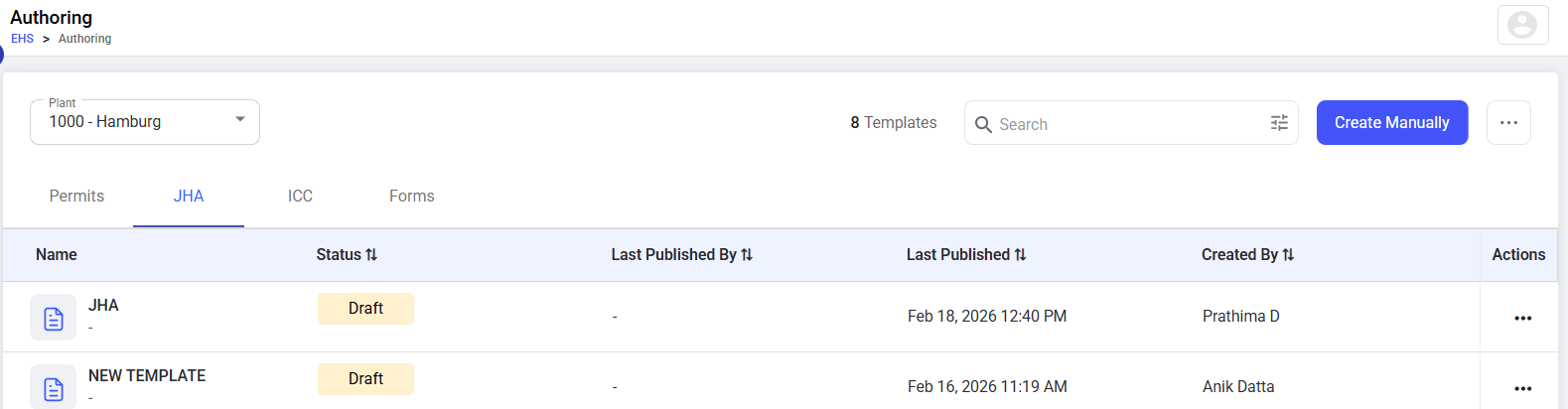
-
In the Template Details screen, provide the following information:
Field Description Template Name Enter a unique name for the JHA template Template Description Describe the purpose of the JHA template. Plant Select the applicable plant. Tags Add tags to categorize the JHA template for easy search and filtering. JHA Questions Select or configure the standard JHA questions to be included in this template. Additional Forms Select any additional forms (for example, inspection or acknowledgement forms) that must be completed along with the JHA. -
Click Next.
Figure 2. JHA Template Details 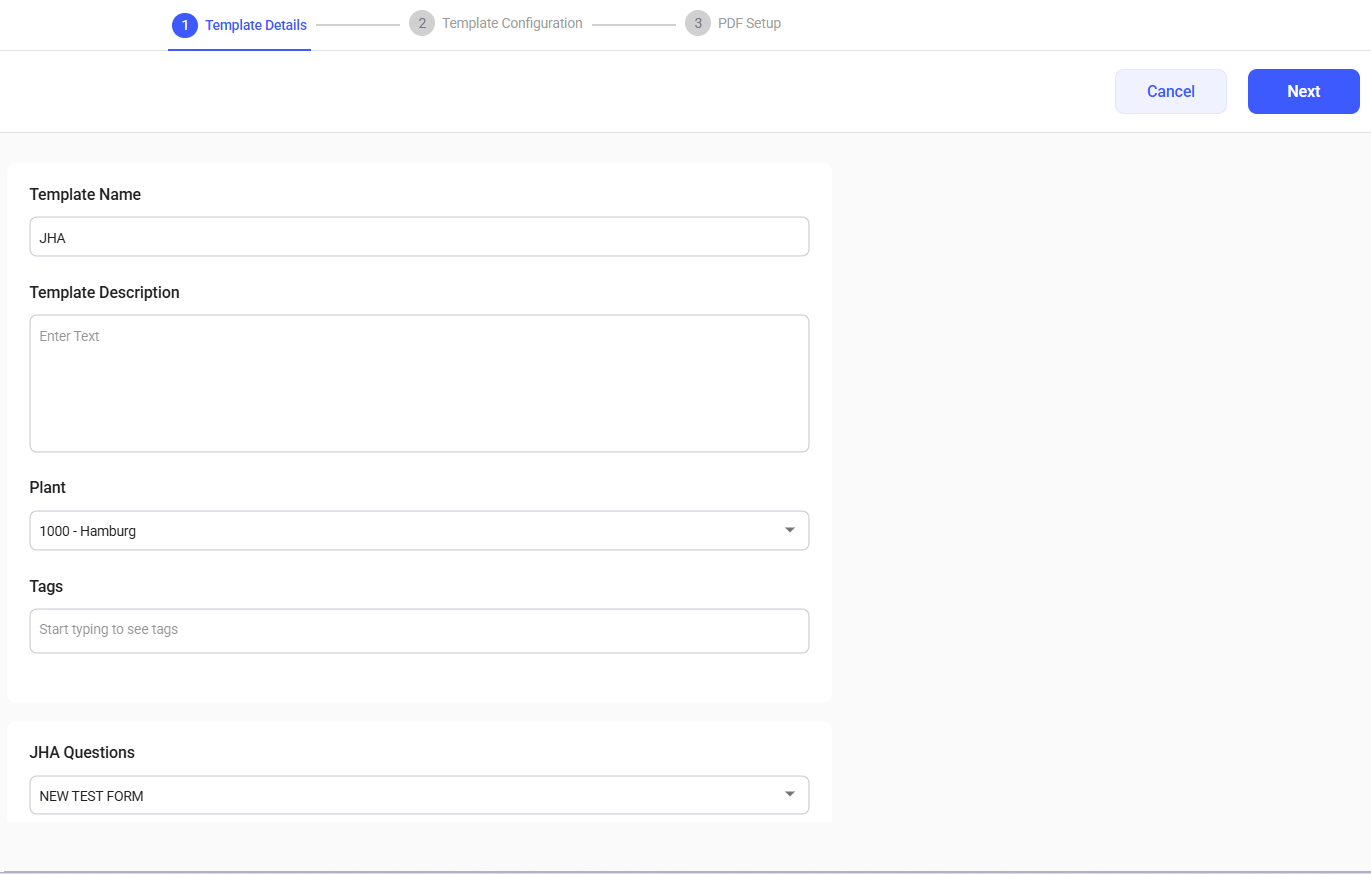
-
In the Template Configuration screen:
- Define the job steps in the JHA table.
- Configure sections such as Potential Hazards, Control Measures, and Risk Assessment.
- Add fields (questions) within each section as required.
- Select appropriate response types (Text, Number, Multiple Choice, Pick List, etc.).
- (Optional) Configure Equipment, Training, and Inspection sections to capture surrounding or related risks.
- (Optional) Configure Attachments and Notes for each step to allow field users to add photos and observations.
- Click Preview to see how the JHA template appears in both web and mobile applications.
- Click Next.
Figure 3. JHA Template Configuration 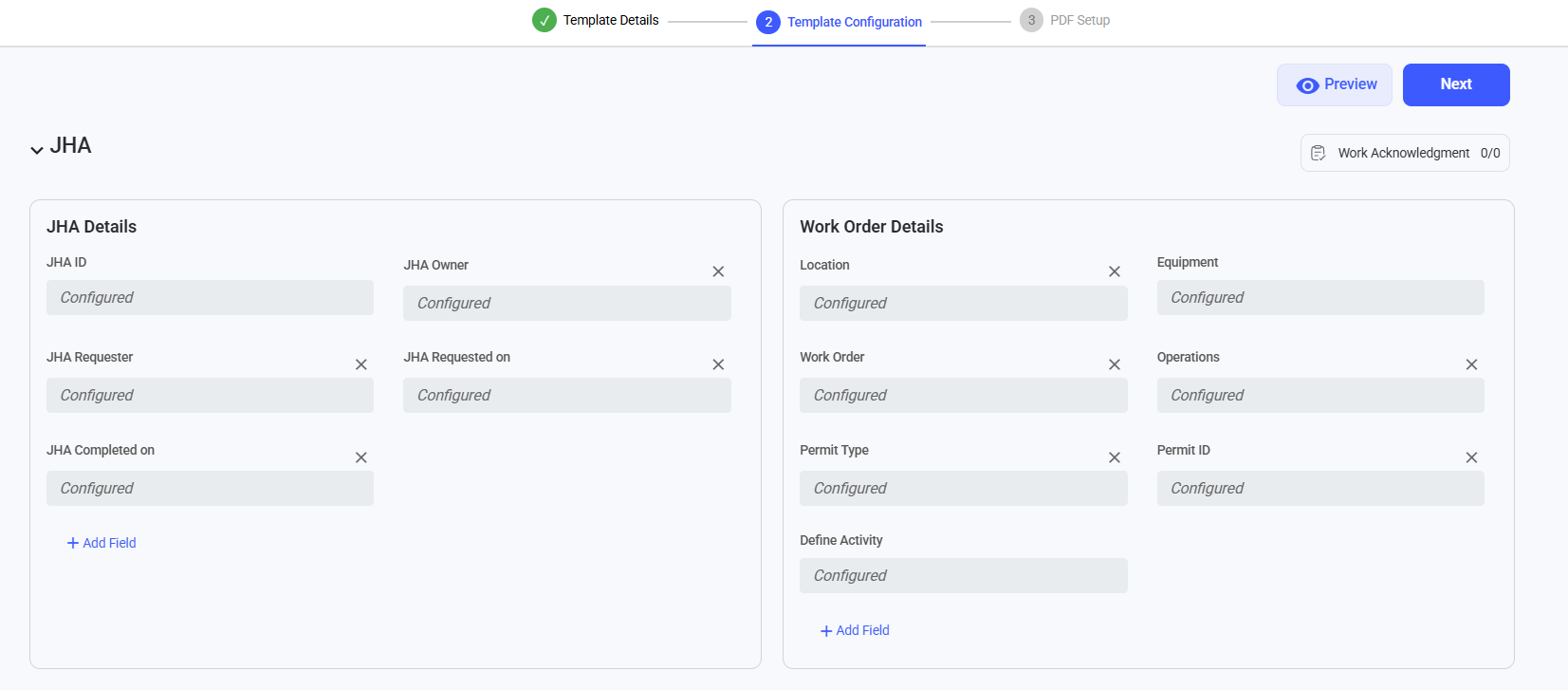
- Configure Fields within a Section:
- Click the pencil (edit) icon in the respective column to configure fields.
- Add new fields or edit exsiting fields.
- Select the appropriate Response Type, such as: Text, Number, Pick List (Single Select or Multi-Select).
Figure 4. JHA Template Field Configuration 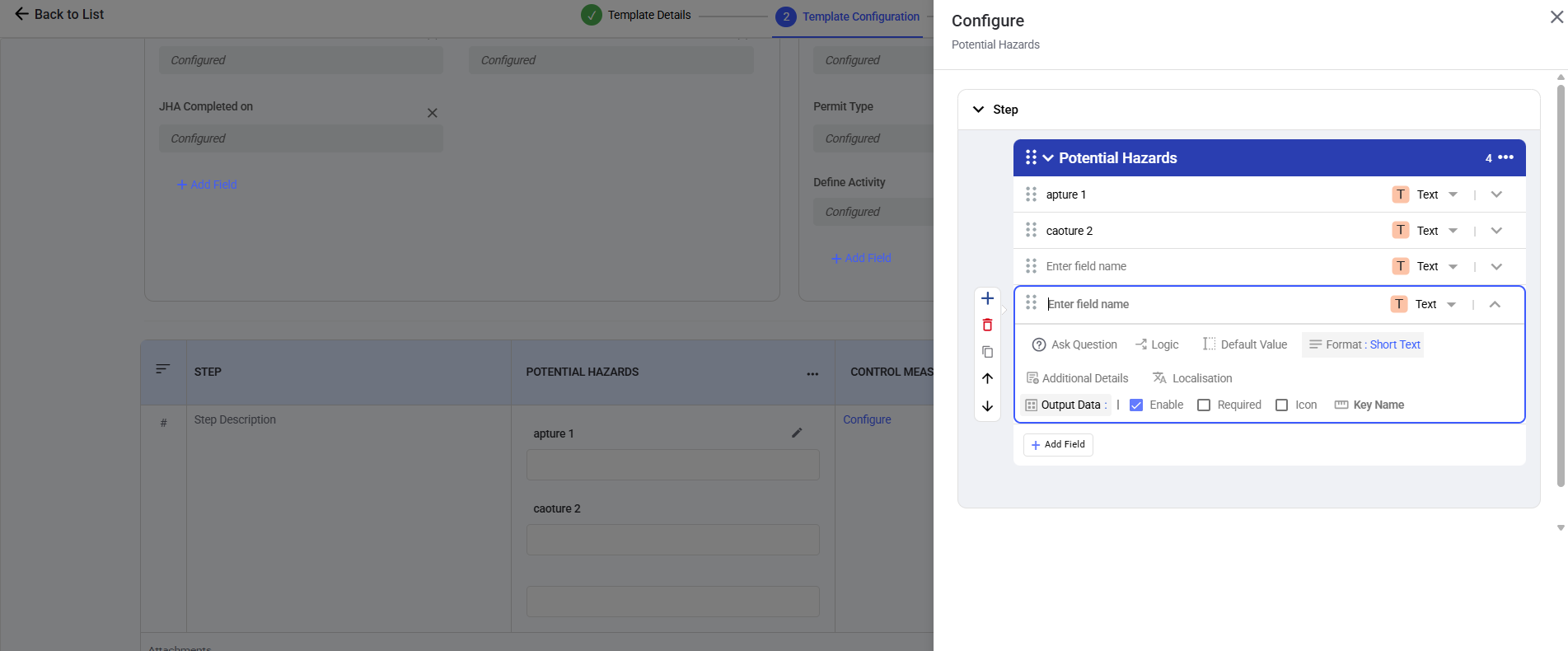
- In the PDF Setup screen, configure the PDF layout as required.
-
Click Publish.
Note:You can configure the PDF from the left pane to control what information appears in the exported document, such as Logo, QR code, Header, Footer, and Body Content.