
Prepare the Issue Form for Gensuite
Add the ROC fields and Generate Gensuite Report switch to the plant's Issue form.
The Issue form of each plant must hold every field the integration sends. The example below shows one plant's form; your form can have other fields.
- In the General section, make sure the form has the fields the integration sends, including the custom ROC fields.
General section field Type Title Text Answer Description Text Answer Task Text Answer Round Text Answer Attachments Attachments Category Category Priority Priority Type of ROC Dropdown ROC - Unit Dropdown ROC - Status Dropdown ROC - Closure Comment Text Answer ROC - Closure Date Date & Time Fields with a lock icon are standard mRounds fields. The ROC fields are custom fields added for Gensuite.
Figure 1. General section of the Issue form, with the phone preview (plant masked) 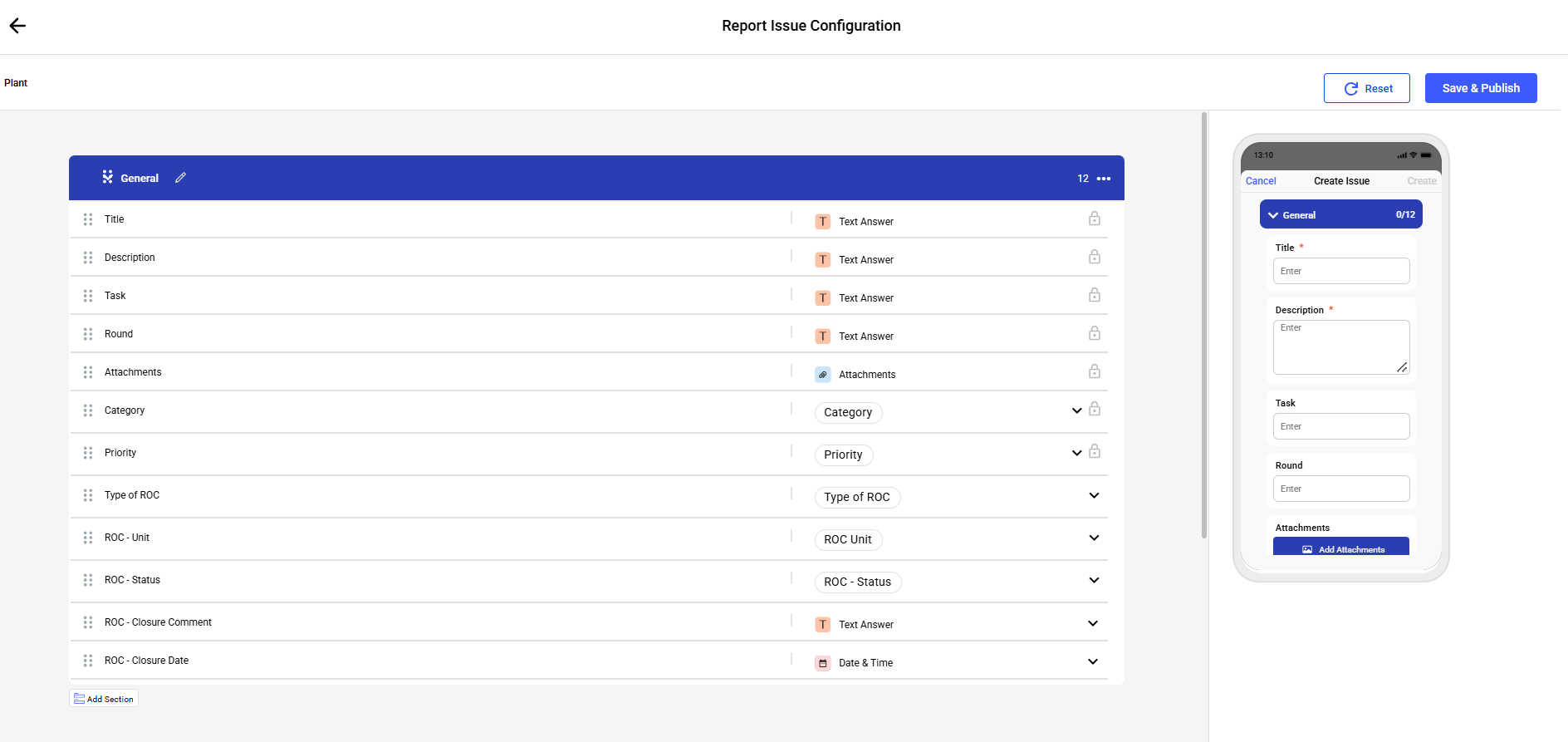
- In the More Details section, add the Generate Gensuite Report field as a Switch.
More Details section field Type Plant Plant Unit Unit Location Location Asset Asset Assign to Assign to Start Date and Time Date & Time Due Date and Time Date & Time Status Status Work Order Read Only Field Generate Gensuite Report Switch Leave Required cleared and set Field Permissions to None. To show the switch only for certain Categories or ROC types, use Add Logic.
Figure 2. More Details section with the Generate Gensuite Report switch (plant masked) 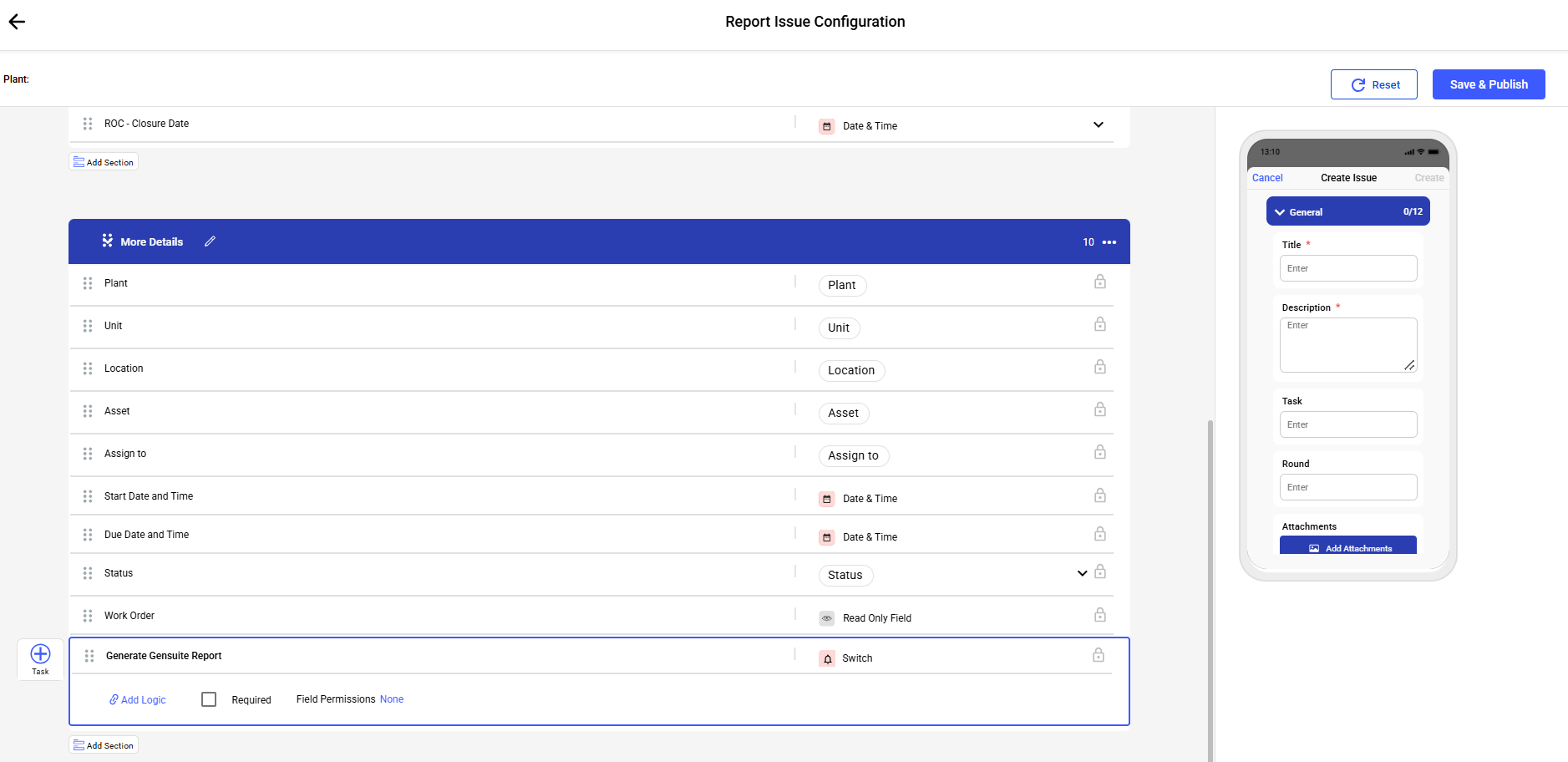
Description is required on the form; it is a separate field from Title, which maps to the Gensuite Description field.