Save the customer's Gensuite credentials and API endpoints in a reusable tenant connection.
The connection stores the Gensuite credentials once. Every Gensuite integration on the tenant uses it; you do not need a connection for each plant.
- Click Integrations Manager in the left navigation.
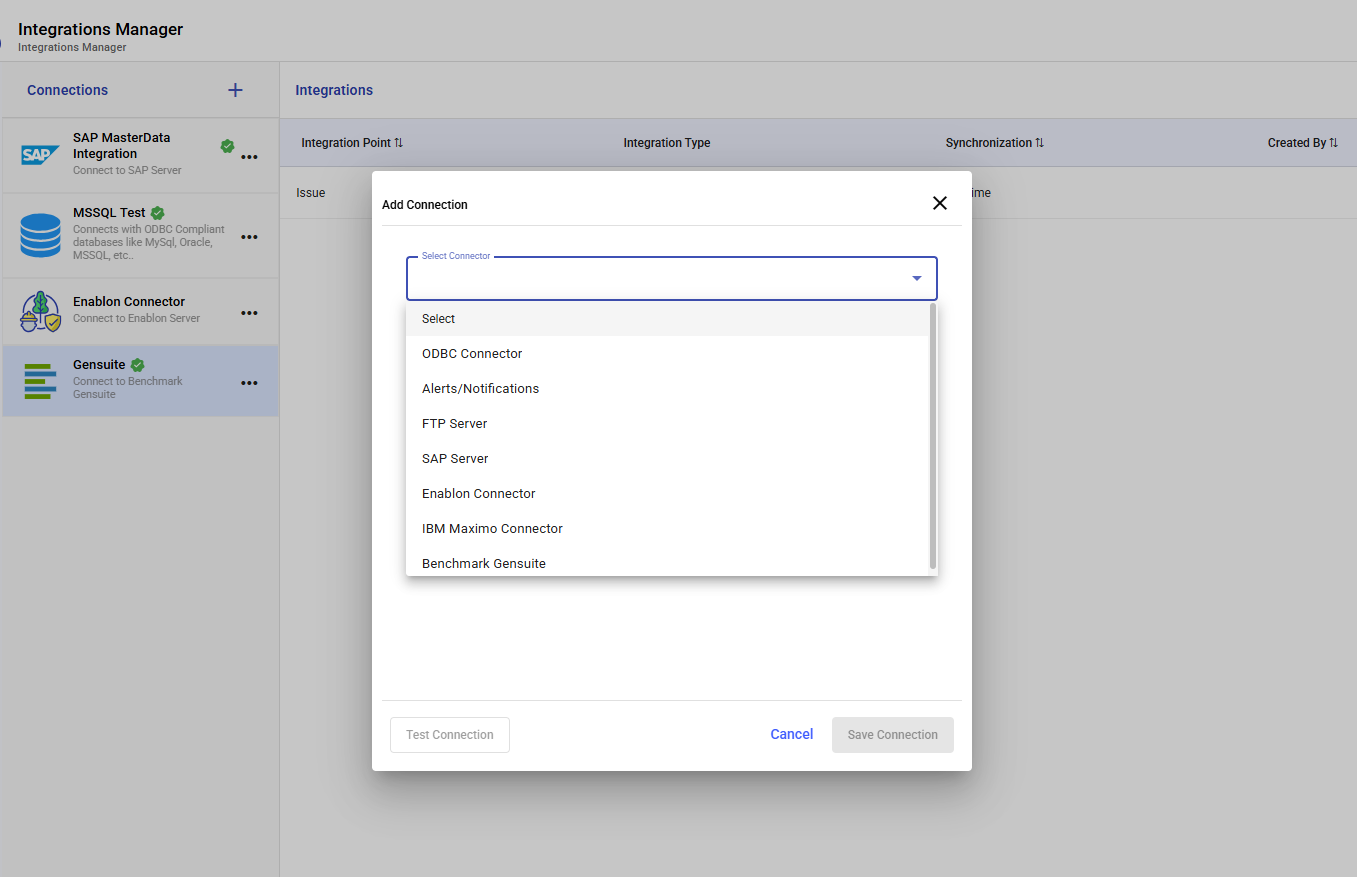
- In the Connections panel, click +.
- In Add Connection, select Benchmark Gensuite from Select Connector.
Figure 1. Benchmark Gensuite in the Select Connector list
- Fill in the connection fields.
| Field | Value |
|---|
| Select Connector | Benchmark Gensuite |
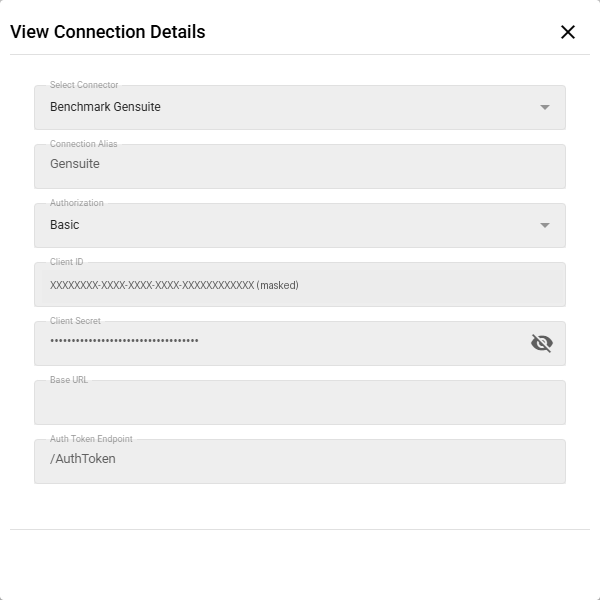
| Connection Alias | A display name for the Connections list, for example Gensuite |
| Authorization | Basic |
| Client ID | Customer-issued ID |
| Client Secret | Customer-issued secret (masked; use the eye icon to check it) |
| Base URL | Customer tenant API base URL, with no trailing slash, for example https://<customer-host>/apiv1 |
| Auth Token Endpoint | /AuthToken (appended to the Base URL) |
Keep the Client ID and Client Secret within the project team.
- Click Test Connection. Continue only when the test succeeds.
- Click Save Connection.
The connection appears in the Connections list (for example, Gensuite – Connect to Benchmark Gensuite) with a green check.
To review a saved connection, click the More icon (…) on the Gensuite card and select View. View Connection Details shows the fields read-only.
Figure 2. View Connection Details for a Gensuite connection (Client ID and Base URL masked)