You can create physical inventory documents and execute blind count at warehouse
storage bin level to maintain accuracy of the warehouse stock. Take the count and cross
check with the system quantity for a given storage bin material later.
Note:
The system will automatically check an item once the quantity
is entered or when a zero count is selected.
To execute blind
count:
In the Home screen, tap Cycle Counting.
Tap WM Blind Count.
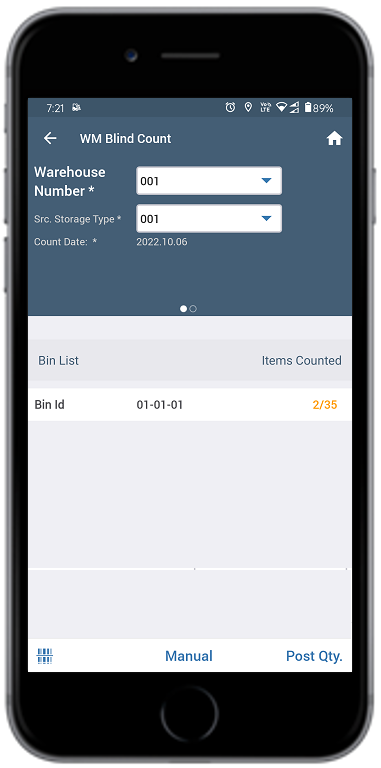
Enter the search criterion like Warehouse Number and Src. Storage
Type.
Tap Manual to enter the bin number manually.
Or tap the Scan icon to scan the bins.
Figure 1. Blind Counting Inventory
Enter / scan the bin number in the Enter Bin Number pop-up.
Tap OK.
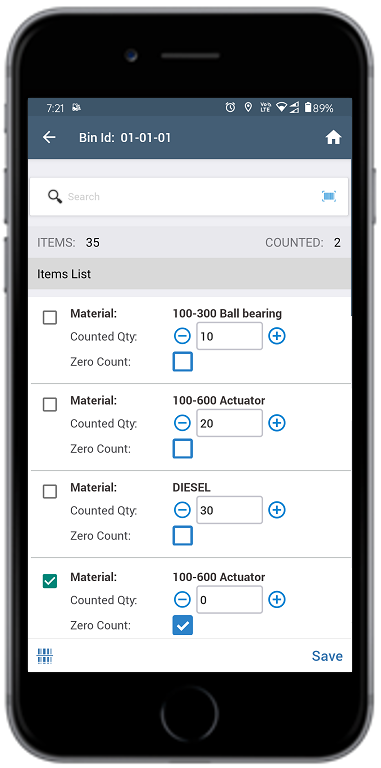
You can see the material that is available in the selected bin.
Enter the required quantity in the Count Qty field.
Or select the Zero Count checkbox if the quantity is zero.
Figure 2. Enter Quantity
Tap to add the Unit of Measurement (UoM).
Tap Save.
Tap Post Qty next to the Manual button.
A message appears confirming that the Inventory Document is created
successfully and you can see the bin with counted items.
You can sort inventory records based on custom bins while performing blind
counts, cycle counts, and inventory adjustments.
Note:
To
delete the bin, swipe left on the bin and tap the Delete icon.
An inventory document is created with the counted items for the bin.