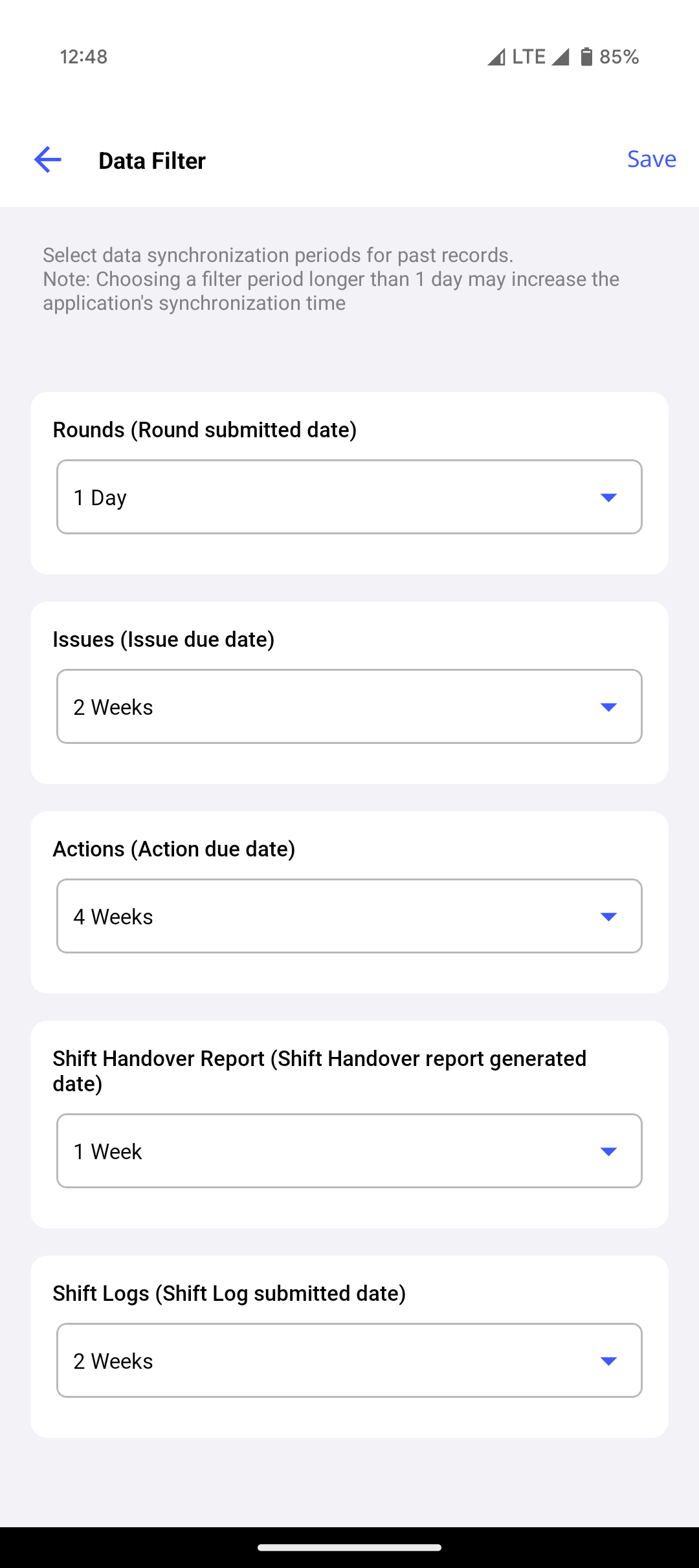
Set how far back Rounds, Issues, Actions, Shift Handover Reports, and Shift Logs are downloaded, and whether task reading history comes with them.
These filters control how much history is downloaded to the device.
-
In the User Preferences screen, open the Data Filter screen.
-
Open the dropdown next to a field — Rounds, Issues, Actions, Shift Handover Report,
or Shift Logs — and choose the range you need.
The available ranges are 1 Day, 1 Week, 2 Weeks, and 4 Weeks.
Note: Anything longer than 1 Day increases the data downloaded to
your device and lengthens synchronization time. Use longer ranges only when you need
to review extended historical records.
-
Repeat for each field you want to filter.
-
Tap Save.
The app applies the filter settings and returns to the User Preferences screen.
-
Switch on Sync Task Reading History to bring down the last N
task readings.
This is what makes previous readings visible under
Exceptions on a numeric task while you are executing a round.
Without it, you see the current value and nothing to compare it against.
-
Tap Save.
The app synchronizes using the ranges you set. Records outside those ranges stay on the
server and are not downloaded.
Next: Check what is waiting to synchronize before you go somewhere without
signal. See Review and Sync the Outbox.