
Update User Preferences
Update Plant, Unit, Position, or Shift when your work context changes. The selected values determine which relevant data synchronizes to the device.
Note:
You can choose preferences for the Plant, Unit,
Position, or Shift only when you are assigned to multiple plants, units,
positions, or shifts. If you are assigned to one plant, unit, position, or
shift, the option is grayed out and the Unit, Position, and Shift values are
displayed based on the selected Plant.
To select or change a plant:
-
Select a Shift from the dropdown list.
Note:The Shift dropdown automatically updates based on your Plant, Unit, and Position selections.
- If only Plant is selected, the dropdown shows Plant-level shifts.
- If Plant and Unit are selected, the dropdown shows the Unit's shifts. If the Unit does not have custom shifts, Plant-level shifts are shown.
- If Plant, Unit, and Position are selected, the dropdown shows the Position's shifts. If the Position does not have custom shifts, Plant-level shifts are shown.
Figure 1. Select Plant 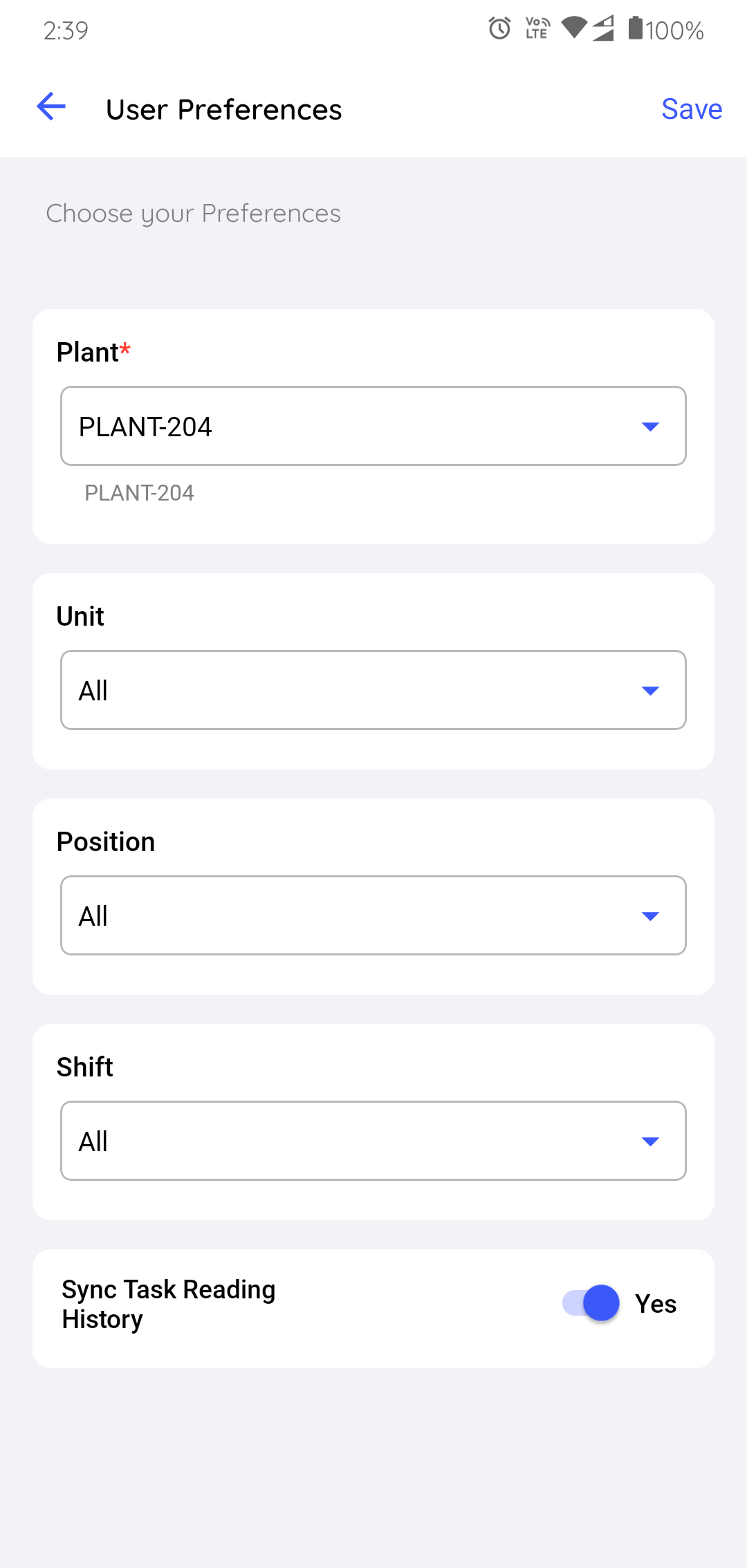
In the Data Filter screen, you can:
Figure 2. Data Filter 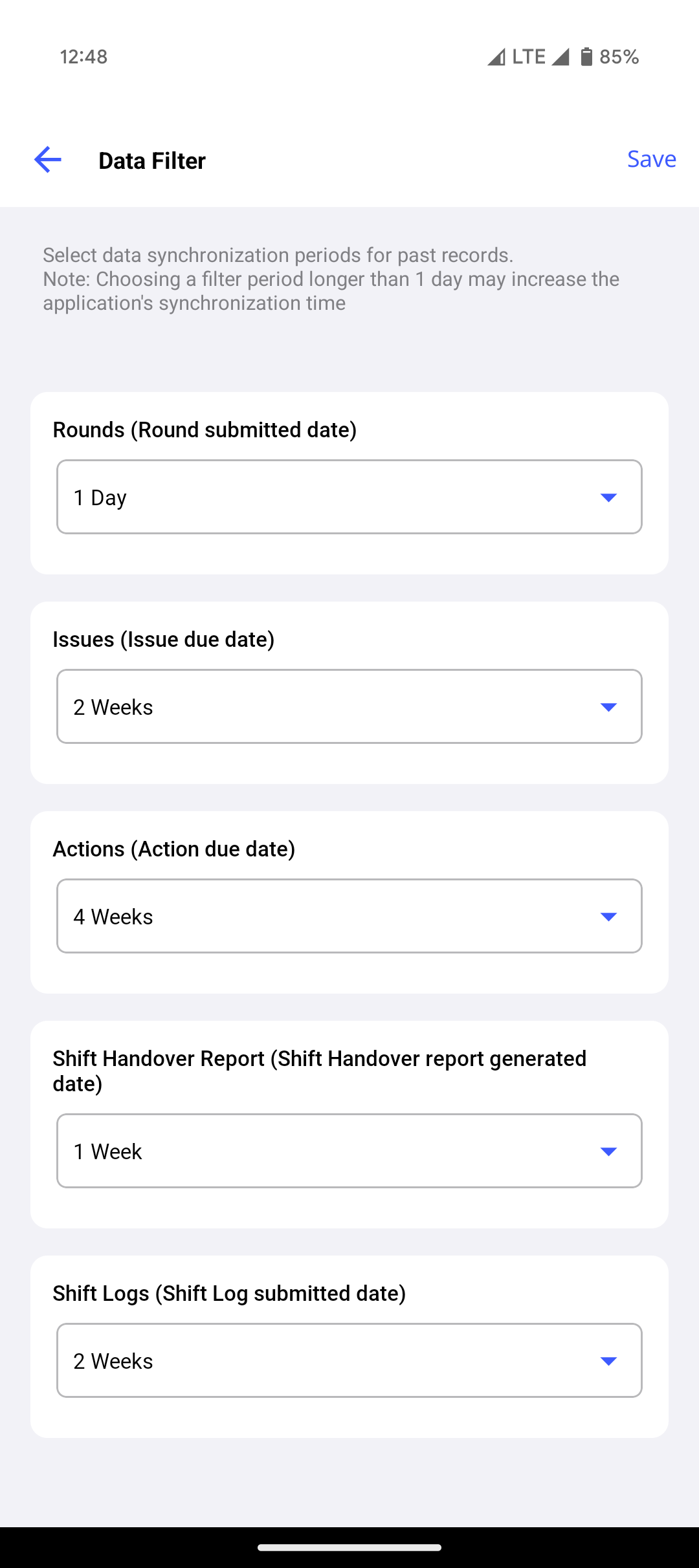
- Access filter options for fields such as Rounds, Issues, Actions, Shift Handover Report, and Shift Logs.
- Locate the drop-down menu next to each field to modify the filters.
- Tap the drop-down to view the available selection options.
- Choose the preferred range (e.g., 1 Day, 1 Week, 2 Weeks, and 4 Weeks).
- Selecting a date range longer than 1 Day (for example, 1 Week, 2 Weeks, or 4 Weeks) increases the amount of data downloaded to your device and will increase the application's synchronization time. Use longer ranges only when you need to review extended historical records.
- Repeat this process for each field that requires filtering.
- Once all selections are made, tap the Save button in the top right corner.
- The app applies the chosen filter settings and automatically returns to the User Preferences screen.
The application saves the preferences and synchronizes data for the selected Plant, Unit, Position, and Shift.
Related task: Find Your Way Around the App