
Find Your Way Around the App
Use the Home, Rounds, Issues, Actions, and More screens to find assigned work, track progress, report findings, and complete shift activities.
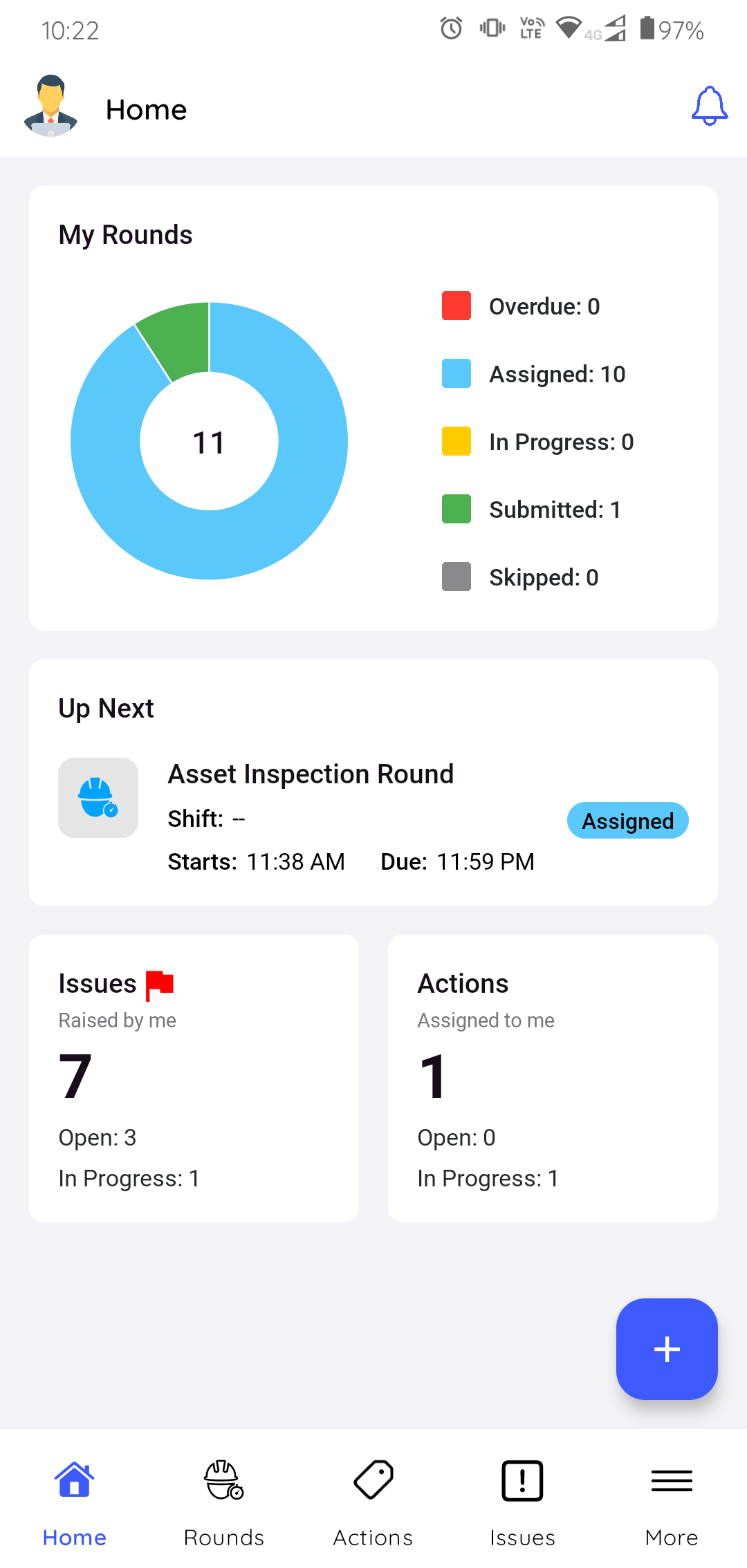
Home: a quick overview of your day. See your rounds by status
(Overdue, Assigned, In Progress, Submitted, Skipped), a progress bar for each round, and
the total Issues and Actions assigned to you. Tap the  icon here to create a new Issue, Action, or Shift Log.
Rounds: has My Rounds (rounds assigned to you) and Open Rounds (unassigned rounds you can claim). See Assign an Open Round to Yourself and Start a Round and Follow the Route.
In My Rounds, use search and filters to find work by Due Date or Status. For an overdue round, open the round, tap the More icon, and select Overdue Reason. If your supervisor configured buffer time, you can complete and submit the round after its due time while that buffer remains available.
Issues and Actions: each has a My tab and an Open tab, for items assigned to you and unassigned items you can pick up. See Create and Manage Issues and Create and Manage Actions.
More: Shift Handover Reports and Shift Logs. See Accept the Shift Handover Report and Log Shift Activities.
After reviewing the screens and your assigned work, continue to Find and Claim Your Rounds or open an assigned round and begin execution.