
Accept the Shift Handover Report
Review and accept the previous shift’s handover before starting rounds. The report gives you the open work, exceptions, notes, and attachments that may affect your shift.
Sign in to the app. If the previous operator shared this device with you, see Hand Over a Shared Device to the Next Operator first.
When and why: Do this at the start of every shift, before executing any round. Accepting the handover confirms you take ownership of any unresolved work from the previous shift.
To review and accept the report:
-
On the Home screen, tap View &
Accept.
Or, tap Shift Handover Reports in the More screen to see the list of reports.
Figure 1. Shift Handover Reports 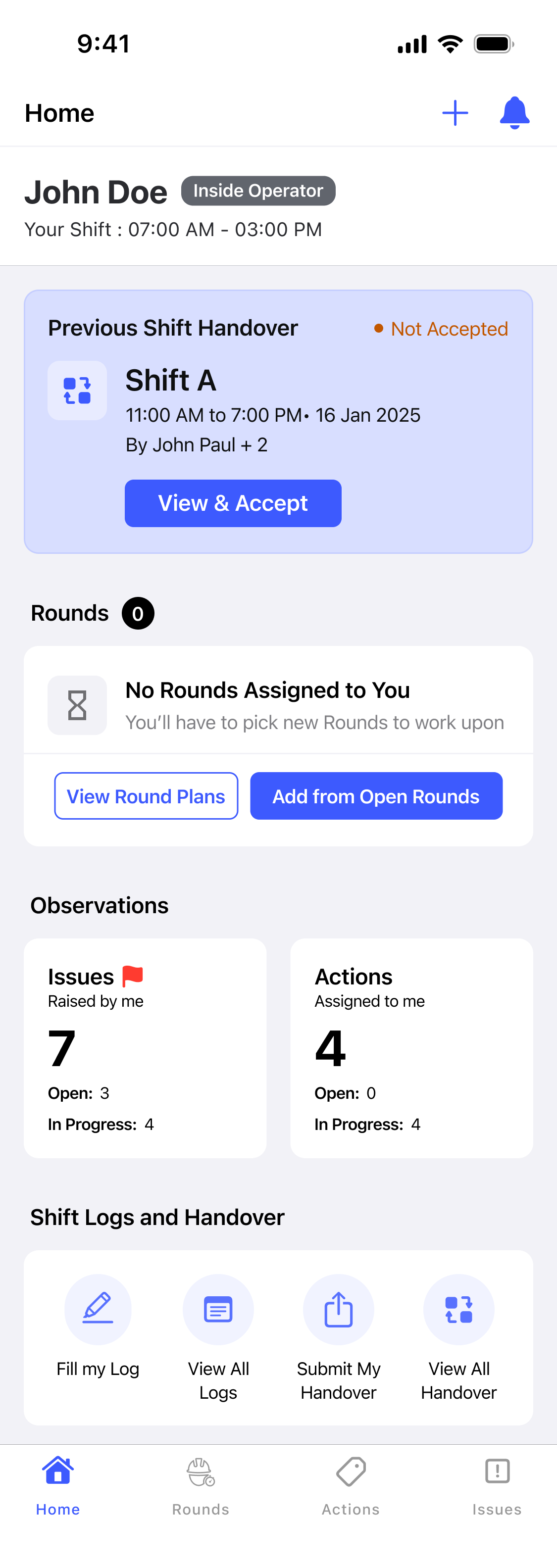
-
Review the report contents.
The Shift Handover Report screen shows:
- Unit or Plant: the unit or plant the report covers.
- Outgoing Supervisor: the supervisor shown as the report generator.
- Round Compliance: percentage compliant, with Total, Submitted, Overdue, and Skipped round counts.
- Task Compliance: percentage compliant, with Total, Completed, Open, and Skipped task counts.
- Issues Pending and Actions Pending: tap either to review each item individually.
- Exceptions Found: tap to see Round Name, Asset/Location Name, Range (if configured), and any Warning, Alert, or Note recorded against out-of-range readings.
- Notes and Shift Logs: notes and log entries from the previous shift.
- Supervisor Notes and Standing Instructions: guidance passed down by the supervisor.
- Attachments: images or PDFs included in the report.
Tap the Filter icon in the top right to filter the report by shift operator.
Figure 2. Shift Handover Report 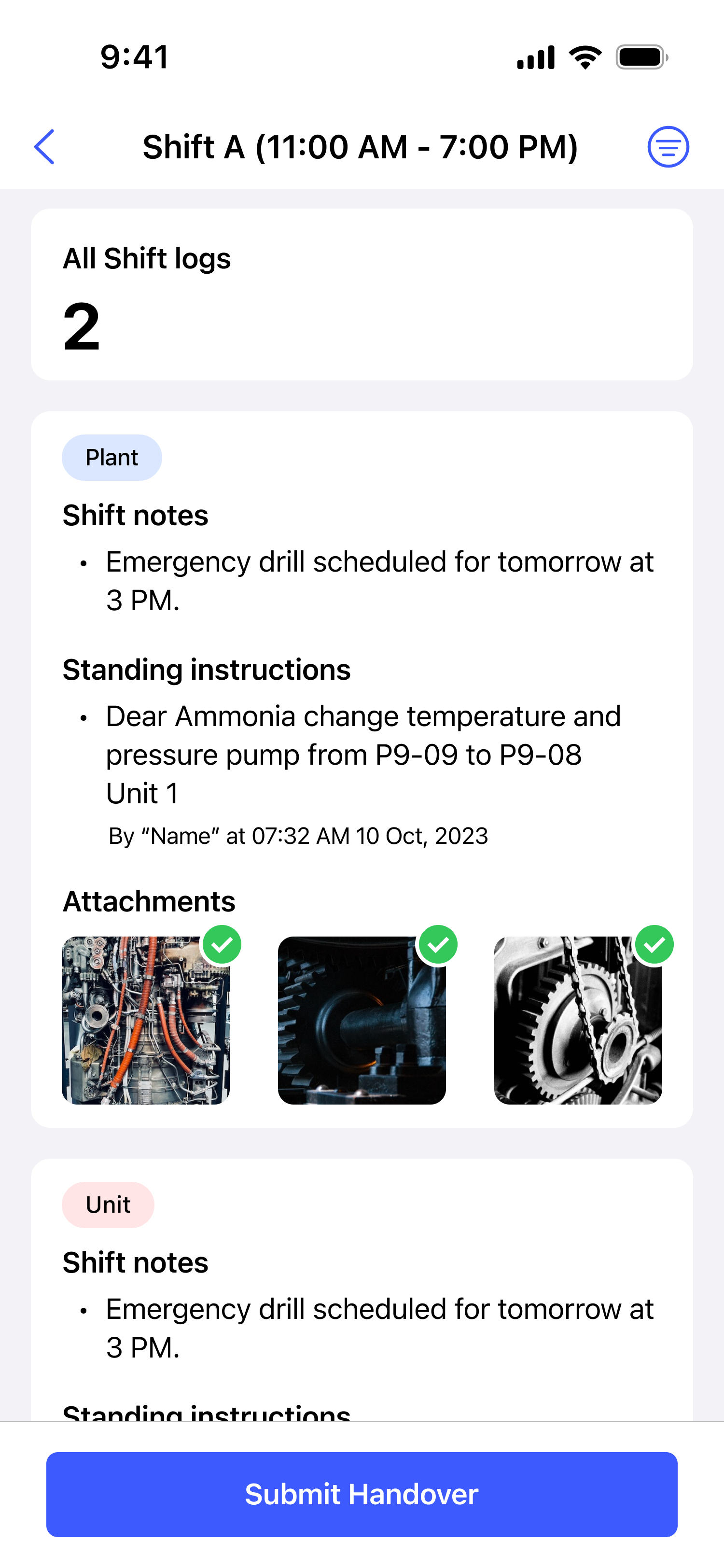
The report status changes to Not Submitted on the Dashboard, and the Start Round button becomes active.
Next: Allow the required data to synchronize. Prepare for offline work when your route includes low-connectivity areas, then review your assigned work.