
Submit a Round
Submit a round after all required tasks are complete or properly skipped. Submission creates the completed record used by Supervisors for review and reporting.
Complete every mandatory task. If an asset or location cannot be completed, use the skip option at the appropriate scope. See Skip an Asset, Location, or Round.
For example, submit after completing the available pump assets and recording a valid skip reason for any asset that could not be inspected.
To submit:
-
After filling in all details, tap Submit.
Figure 1. Submit Round 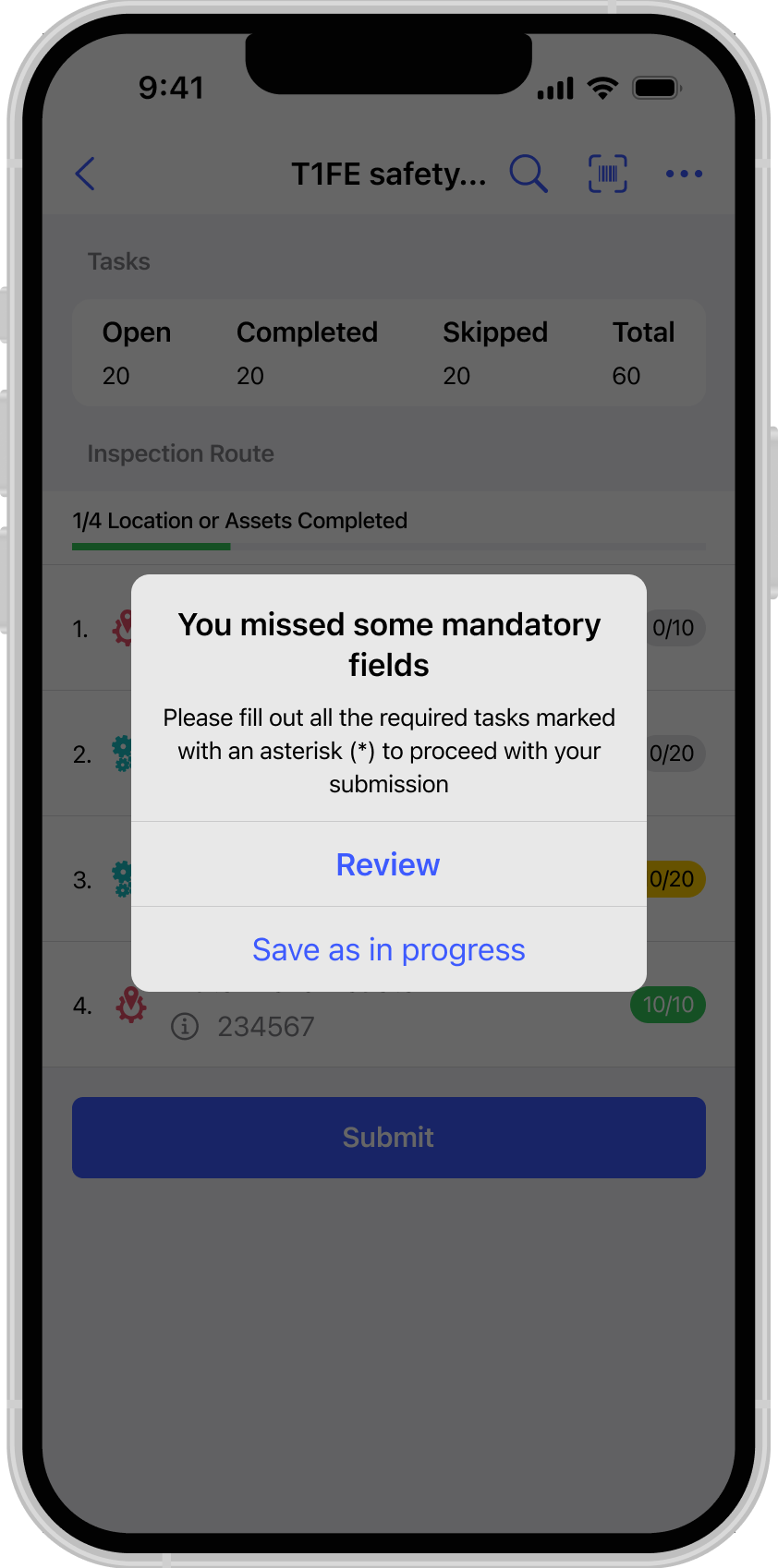
-
If a Submission Confirmation pop-up appears, tap Submit
again.
Figure 2. Submit Round Success 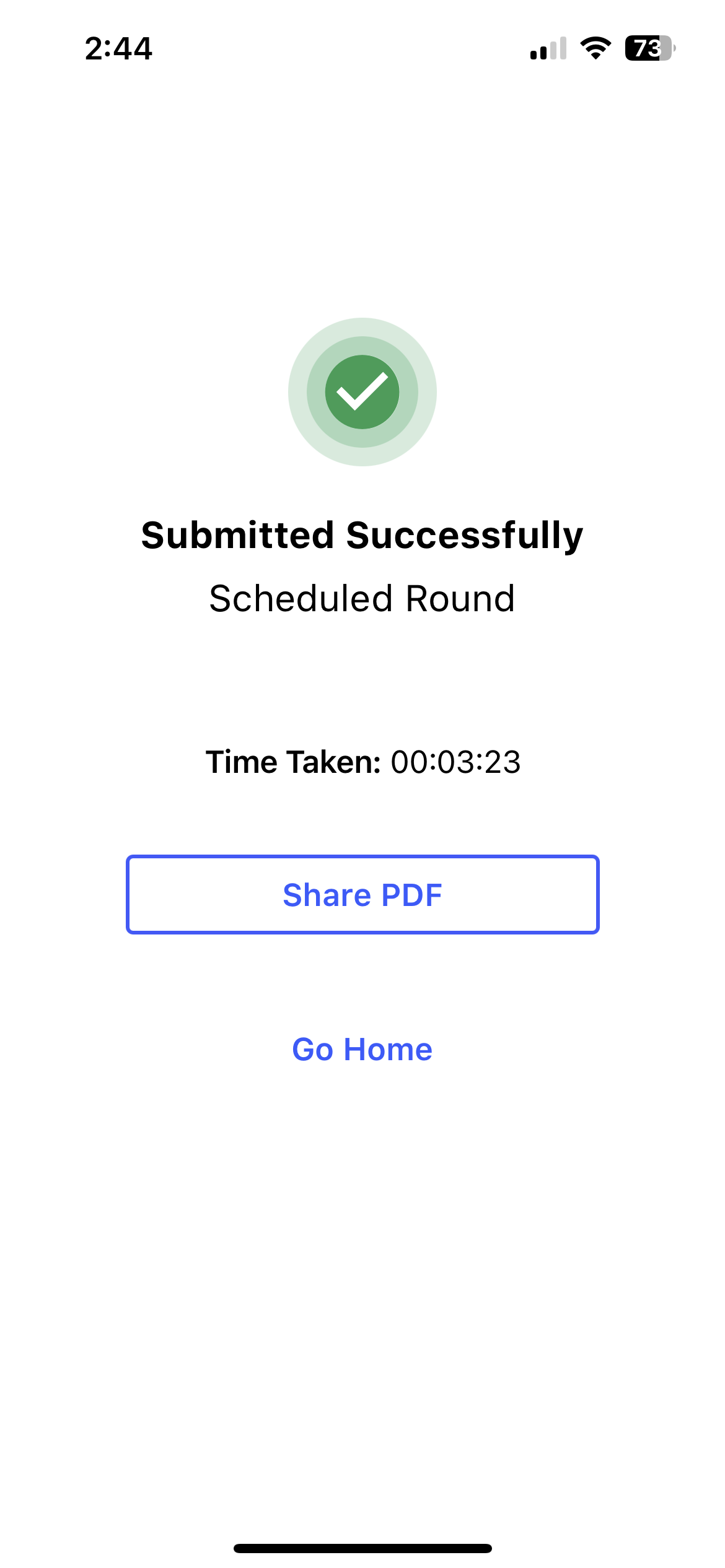
A "Round Submitted Successfully" message appears with Share PDF and Go Home buttons. The round timer stops, and you can view the total execution duration.
When the action is unavailable: If mandatory tasks are pending or the round is partly complete, mRounds blocks submission. Tap Review to find and complete the remaining tasks, or tap Save to pause and finish later. If an asset or location cannot be completed, use the skip flow at the appropriate scope. See Skip an Asset, Location, or Round.
Next:Review the submitted record or share its PDF when needed. Then begin the next round or close your shift.