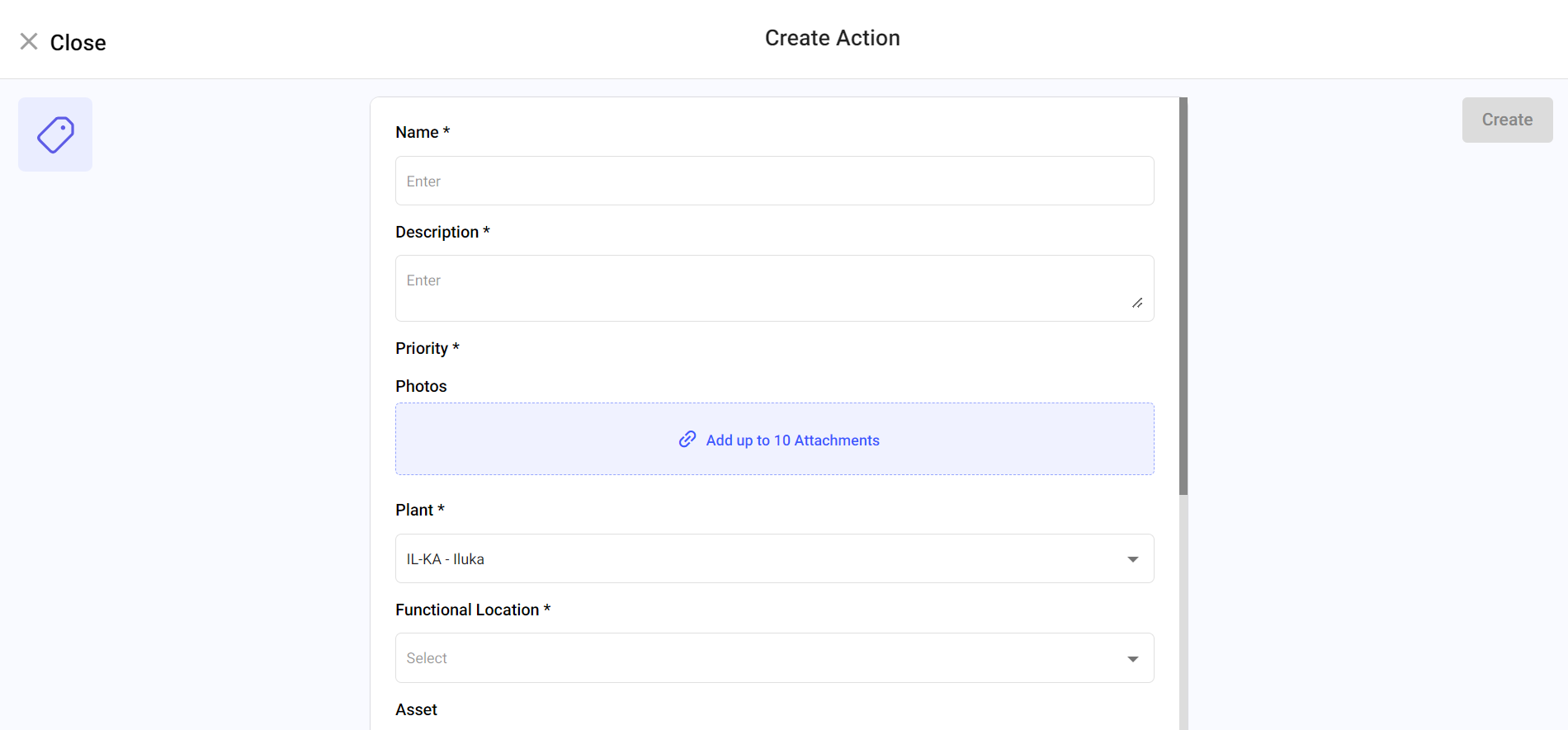
Create an Action when follow-up work needs its own assignee, priority, and due date under the configured workflow.
Actions are designed to track issues that require further attention, such as
repairs or maintenance activities. By creating actions, supervisors can ensure that
critical problems are not overlooked and are followed up systematicallyTo create an
action:
-
Click the Observations section on the left pane.
-
Click the Actions tab.
-
Click Create Action.
-
In the Create Action screen, provide the following information:
- Enter the action title in the Name field.
- Enter the action description in the Description
field.
- Select the Priority as
High, Medium, or
Low.
- Add images in the Photos field.
- Select the Plant, Unit,
Functional Location, and
Asset values from the respective
dropdowns.
- In the Assigned To list,
- Choose User and select the user from the
drop-down.
or
- Choose User Group and select the user
group from the drop-down.
- Select Due Date and
Time.
- Select the Status as Open,
In-Progress, Resolved,
or Unresolved.
-
Click Create.
The Action is created. Assigned Operators receive a notification and can see it on their dashboard.
The Action is created, and assigned Operators can see it for follow-up.
Next:Monitor the Action until the follow-up work is complete.