
Schedule Rounds at Task Level
Use task-level scheduling when some tasks within a round must run more or less often than the rest of the plan.
For example, you want the Operators to 'Check Valve Pressure' daily, you can set frequency for the task instead of the entire 'Control Valve Maintenance' plan to run daily.
To schedule a round at task level:
-
In the Plans tab, click Schedule
on the round plan and select Task Level.
Or
Click
 adjacent to the round plan that you want
to schedule and select Schedule > Task
Level.
adjacent to the round plan that you want
to schedule and select Schedule > Task
Level. -
In the Tasks screen,
- Select the location or asset in the Locations / Assets section on the left side.
- Select the tasks or whole section in the middle section.
- Fill the details in the Revise Schedule section on the right side.
- Click Revise.
Figure 1. Scheduling at Task Level 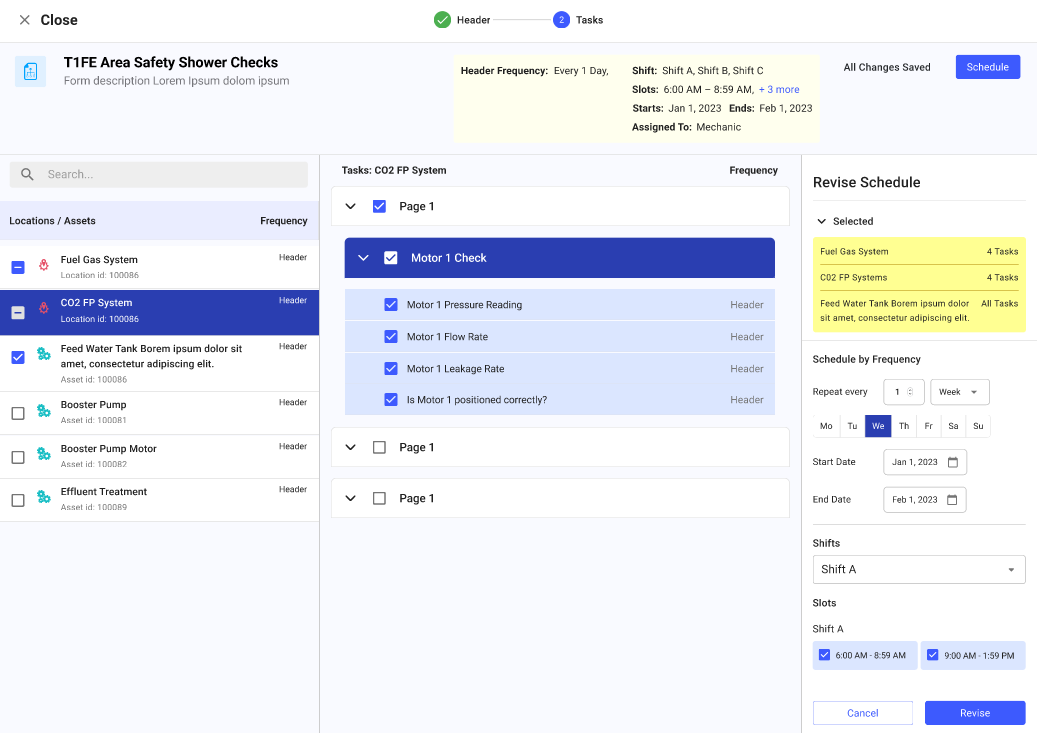
A message "Schedule Revised Successfully" appears.
The selected tasks are scheduled using their configured task-level frequencies.
Next:Monitor the generated round and confirm that the task-level work appears as intended.