About the Web Application Screens
The web application is accessed through the Environment Health & Safety (EHS) module. The EHS module groups all permit-related features and related safety workflows into dedicated screens to support the complete Permit-to-Work process.
Below is a detailed overview of each screen:
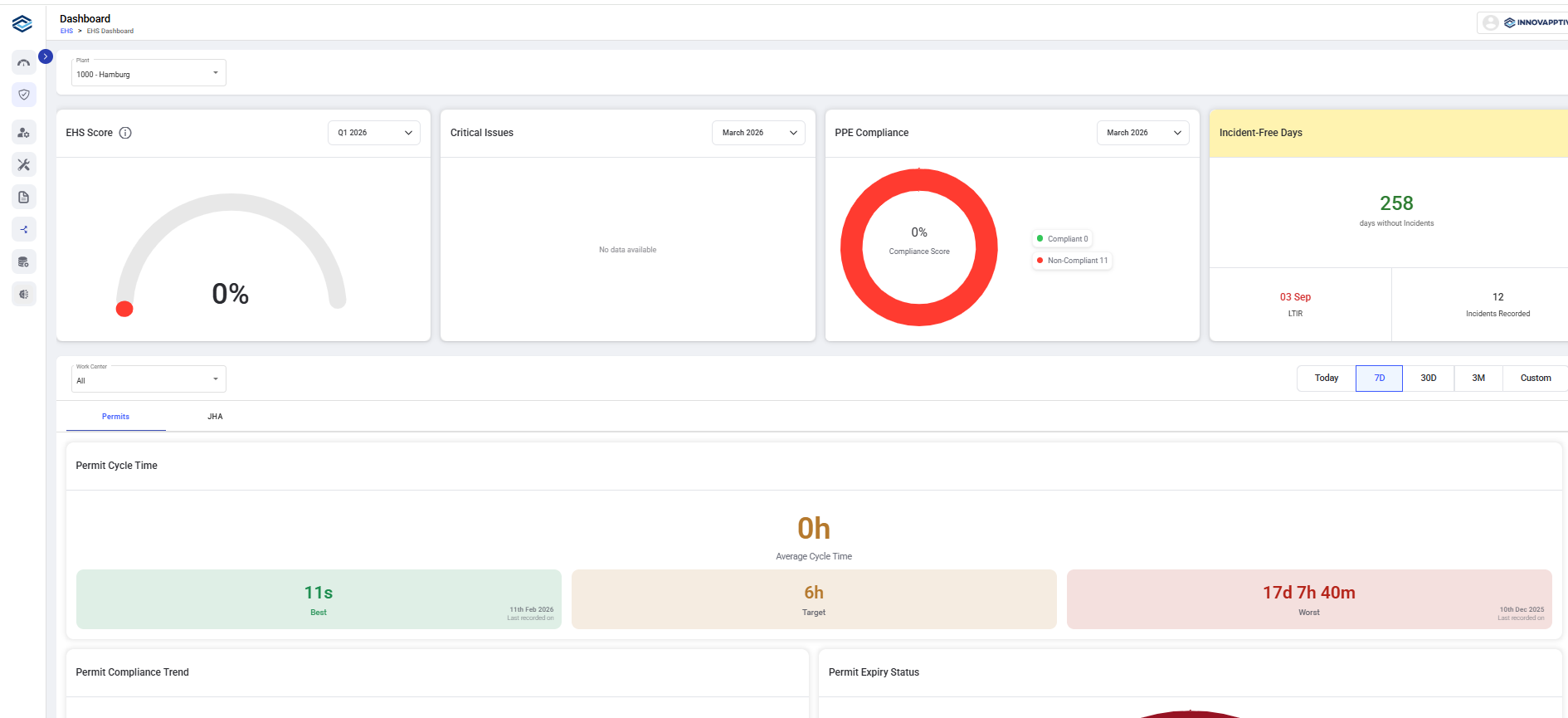
Monitor Permit and Safety Performance (Dashboard)
The Dashboard provides a high-level overview of permit and safety performance for the selected plant and time range.
- Select a Plant and Work Center to scope the displayed data.
- View key safety indicators such as:
- EHS Score: Displays the overall EHS performance score for the selected period, based on defined safety parameters.
- Critical Issues: Shows the number of high-risk or priority safety issues identified within the selected timeframe
- PPE Compliance: Indicates the compliance rate of Personal Protective Equipment usage, showing compliant vs non-compliant records.
- Incident-Free Days: Displays the number of consecutive days without a recorded safety incident
- Monitor below:
- Permit Cycle Time: Displays the average time taken for a permit to move from Raise to Close, including best, target, and worst cycle durations.
- Permit Compliance Trend: Displays the percentage trend of permits meeting defined compliance requirements over the selected time period.
- Permit Expiry Status: Shows the total number of permits that are expired or expiring soon to help prevent compliance gaps.
- Permits Distribution: Displays the breakdown of permits by selected category (for example, Type or Status).
- Average Closure Rate: Shows the time taken at different workflow stages (Reviewed, Authorized, Closed) to measure processing efficiency.
- Switch between Permits and JHA views to review different perspectives.
The Dashboard helps Supervisors and Safety teams quickly identify areas that need attention and track overall performance.
View Permits (Permits)
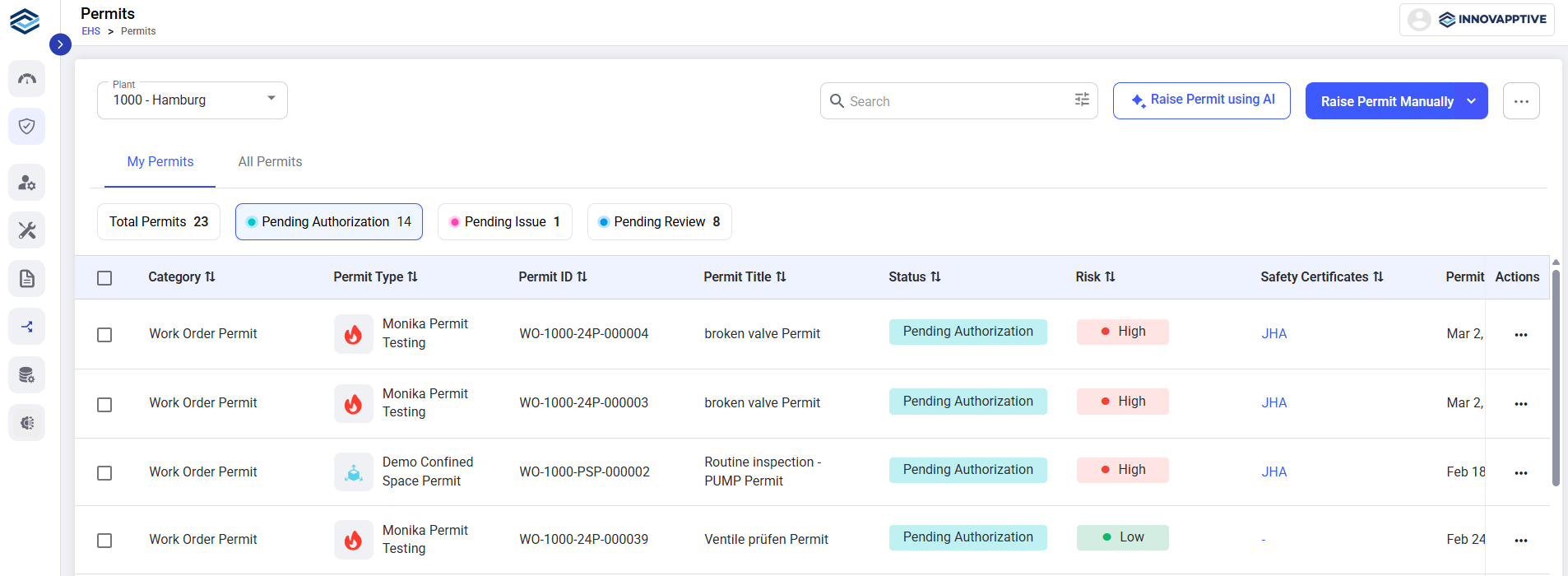
The Permits screen is the main place where you view and manage permits. From this screen, you can create new permits, search for existing permits, and take actions on permits based on your role.
You can switch between My Permits (permits assigned to you) and All Permits (all permits you are authorized to view). Use the Plant selector to view permits for a specific plant. The search bar and filters help you quickly find permits by ID, title, status, or type.
- Total Permits - Displays the total number of permits in the current view.
- Pending Authorization - Shows permits awaiting authorization from the permit authority.
- Pending Issue - Displays permits that are approved but not yet issued for execution.
- Pending Review – Shows permits awaiting review before authorization.
- Closed – Displays permits that have been completed and formally closed.
The permit list shows key details such as Permit type, Status, and Risk, and provides an Actions menu to perform next steps on each permit.
View JHAs (JHA)
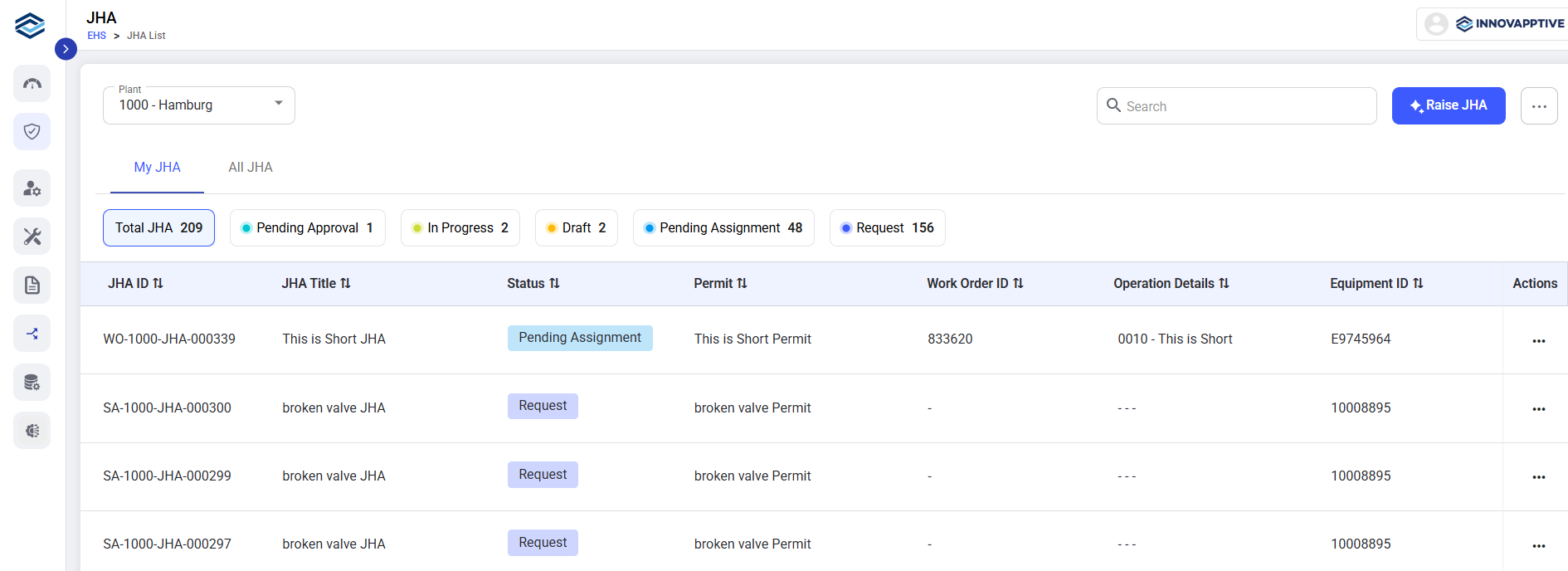
The JHA screen is used to view and manage Job Hazard Analyses (JHAs) in iPermits. From this screen, you can create new JHAs, review existing JHAs, and link JHAs to permits where required.
You can switch between My JHA (JHAs assigned to you) and All JHA (all JHAs you are authorized to view). Use the Plant selector to view JHAs for a specific plant. The search bar and filters help you quickly find JHAs by ID, title, status, work order, or equipment.
- Total JHA – Displays the total number of JHAs in the current view.
- Pending Approval – Shows JHAs that are awaiting approval from the authorized reviewer.
- Rejected – Displays JHAs that were reviewed and rejected and may require corrections.
- In Progress – Shows JHAs that are currently being prepared or updated.
- Pending Assignment – Displays JHAs that are created but not yet assigned to a responsible user.
- Closed – Shows JHAs that have been completed and finalized.
The JHA list shows key details such as JHA ID, title, status, linked permit, and related work order or equipment.
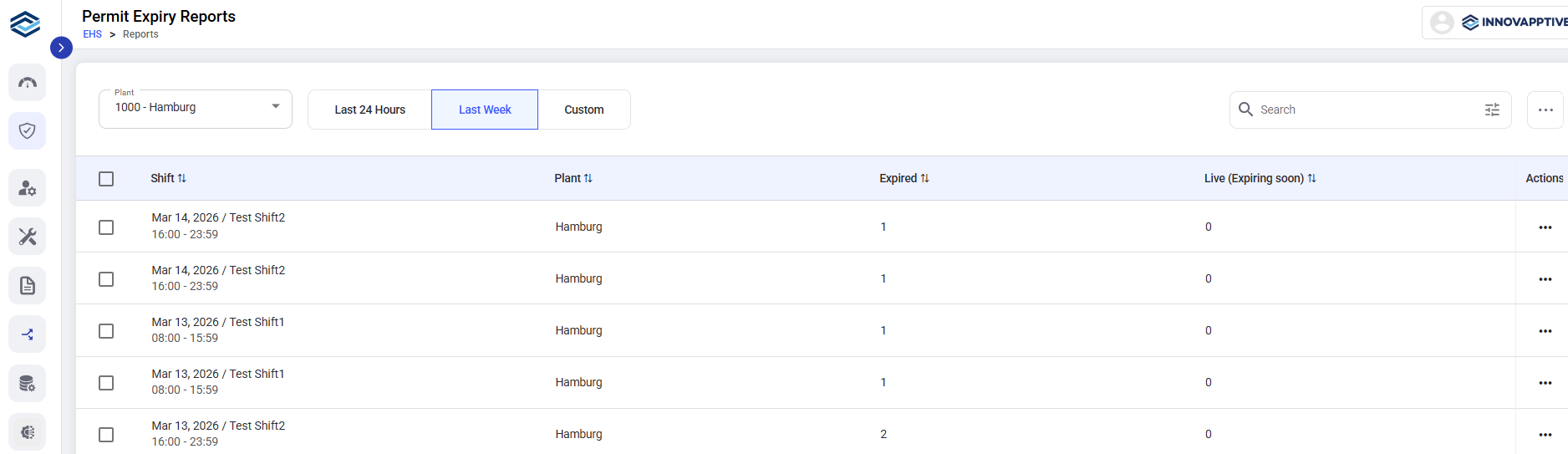
Permit Expiry Reports
The Permit Expiry Reports screen helps you monitor permits that have expired or are about to expire for the selected plant and time range. This screen provides shift-wise visibility into expired permits and permits that are nearing expiry.
Use the Plant selector and time filters (for example, Last 24 Hours, Last Week, or Custom) to scope the report. The list shows the number of Expired permits and Live (Expiring Soon) permits for each shift.
You can use this screen to quickly view the permits that need immediate follow-up, such as closure, extension, or corrective action, based on your role and site procedures.
View Templates (Authoring)
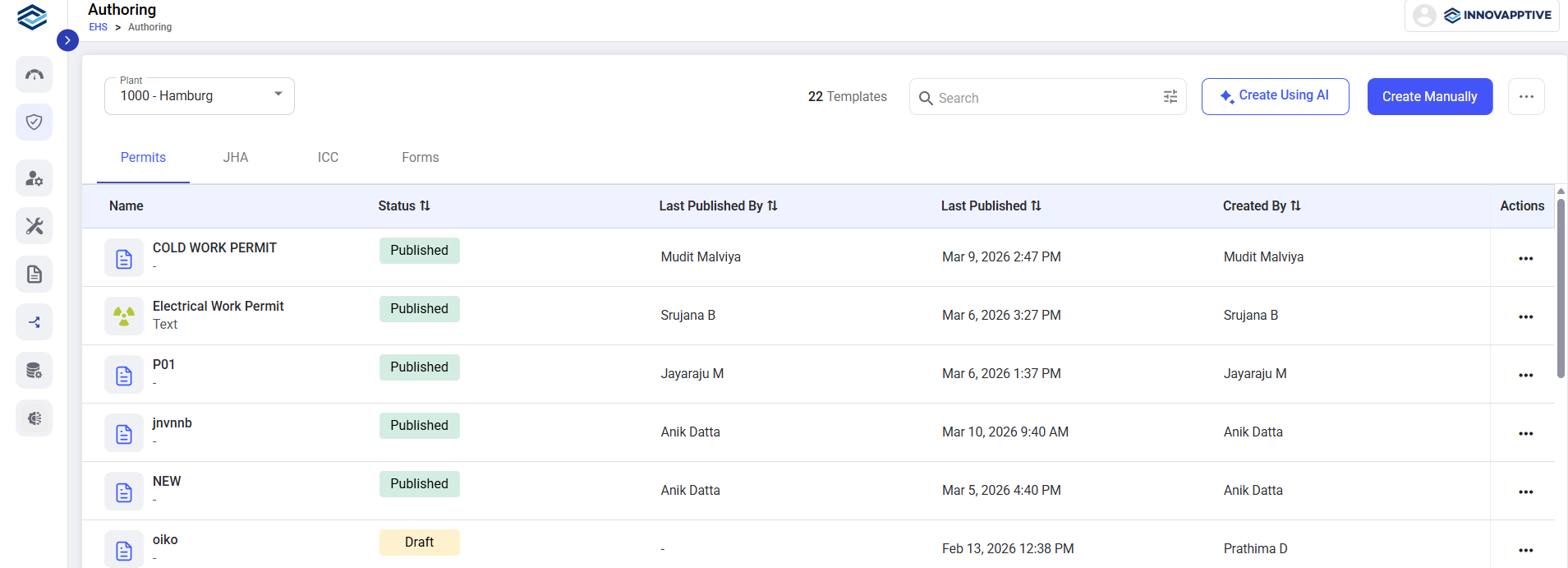
The Authoring screen is used to create and manage templates for Permits JHAs, and Forms. This screen is typically used by Admins who configure standard templates used during permit and JHA creation.
Use the Plant selector to view templates for a specific plant. Switch between the Permits, JHA and Forms tabs to manage different types of templates.
The template list shows the current status of each template (for example, Draft or Published) and allows you to edit, publish, or manage templates based on your permissions.
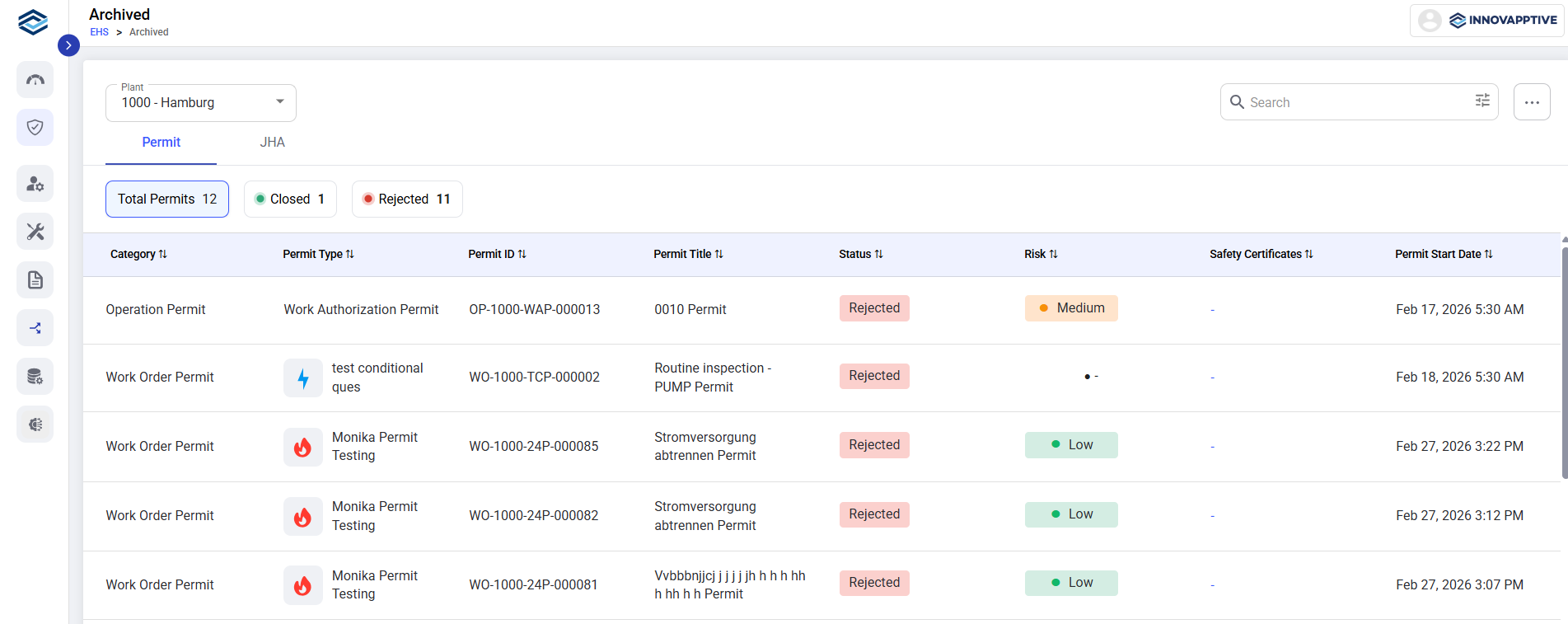
Archived
The Archived screen displays a list of all closed and rejected Permits and JHAs for reference and review. It allows authorized users to view historical records for reference, audits, and compliance purposes.
You can switch between Permit and JHA tabs to view archived records by type. The list can be scoped by Plant and searched using the search bar. You can sort archived records by columns such as permit type, status, risk, or date, and filter records to quickly find specific permits or JHAs.
Total Permits displays all archived permits for the selected plant and filters.
Closed displays permits that were successfully completed and closed before being archived.
Rejected displays permits that were rejected during the approval process and moved to the archive.