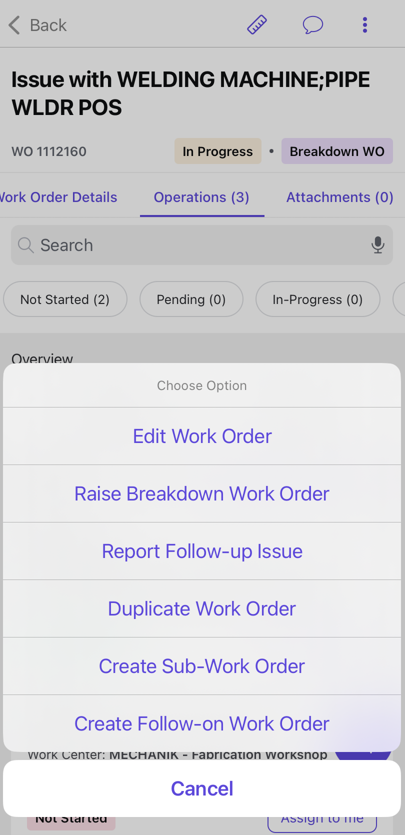
Use Duplicate Work Order to reuse an existing work order as a starting point for unrelated work.
Tip:
Use this option for preventive maintenance jobs,
similar breakdown tasks, or when creating work orders for the same equipment type
across multiple locations.
Open the work order you want to copy.
Tap the More icon at
the top right.
In the Choose Option window, select Duplicate Work Order.
Figure 1. Duplicate or Copy Work Order
The work order is copied with the same details.
Open the duplicated work order and update the details that differ, such as
equipment, dates, and tasks.
Save the duplicated work order.
The duplicate work order is created as a separate record for review and planning.

 icon at
the top right.
icon at
the top right.