Record Movement of Goods from Warehouse Using an Outbound Delivery
Outbound Delivery refers to movement of all outgoing goods from the warehouse. Goods
that are outbound either to a vendor or a customer are moved into a warehouse for storage
and then moved to the shipment for delivery.
To record movement of goods from Warehouse for an outbound delivery:
In the Home screen, tap Goods Issue.
Tap the Reference Document drop-down and select Outbound Delivery
from the list.
Enter the Delivery Number.
Tap on the outbound delivery order.
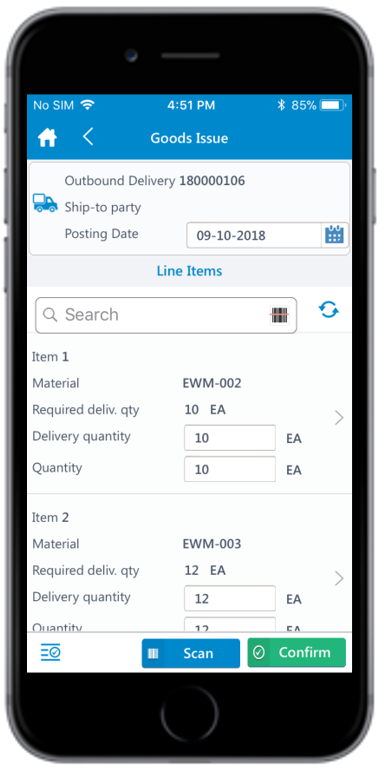
Tap the Calendar icon to modify the Posting
Date.
In the outbound delivery order details screen, the below fields are auto
populated:
Outbound Delivery
Ship-to-party
Material
Batch
Figure 1. Outbound Delivery Line Items
Enter this information for the line item(s):
Delivery Quantity: This value is auto populated. Tap to modify
the value.
Quantity: Tap to enter the quantity.
UoM: Tap to add the UoM (Unit of Measurement).
Tap the line item to view or modify the details such as Description,
Required Delivery Quantity, Picking status, Plant,
Storage Location, Gross Weight, and Attachments.
Tap Confirm.
A message appears asking whether you want to post the goods issue.
Tap Yes.
A message appears confirming that the Material Document <number> is posted.
You can navigate to the Material Document Display module through a direct link
after successful posting.
The goods issue is posted as a material document for the outbound delivery.

 icon to modify the Posting
Date.
In the outbound delivery order details screen, the below fields are auto populated:
icon to modify the Posting
Date.
In the outbound delivery order details screen, the below fields are auto populated: