
Record Movement of Goods from Warehouse Using Reservation Document
A Reservation document refers to the requirements such as the quantity of goods for production and cost center. You can issue goods for an open reservation. When processing the goods issue transactions, which are stored in the SAP Archive Console, you can add attachments and signature for the line items. Also, the application displays a pop-up alert to you, if another user is processing the same goods issue you are working on. The application supports returns against reservation documents by using movement type 262.
The Item Overview screen displays the Batch, Date of Manufacture, and Shelf Life Expiration Date for batch-managed materials fields are displayed on, providing additional batch traceability information.
- Consignment stock appears only if the material is consignment-based.
- When a vendor is selected from the consignment dropdown, special stock type "K" is auto-filled, reducing manual input.
- If the material is not consignment-based, the Vendor field is hidden.
- You can download and share filtered reservation lists.
-
Tap the Calendar
 icon to modify the Posting Date.
In the reservation document details screen, the below fields are auto populated:
icon to modify the Posting Date.
In the reservation document details screen, the below fields are auto populated:- Reservation
- Goods Recipient
- WO Description
- Material
Figure 1. Reservation Document Details 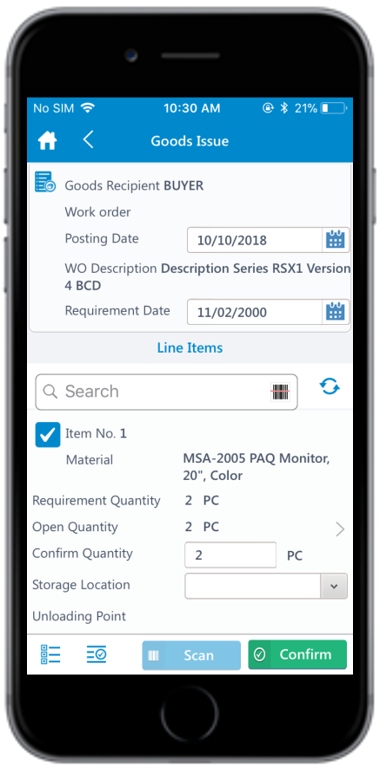
-
Tap the line item to view or modify the details such as
Plant, Batch, and
Attachments.
Figure 2. Reservation Document Line Item Details 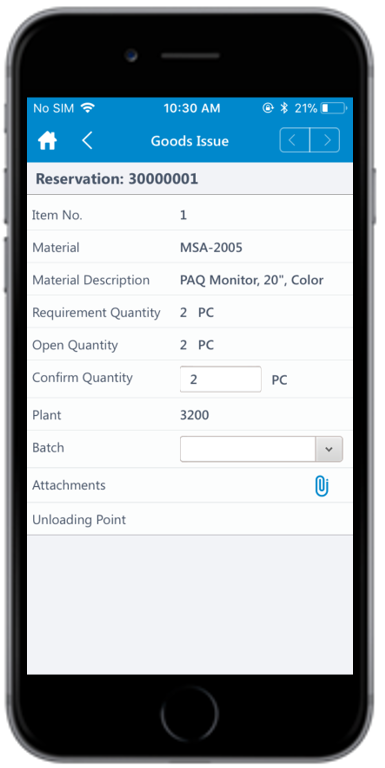
Note:You can add a line item by tapping the Add icon and delete a line item by tapping the Arrow icon or swiping left > Delete icon.
The goods issue is posted for the reservation.