
You can cancel a material document for a goods receipt in situations like when wrong
quantity is entered, the Goods Receipt is entered against the wrong Purchase Order, the
goods are damaged and you are waiting for a supplemental shipment, or the goods are in such
poor condition you decide to return the item(s) and cancel the entire line item from the
Purchase Order. You can cancel a single line item or an entire Goods Receipt.
To cancel a material document:
In the Home screen, tap Goods Receiving.
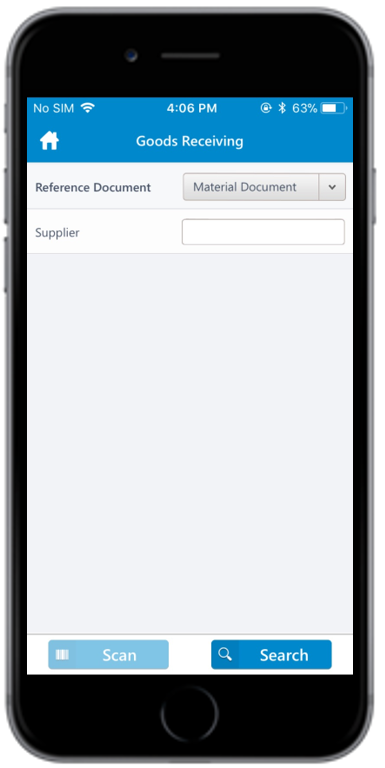
Tap the Reference Document drop-down and select Material
Document.
In the search screen, do a combo scan or manually enter details like
Material Document Number, Vendor and Material.
Figure 1. Goods Receiving Material Document Search
In the search results screen, tap on the material document that you want to
cancel.
Tap the Calendar icon to modify the Posting
Date.
Figure 2. Goods Receiving Material Document Line Items
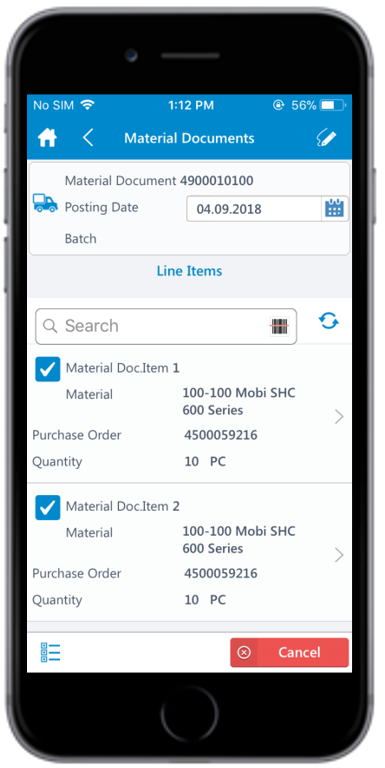
Select the line item(s).
Tap the line item to view the details such as Material Description,
Plant, Batch, Valuation Type, and Attachments.
Tap the Attachment icon to add images.
Note:
The Batch and Valuation Type values
are displayed only for the batch and split-valuated material.
Tap Back icon to navigate to the previous screen.
Tap the Signature icon to add your digital signature and enter the
following details in the Signature box:
Telephone: Tap to enter the telephone number.
First Name: Tap to enter the first name.
Tap Confirm.
Tap Reset to erase and enter a new signature.
Tap Cancel.
A message appears asking whether you want to cancel the material document.
Tap OK.
A message appears confirming that the Material Document <number> is
canceled.
You can send material documents, such as PDF through email. For more
information, see Email Material Documents.
The selected goods receipt material document is canceled.