Record Movement of Goods into Warehouse Using an Outbound Delivery
Outbound Delivery refers to movement of all outgoing goods that come into the
warehouse. Goods that are outbound either to a vendor or a customer are moved into a
warehouse for storage.
To record movement of goods into warehouse using an outbound delivery:
In the Home screen, tap Goods Receiving.
Tap the Reference Document drop-down and select Outbound
Delivery.
Tap Search.
Note:
When you search using the delivery number, the
system retrieves deliveries linked to sales order returns.
In the search results screen, you can:
Tap the Search field to search the outbound delivery document.
Tap the Scan icon to scan the material for which an Outbound
Delivery is generated.
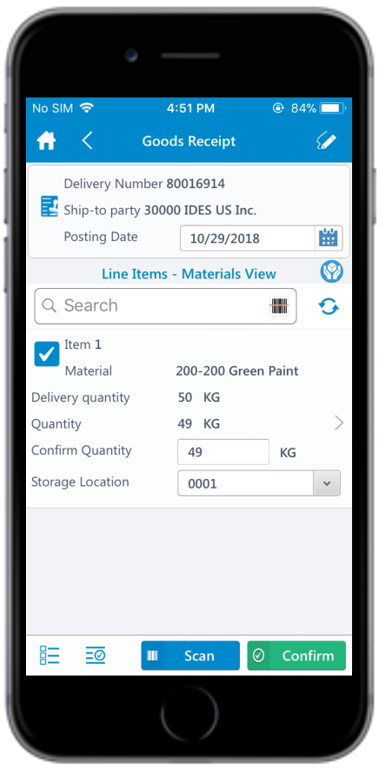
In the details screen, tap the Calendar icon to modify the Posting
Date.
Figure 1. Goods Receiving using Outbound Delivery
In the Line Items – Materials View section, select the line
item(s).
Tap the Add icon to enter the serial number for the line item. The
Serialization screen appears.
Tap the Add icon to enter the serial number in the Enter
Serial Number field.
Tap Save.
Tap Confirm.
A message appears asking whether you want to post the goods receipt.
Tap Ok.
A message appears confirming that the Material Document <number> is posted
for Outbound Delivery <number>. You can navigate to the Material Document
Display module through a direct link after successful posting.
You can send material documents, such as PDF through email. For more
information, see Email Material Documents.
The goods receipt is posted as a material document for the outbound delivery.