
Record Movement of Goods into Warehouse Using Purchase Order
When you receive goods from an external vendor into the warehouse, you can update the purchase order and post the Goods Receipt. You can also receive rental goods and record the movement into the storage location using the Purchase Order option.
You can issue materials directly to the Onsite plant vendors without assigning them to storage bins when there is Cross Dock delivery (Offshore Delivery). This helps you to reduce labor, time, and cost of handling materials. When you change the storage location during a transaction, the primary storage bin field updates dynamically to reflect the bins associated with the newly selected storage location.
A purchase order can have multiple line items which contain a list of components/materials (Subcontracting PO). If your vendor provides sub-components and if these sub-components are added in the SAP system, you can view these items here, validate them and post the goods receipt.- The consignment purchase orders are now highlighted.
- In the line items details screen, the stock type with description is visible.
- The Certificate of Analysis (COA) status now displays "Yes" or "No" with descriptions.
- The Item category and account assignment fields now display with full descriptions.
- Available stock is now hidden for sub-line items to prevent confusion.
- You can enter a Stage bin value only for purchase orders created for non-stock items of the order.
To record movement of goods into warehouse using a purchase order:
-
In the search screen, do a combo scan or manually enter the details like
Purchasing Document Number, Plant number, Vendor,
Certificate, and Material Number.
Note:
- When the Vendor field is configured as an SSI field in RACE, you can tap the Vendor field and enter the vendor description (any digits) to search for the vendor number.
- If Yes is selected in the Certificate field, uploading an attachment is mandatory before posting. If No is selected, posting can proceed without requiring an attachment.
- Tap the Scan (OCR)
 button next to the field to scan the
barcode data. The OCR field type is RACE configurable.
button next to the field to scan the
barcode data. The OCR field type is RACE configurable.
Figure 1. Goods Receiving using Purchase Order Search 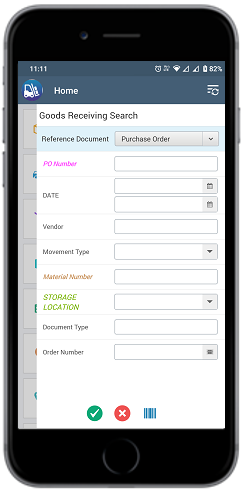
-
Tap Search.
In the search results screen, you can:
- Tap the Search button to search the purchase order.
- Tap the Scan button to scan a batch of line items.
- Sort and filter the records. For more information, see Sort records and Filter records.
Figure 2. Goods Receiving Purchase Order List 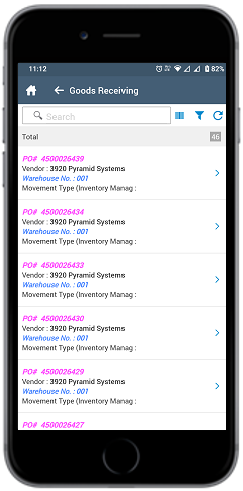
-
Tap the Calendar
 icon to modify the date of posting.
In the purchase order details screen, the following fields are auto-populated:
icon to modify the date of posting.
In the purchase order details screen, the following fields are auto-populated:- PO Number
- Vendor
- Net Order Value
Figure 3. Goods Receiving Purchase Order Details 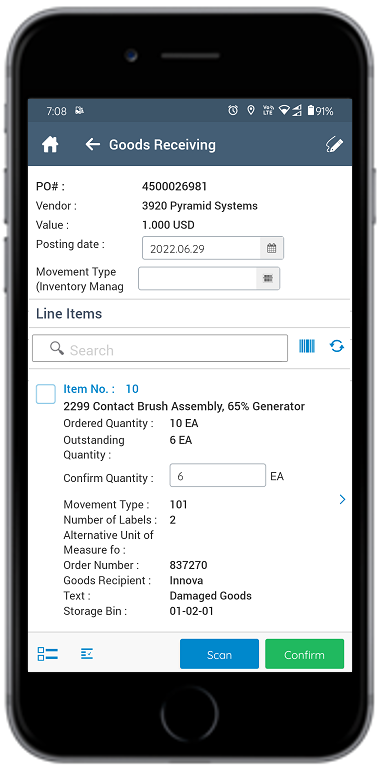
-
Select and enter this information for the line item(s):
- Confirm Quantity: This value is auto-populated. Tap to modify the
value.Note:To split the quantity, tap the Split
 icon. In the Quantity Split window, enter the quantity in the
Confirm Quantity fields. The material quantity is divided and
assigned to respective bins.
icon. In the Quantity Split window, enter the quantity in the
Confirm Quantity fields. The material quantity is divided and
assigned to respective bins. - Storage Location: Tap to select the storage location from the list.
- Alternate UOM: Tap to select the Alternate Unit of Measure.
Note:Tap the Sub Items icon for the line
item to view and select the sub-components.
icon for the line
item to view and select the sub-components. - Confirm Quantity: This value is auto-populated. Tap to modify the
value.
-
Tap OK.
A message appears confirming that the Material Document <number> is posted for Purchase Order <number>. The Posted Material Document number also appears on the Last Update Success screen.
For every quality material (QM) that is posted, a quality Inspection Lot number is generated. The quality team uses the lot number and does the inspection of the material.
Figure 4. Goods Receipt using Purchase Order Posting 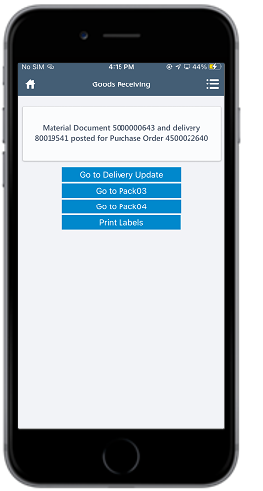
Note:From this screen, you can:- Access and pack the deliveries for O3O_PACK03 using the Go to Pack03 button. For more information, see Pack Deliveries to Containers (o3o_PACK03).
- Access and pack the deliveries for O3O_PACK04 using the Go to Pack04 button. For more information, see Pack Deliveries (o3o_PACK04).
- Access and update the Delivery Document details using the Go to Delivery Update button. For more information, see Post Goods Issue (PGI) Using Delivery Update Module.
- Print the material document and labels. For more information, see Print Material Documents and Labels. A Print Bin Label appears on the Bin Update Success screen.
- Send the material documents, such as PDF through email. For more information, see Email Material Documents.
- Access the Putaway by Transfer Request button to view the stored items. For more information, see Put Away Materials Using Transfer Requirements.
- Navigate to the Material Document Display module through a direct link after successful posting.
- The Staging area field is unavailable for Purchase Orders created against order to reduce confusion.
You can also view the current Unrestricted Stock available for materials on a purchase order line. The stock quantity is displayed based on the material type:- Non-batch managed materials: Stock is shown by Material, Plant, and Storage Location.
- Batch-managed materials: Stock is shown by Material, Plant, Storage Location, and Batch.
- Valuated materials: Stock is shown by Material, Plant, Storage Location, and Valuation Type.
- Serialized materials: Stock is shown by Material, Plant, and Storage Location.
The goods receipt is posted as a material document for the purchase order. For quality-managed material, a quality inspection lot number is generated.
Next: If the received stock must be put away in the warehouse, tap Putaway by Transfer Request on the success screen. See Put Away Materials Using Transfer Requirements.