
Preview and Send a Round Plan for Approval
Preview the round as an Operator will see it before requesting approval. This helps catch missing tasks, confusing guidance, wrong units, or poor mobile flow.
Add locations, assets, sections, and tasks. See Add Locations, Assets, Sections, and Tasks.
For example, when previewing a pump-inspection plan, confirm that the temperature and vibration tasks display with the correct units, limits, and guidance before sending the plan for approval.
-
Click Preview to see the round plan as it will appear on
mobile.
Figure 1. Round Plan Preview 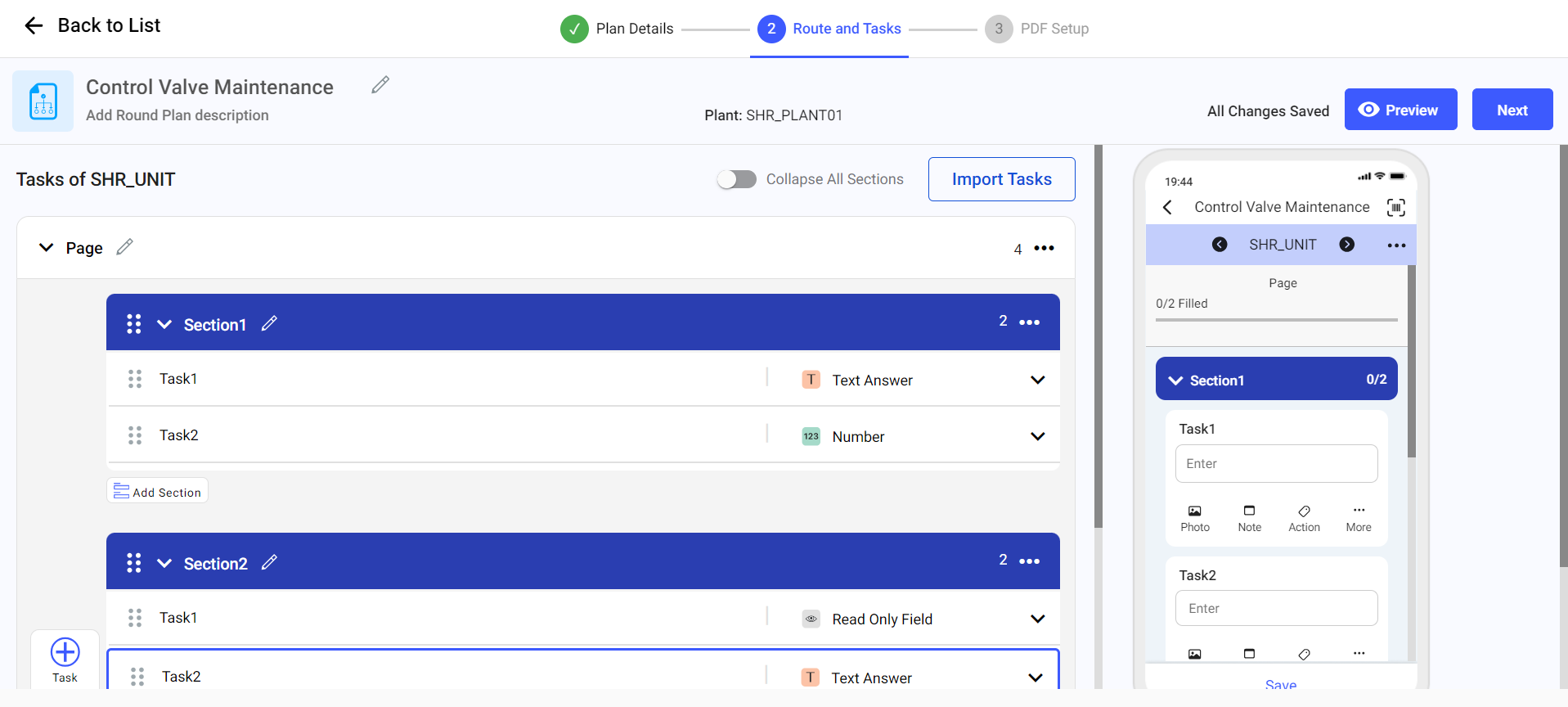
Figure 2. Mobile Preview 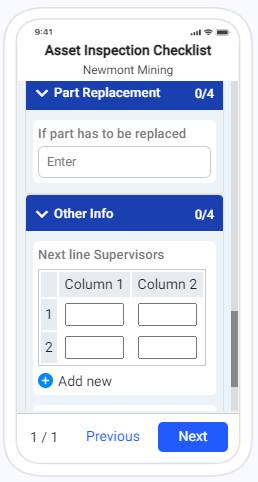
Attention:Always check the mobile preview before sending for approval. What looks fine on the web form can be cramped, mis-ordered, or missing context on a phone screen. -
Click Next to see the PDF format generated once an
operator submits the round.
Figure 3. Round Plan PDF Format 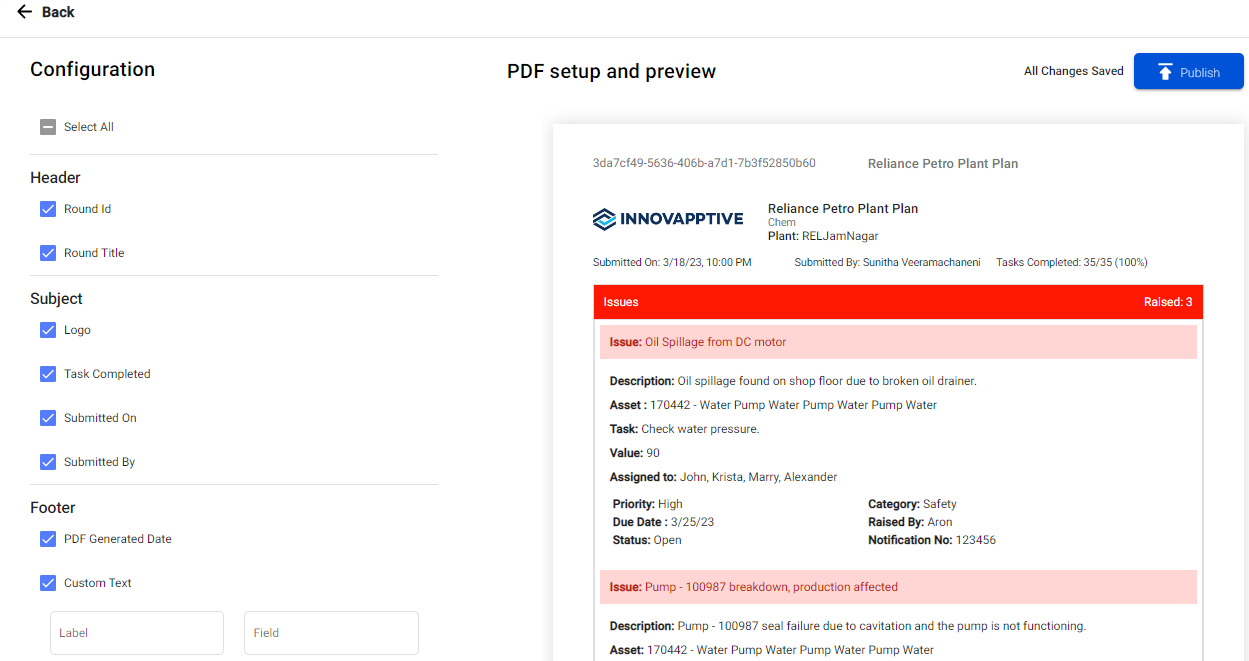
Configure the PDF layout in the PDF Setup screen. See Configure Round Plan Details PDF.
The round plan moves to the workflow approver's queue with a pending-approval status.
Next: The configured approver reviews the request. After approval and publication, schedule the plan.