
Add Locations, Assets, Sections, and Tasks
Build the field experience by selecting locations and assets, organizing pages and sections, and adding the tasks Operators must complete.
Create the round plan shell. See Create a Round Plan.
-
In the Select Locations window, select locations and click
Next.
Figure 1. Select Locations 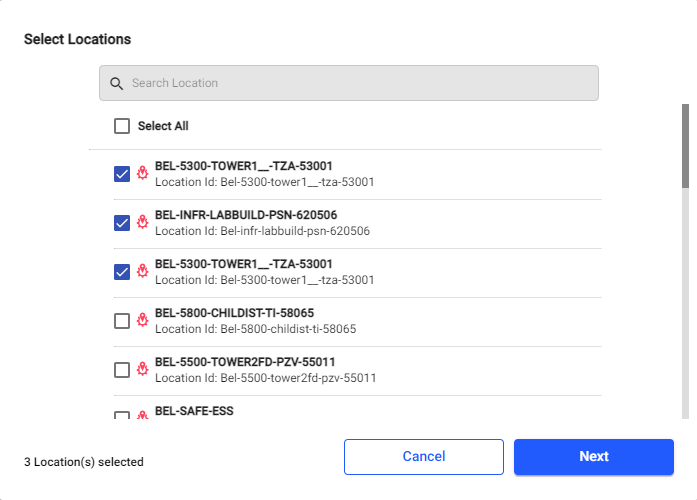
-
In the Select Assets window, select assets and click
Add.
Figure 2. Select Assets 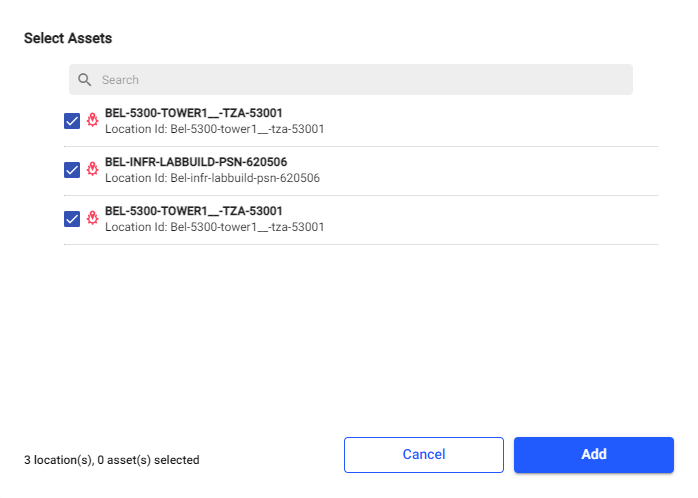
Note:When you select locations and assets, mRounds automatically pulls and synchronizes asset and location metadata (codes, locations, specifications) from SAP/ERP. Requires SAP integration. This information displays at the task level during round plan creation. -
In the Route and Tasks screen, select a location or asset
on the left, then build its sections and tasks.
- Click the Add Locations/Assets icon to add more from the left pane. Drag and drop into hierarchy or flat-list view; the hierarchy view doubles as the route plan.
- Toggle hierarchy vs. flat-list view, or route-plan view, using the icons provided.
- Click the More icon and select Show Hierarchy to
view the locations/assets hierarchy. You can also copy and delete
locations and assets.Note:When a Functional Location ID is updated in master data, the latest ID is automatically reflected in the Locations/Assets panel of existing round plans.
- Click Add Page to add a page.
- Click the Task icon inside a section to add a task:
- Type Task: enter the task text.
- Responses: select a response type. For guidance on choosing one, see Choose the Right Response Type.
- Add Logic: configure conditional actions based on the response. See Conditional Logic.
- Required: makes the task mandatory.
- History: shows the last five readings. Available only for Number and Slider response types.
- Additional Details: click
Add to add Tags and Attributes (Label
and Value, up to 25/40 characters). For Multiple Choice and
Picklist response types, you can mark specific values as
exceptions to flag abnormal conditions — for example, marking
Abnormal as an exception on a motor
condition picklist. Exception reports flag these responses so
planners can act quickly.
Figure 3. Response Type Exceptions 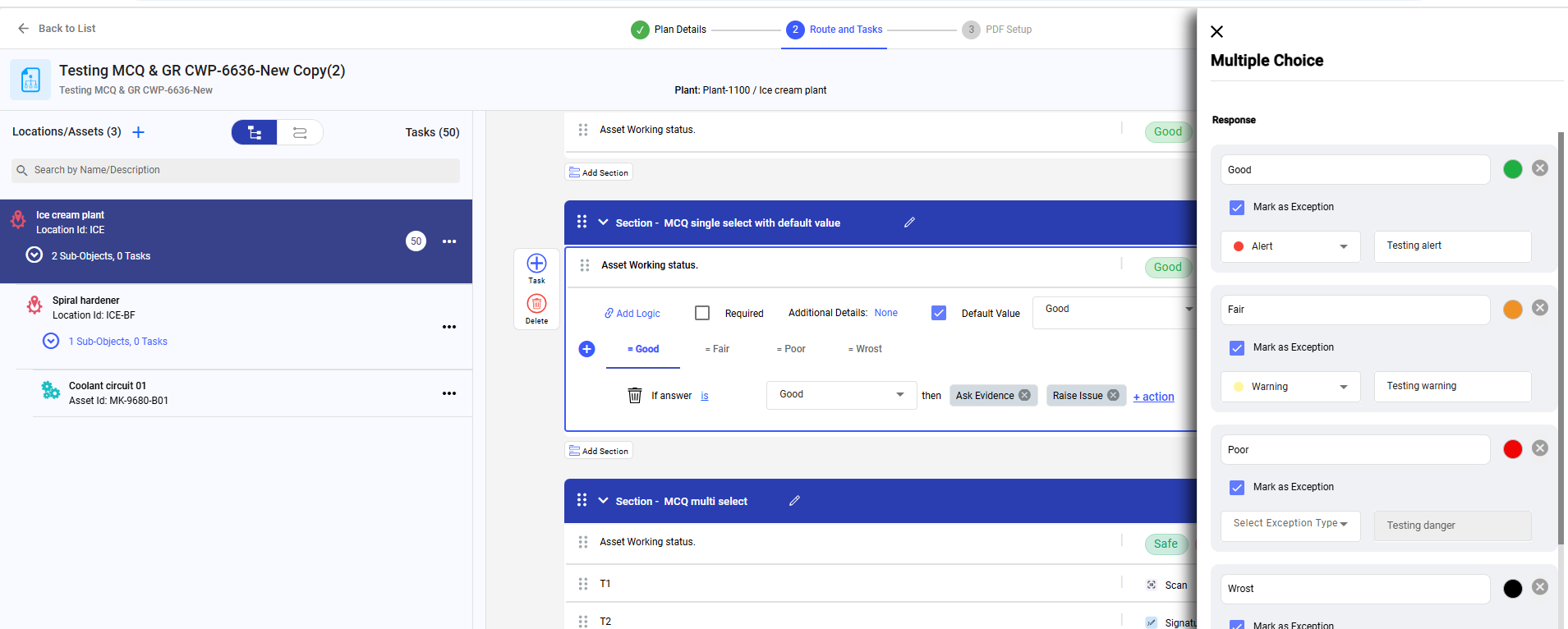
- Import sections and tasks from a template instead of building from scratch. See Import Round Plans from Template.
- Bulk-export or -import round plans and templates using the standardized Excel format.
The round plan has locations, assets, sections, and tasks configured.
Next: Use response-type guidance for the fields needed by each task, add conditional logic where required, and then preview the mobile flow.