Create a Round Plan

Create the round plan that defines the inspection purpose, plant, route, assets, and tasks Operators will execute. Save it as Draft until the content is ready for review.

For example, a pump-inspection plan can define a route, several pump assets, and tasks for leakage, temperature, and vibration.

A round plan has two statuses: Draft (created and saved; you can edit it any number of times before publishing) and Published (created, published, and ready to be scheduled).

To create a round plan:

  1. Expand the Operator Rounds module and click Round Plans on the left pane.
  2. Click Create New and select Create Manually, or import from Excel.

    To import from Excel instead: click the More icon and select Download Excel Template; fill in the details; click Create New > Upload Excel, select the file, and click Upload. The uploaded plans appear in the Round Plans screen with Draft status. You can use the same Excel format to bulk-export existing plans or templates.

    Open the round plan. The Plan Details screen is displayed.

    Figure 1. Fill Plan Details
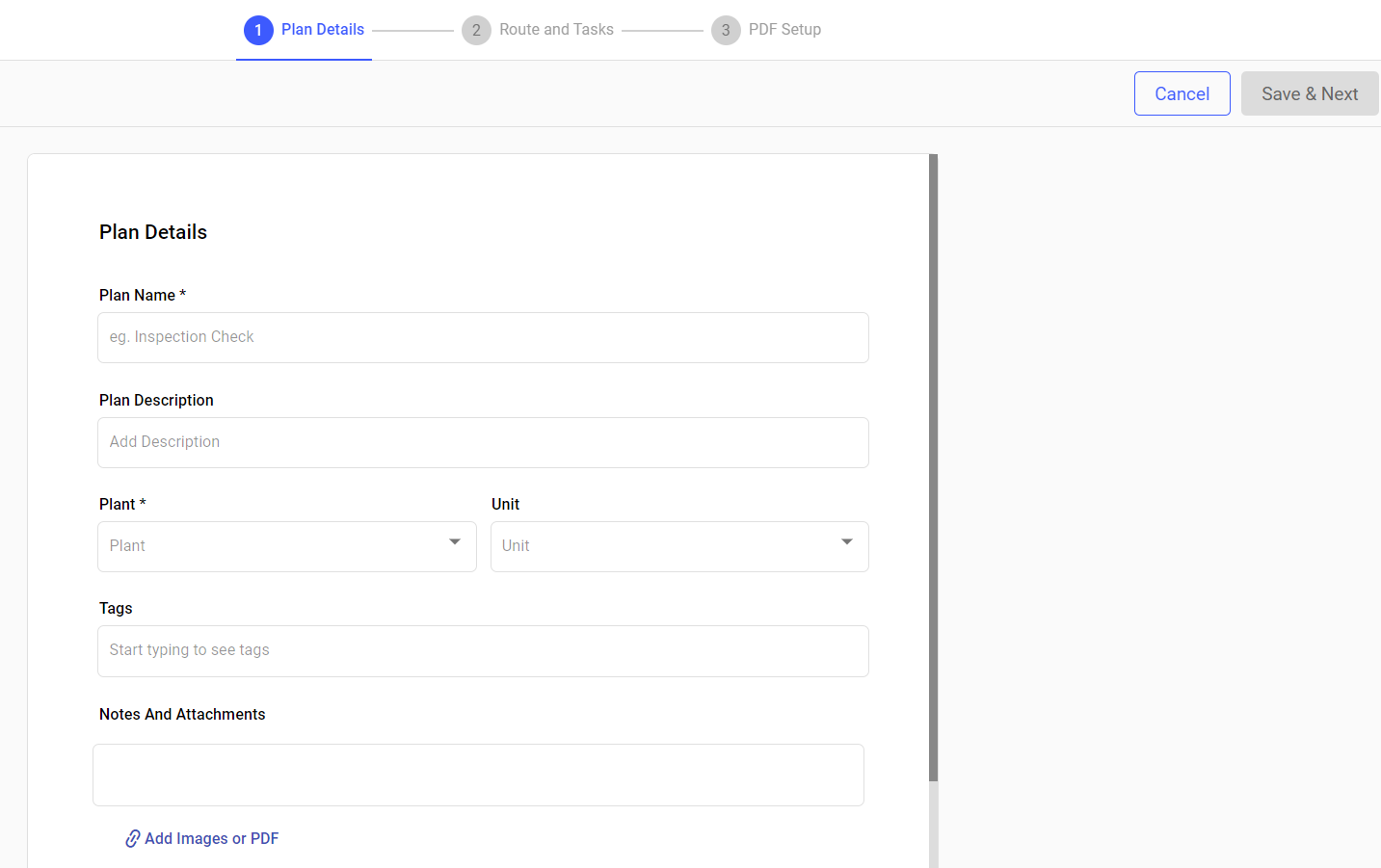

  3. In the Plan Details screen, fill in the fields.
    Table 1. Plan Details Screen Fields
    Field Description
    Plan Name A name to identify the plan. For example, Control Valve Maintenance.
    Plan Description A short description. For example, Inspect and maintain control valves to ensure operational safety and prevent leaks.
    Plant Select a plant from the drop-down.
    Unit Select a unit (functional location) from the drop-down.
    Tags Add relevant tags.
    Notes and Attachments Attach relevant documents, such as safety guidelines. Operators can view these offline on mobile while executing the round in areas with poor or no network connectivity.
    Zone Select one or more zones so the round executes within the selected zone by operator.
    Enable Barcode Scanning When configured. Makes barcode scanning mandatory for this round plan.
    Additional Details Click Add and enter a Label and Value to give operators situation-specific information (up to 25 characters for the label, 40 for the value). You can update or delete these at any time, even after the plan is scheduled.
  4. Click Save & Next.

The plan shell is saved in Draft status with its core details set.

Next:Add the locations, assets, pages, sections, and tasks that Operators will use.