
Import Round Plans from Template
Import sections and tasks from an existing template when approved reusable content already matches part of the new round plan.
Have a Local Template, Global Template, or existing round plan ready to import from. See Create and Prepare a Round Plan.
To import sections and tasks from the template:
-
If you select the Local Templates tab, select the
section you want to import and click Use. You can then choose one of the
following options:
- Import in Current Node: Imports the selected section into the Location/Asset you are currently working on
- Custom Locations/Assets: Imports the selected section into multiple Locations/Assets at once
- To import a template into multiple assets or locations:
- Click Custom Locations/Assets.
- Select the checkboxes next to the Locations/Assets you want to import the template into.
- Click Add.
- In the Copy Tasks window, choose New Page or Existing Page to specify where the imported section should go, then click Import.
- In the Import to selected Location/Assets confirmation window, click Continue to Import.
The selected section is imported into all the specified Locations/Assets in the Route Plan view.
Figure 1. Import Template Tasks 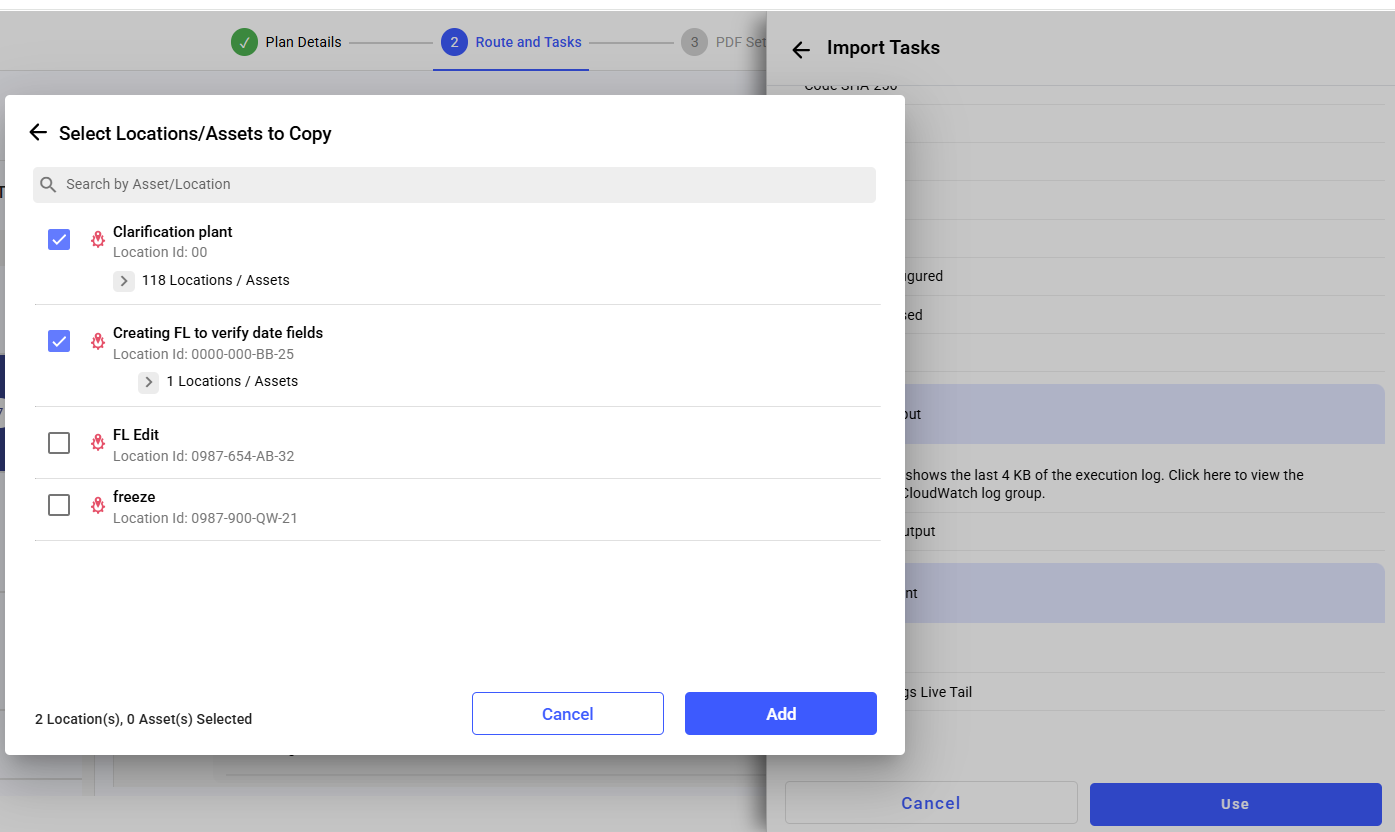
The imported sections or tasks appear on the target round plan's page.
Next: Return to the round plan, review the imported sections and tasks, and complete any required edits.