
Start an Operation or Sub-operation
After reviewing the required permit, JHA, Work Instruction, components, and forms, start the operation assigned to you. Its status changes to In Progress and execution tracking begins.
See Operation Status, Confirmation, and Timesheets for how starting an operation relates to confirmation and timesheets.
-
Tap Start Operation.
Figure 1. Start Operation 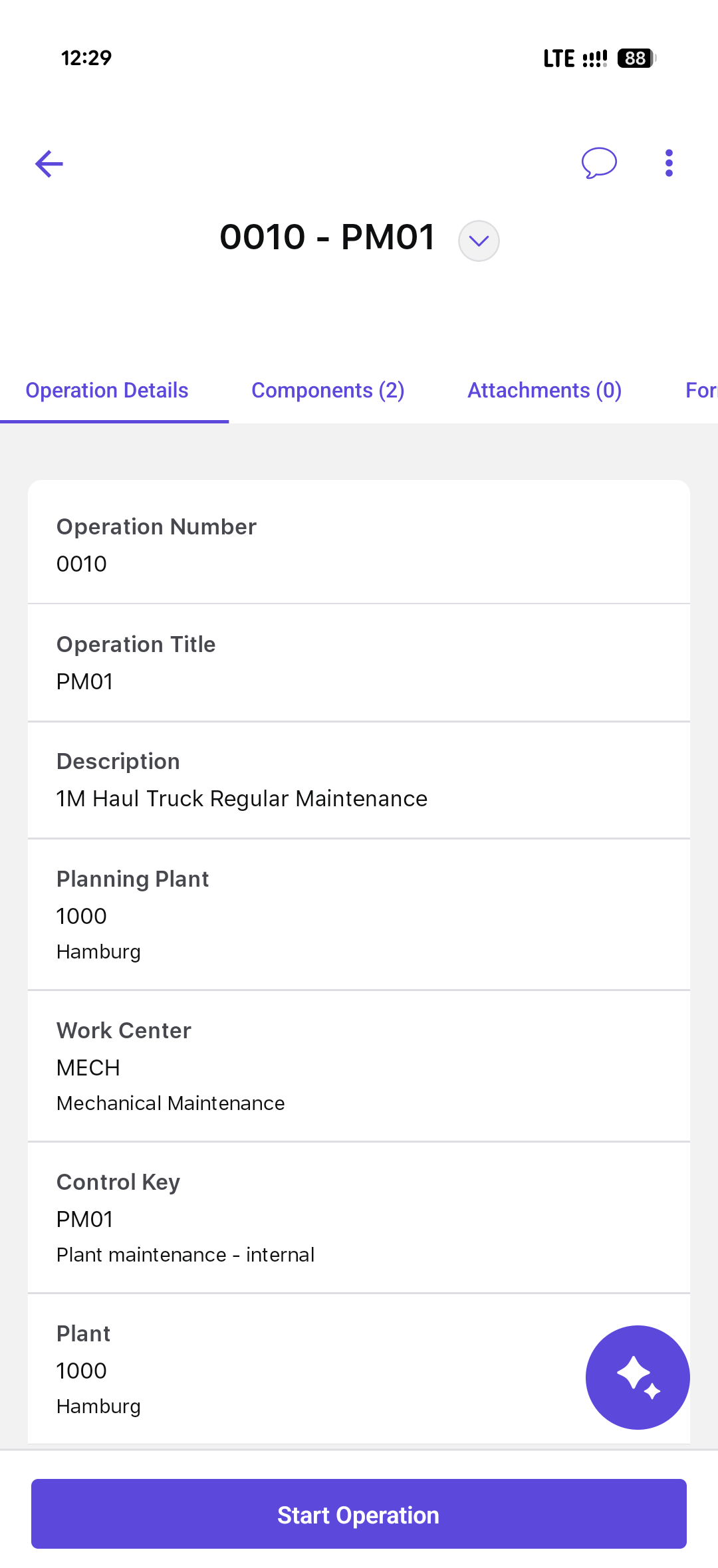
The operation or sub-operation changes to In Progress and execution tracking begins. Do the assigned work and complete the records shown for the job.
Next: End and Confirm an Operation, after doing the work and the checks shown for the job.