
Capture Asset Data using Forms
Use Forms to record readings, inspection results, or equipment status while executing a work order.
Capture Asset Data using Forms
Use Forms to record readings, inspection results, and equipment status while
executing a Work Order.
- For PM and Calibration Work Orders, the inspection form is available based on the form mapped to the Job Plan.
- For Corrective Work Orders, the form is linked based on the asset or Work Order type.
-
Fill in the form details, such as Site Conducted,
Conducted On, Start Date &
Time, End Date & Time,
Performed By, and other required fields.
Note:You can add attachments directly within the forms, and these are automatically included in the generated PDF upon form submission. The attachments are linked to the forms themselves and are not stored under the Work Order GOS/DMS.As you complete the form:
- Conditional logic may show or hide sections/questions, request evidence, or raise issues based on your selections.
- Instructional media (images, videos, documents) appears inline where relevant to guide you through specific steps.
- Numeric fields display default values and units of measurement (UoM) when applicable.
- Formula fields (addition, subtraction, multiplication, division, etc.) calculate automatically. For example, if Field A + Field B = Field C, entering values in A and B updates C.
- Report issues directly from any field or at the form level by tapping Report Issue.
- View issue history for the asset to see previously reported problems.
Figure 1. Fill Form Details 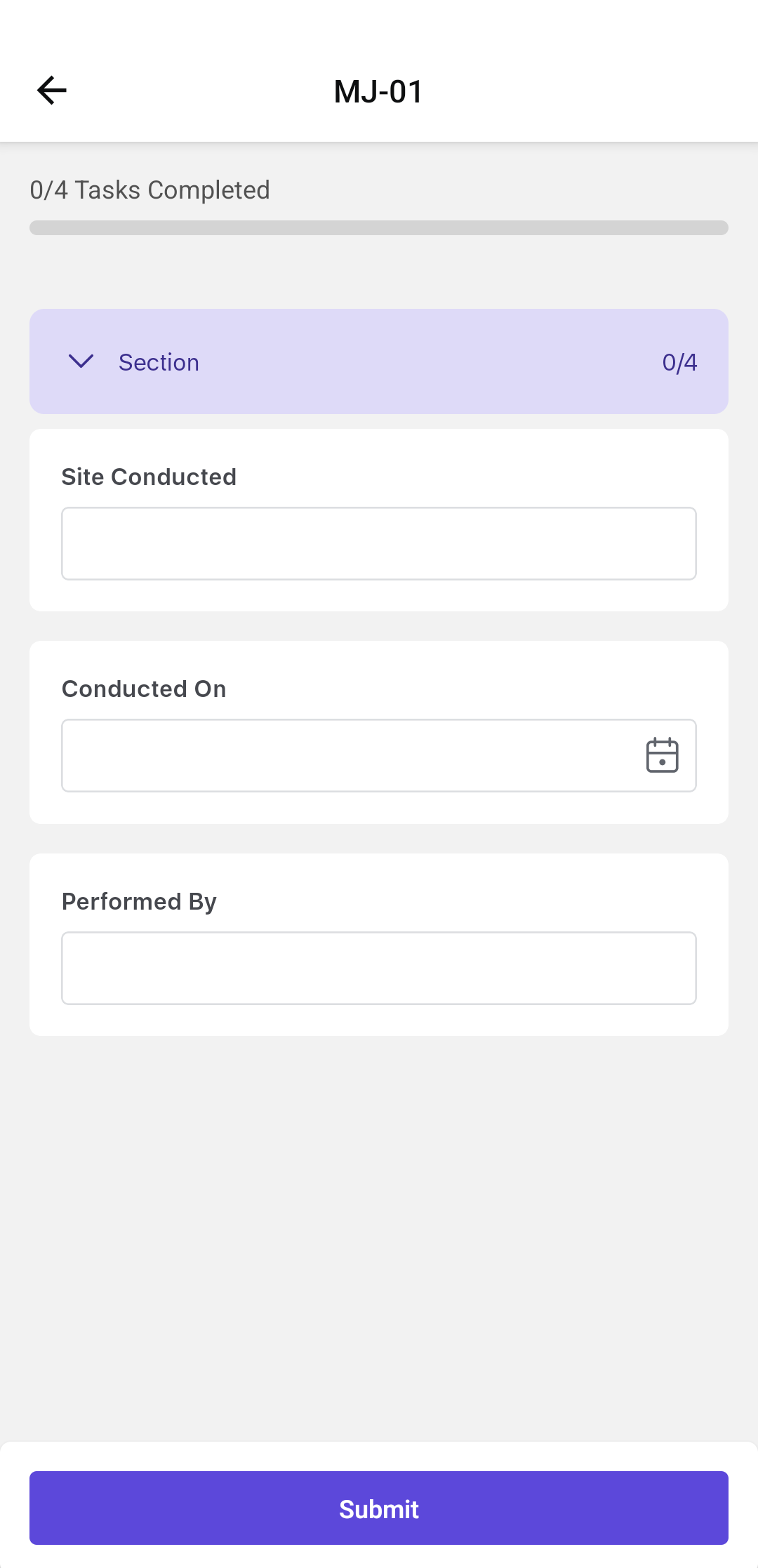
The form response is validated and submitted or retained as a draft according to its configuration. The generated PDF is attached to the work order.
A form that has already been submitted can also be converted to PDF later, including while you are working offline.
Next: End and Confirm an Operation, after completing the remaining work on the operation.