
Cancel/Reverse Goods Issue Using an Outbound Delivery
Use the GI Reversal sub-module of the Extended Warehouse Management (EWM) to cancel the items issued for an outbound delivery.
To cancel/reverse goods issue using an outbound delivery:
-
Tap GI Reversal.
Figure 1. Search Outbound Delivery Documents 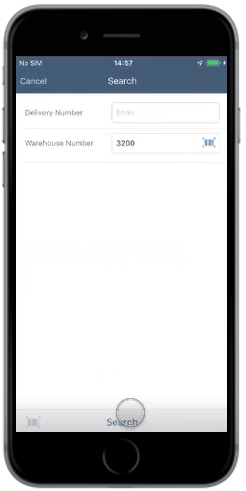
-
In the Search screen, retrieve the Outbound Delivery using any of the
following methods:
- Enter the Delivery Number or Warehouse Number in the Search/Scan field and tap Search.
- Tap the Scan icon to scan the document. Note:You can enable Combo Scan for this scan field. Combo Scan helps you scan the barcode, capture data, and navigate automatically to the transaction screen related to the value. For information, see the Configure mInventory using RACE™ guide.
Figure 2. Outbound Delivery Documents List 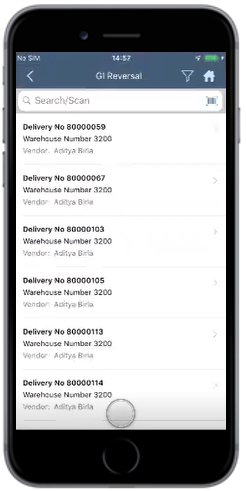
-
In the GI Reversal screen, tap on the Outbound Delivery document.
Figure 3. Outbound Delivery Line Items 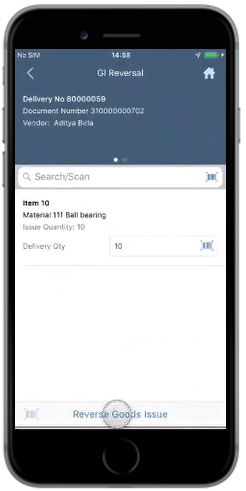
The goods issue for the outbound delivery is reversed.