
Use the Pack/Unpack sub-module to pack or unpack the items (materials or packing
materials) for an inbound delivery. When you receive the packed goods from a vendor, you
must repack the goods for putaway purpose, so that each Handling Unit contains a single
product.
Select the items to pack using the inbound delivery documents. You can also scan the line items to automatically select the items for delivery. With the Auto-Pack feature, you can pack all the line items of an inbound delivery.
To Pack the items for an inbound delivery:
In the Home screen, tap EWM.
Tap on Pack/Unpack.
In the Search screen, retrieve the Inbound Delivery using any of the
following methods:
Enter the Inbound Delivery, Warehouse Number and
Material in the Search/Scan field and tap Search.
Tap the Scan icon to scan the line item. You can enable Combo
Scan for this scan field. Combo Scan helps you scan the barcode, capture
data, and navigate automatically to the transaction screen related to
the value. For information, see the Configure mInventory using
RACE™ guide.
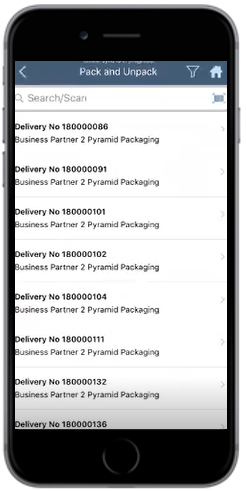
In the Pack and Unpack screen, tap on the Inbound Delivery
document.
Figure 1. Inbound Delivery Document List
Select the line item on the Unpack tab.
Figure 2. Packing Delivery Document Details
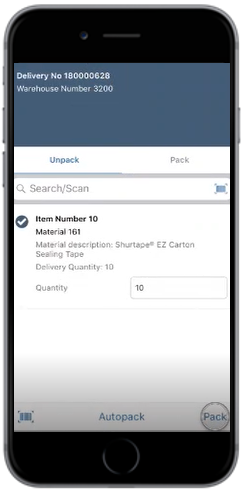
Tap Pack to pack the line item(s).
Tap Autopack to auto pack the line items.
To unpack, select the line item on the Pack tab and choose
Unpack.
Select the material type in the Packaging Material drop-down on the
Select Packing Material screen.
Figure 3. Packing Material Screen
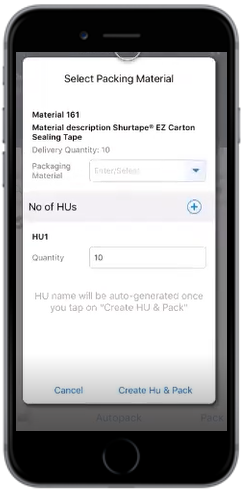
Enter the Quantity.
Tap Create HU and Pack.
A message appears confirming that the HU is created and packed successfully.