
Create a Custom Widget
Add a widget to show a selected trend, report, chart, or table on a Custom Dashboard. Choose the visual that best supports the decision users must make.
Have a Custom Dashboard open. See Create and Use a Custom Dashboard.
-
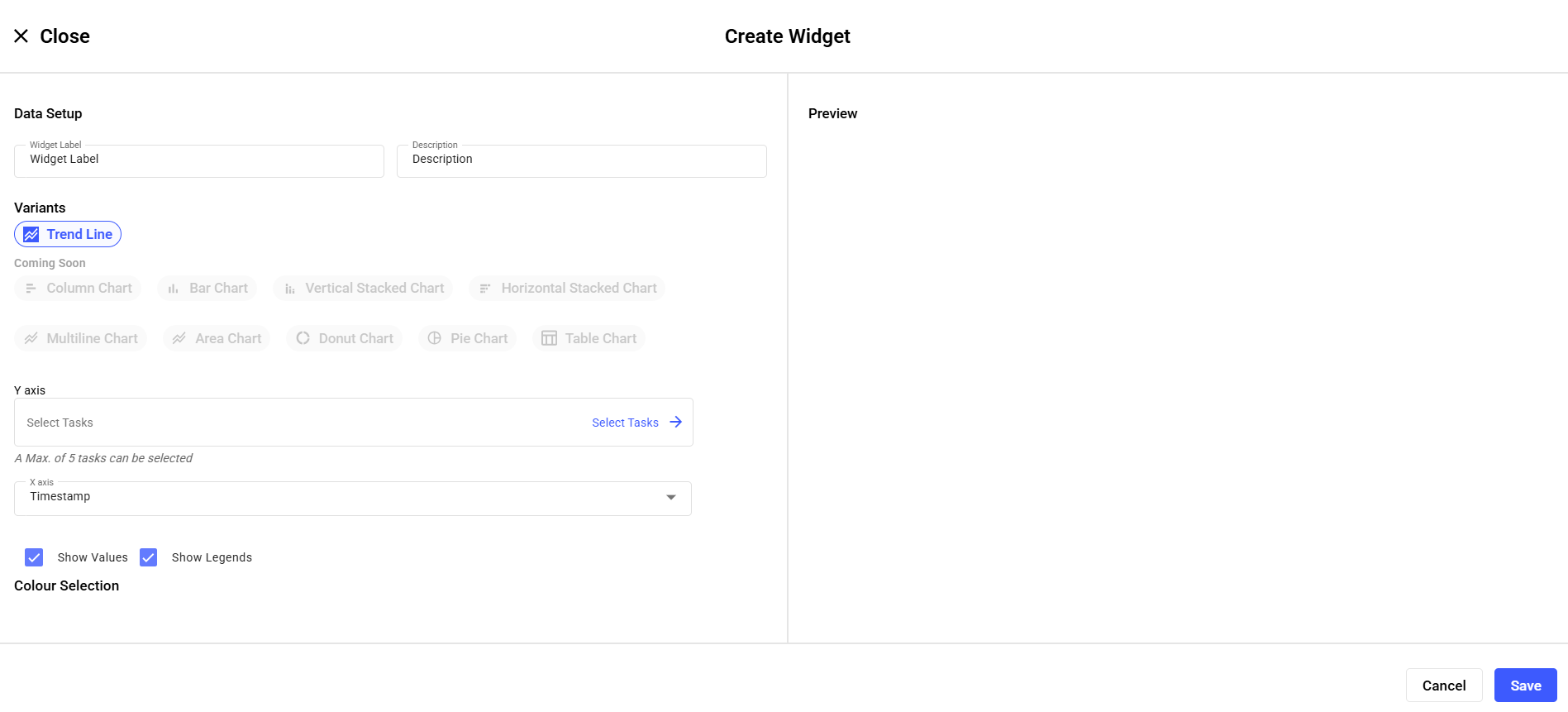
For a Pre-Built (Trends) widget, fill in the Create Widget screen.
- Enter a Widget Label and Description.
- Under Variants, select Trend Line.
- Configure axes: Y axis — up to 5 tasks; X axis — Timestamp (default).
- Select display options: Show Values, Show Legends.
- Set colors under Colour Selection.
- Click Save.
-
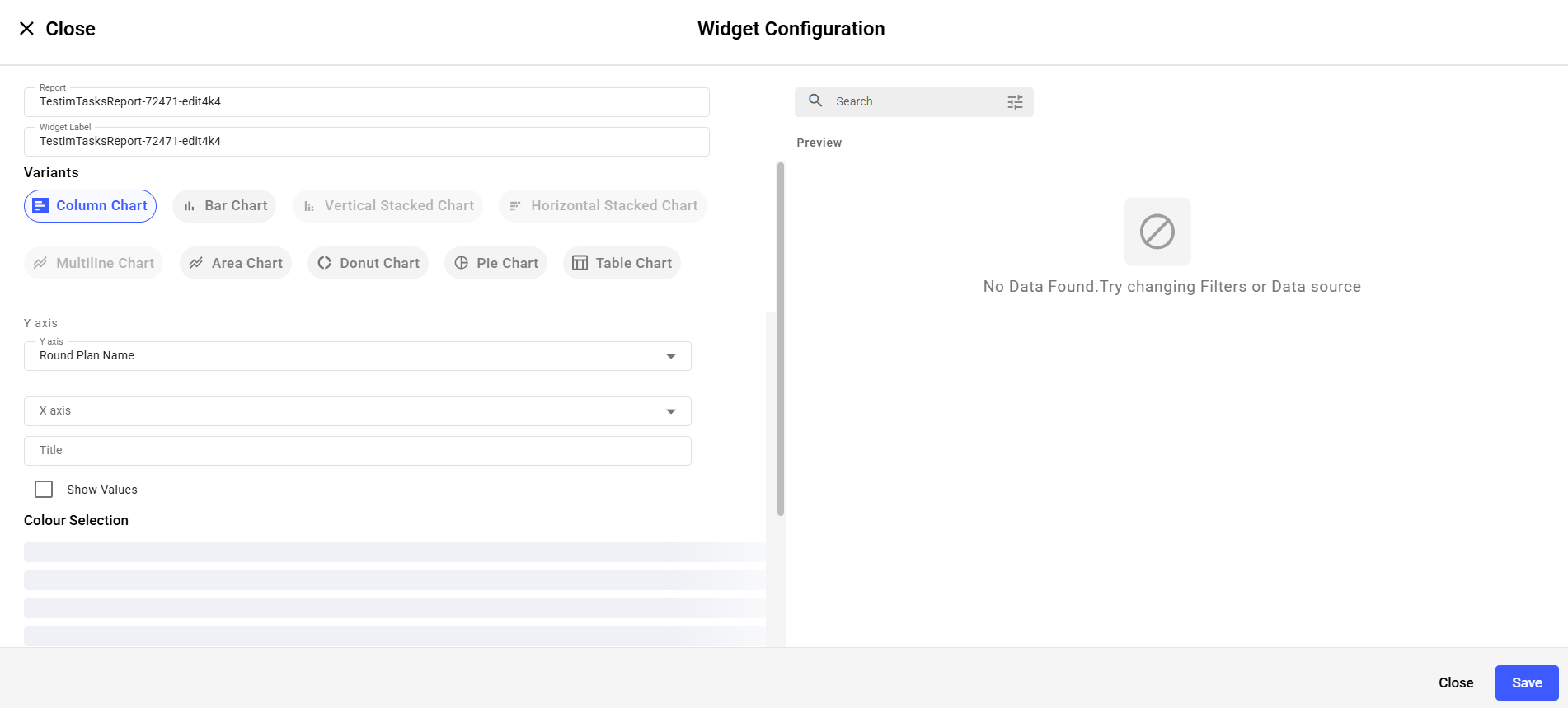
For a Report-based widget, fill in the Widget Configuration screen instead.
- Select a Report; Widget Label auto-fills from the report name (editable).
- Under Variants, pick a chart type: Column, Bar, Vertical or Horizontal Stacked, Multiline, Area, Donut, Pie, or Table.
- Configure axes: Y axis — Shift Name or Shift ID; X axis — Timestamp (default).
- Select Show Values, adjust Colour Selection, and review the live Preview panel.
- Click Save.
The widget is added to the dashboard, showing data for the dashboard's plant.
Table Widget: Compare Task Readings Side by Side. A Table Chart puts selected numeric task readings side by side by time slot, without opening each round. Add it like any other widget, using the steps above.
A Table Chart shows the recorded values themselves, by task and time slot, rather than plotting them.
The Table Chart keeps the Task, the Task Section and the selected time slots together. You can move through dates to review the period you need, and export the view to Excel.
Next action: Filter, resize, or manage the widget. See Filter and Manage Dashboard Widgets.