
Modify Round Plans
Modify a Draft or permitted round plan when assets, tasks, guidance, or operational requirements change. Review the effect before republishing or rescheduling.
-
For the round plan you want to change, click the More
 icon and select
Edit.
icon and select
Edit.
Figure 1. Edit Rounds 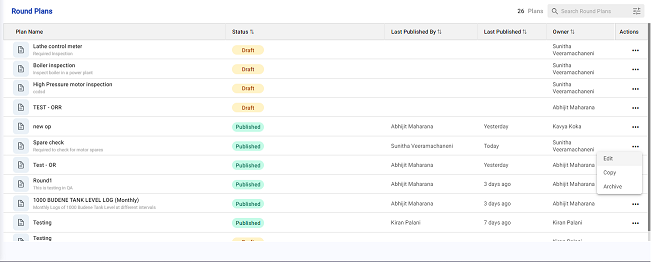
The revised round plan is republished. Rounds that were already generated keep the content they were created with; rounds generated after republishing use the updated content. mRounds stores the required content with each generated round. Older plan versions no longer sit in the plant snapshot, and less content is downloaded to mobile devices.
Next: Preview the revised plan and send it for approval before it is published or used again.