
Add Locations, Assets, Sections, and Tasks
Build the field experience by selecting locations and assets, organizing pages and sections, and adding the tasks Operators must complete.
Create the round plan shell. See Create a New Round Plan.
Use pages, sections, and tasks to keep a round plan easy to follow on mobile. A clear structure reduces searching and helps Operators complete checks in the intended order.
- Pages break a long round into manageable stages.
- Sections group related tasks for an asset, location, system, or activity.
- Tasks describe one clear check, reading, confirmation, or evidence requirement.
- Response types define how the Operator records the result.
Organize these elements in the order the Operator will perform the physical inspection.
-
In the Select Locations window, select locations and click
Next.
Figure 1. Select Locations 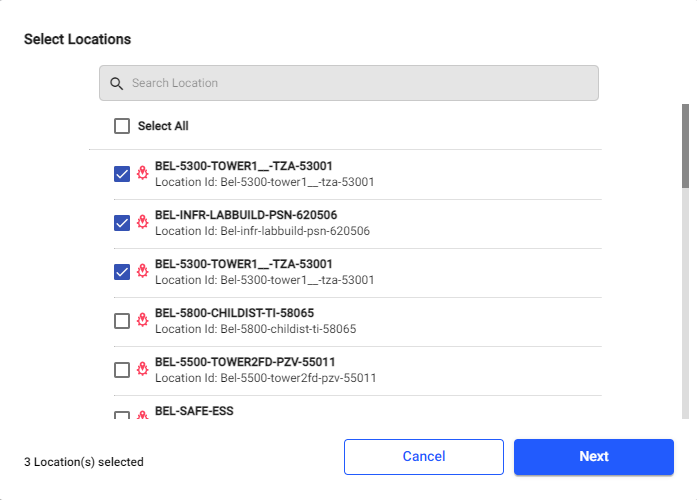
-
In the Select Assets window, select assets and click
Add.
Figure 2. Select Assets 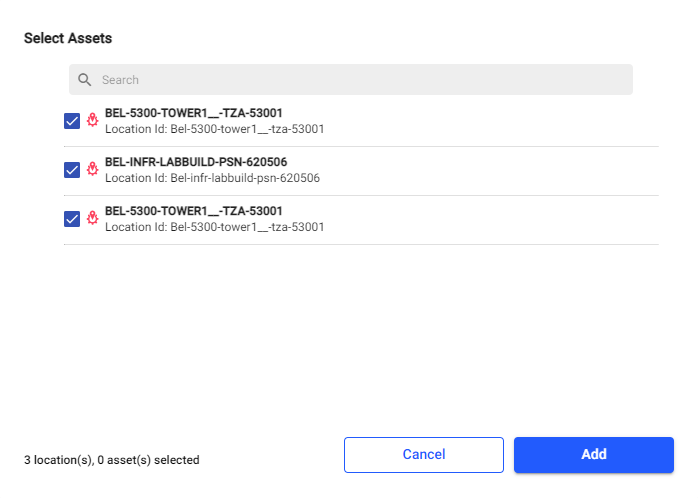
Note:Requires SAP integration. When you select locations and assets, mRounds automatically pulls and synchronizes asset and location metadata (codes, locations, specifications) from SAP/ERP and shows it at the task level during round plan creation. -
Click the Task icon inside a section.
Configure the task with these settings:
- Type Task: enter the task text.
- Responses: select a response type. To choose one, see Choose the Right Response Type.
- Add Logic: configure what a given response triggers. See Conditional Logic.
- Required: makes the task mandatory.
- History: shows the last five readings. Number and Slider response types only.
- Additional Details: click Add to add
Tags and Attributes (Label and Value, up to 250 characters).
- For Multiple Choice and Picklist responses you can mark specific values as
exceptions — marking Abnormal on a motor condition
picklist, for instance — so exception reports flag them and planners can act.
Figure 3. Response Type Exceptions 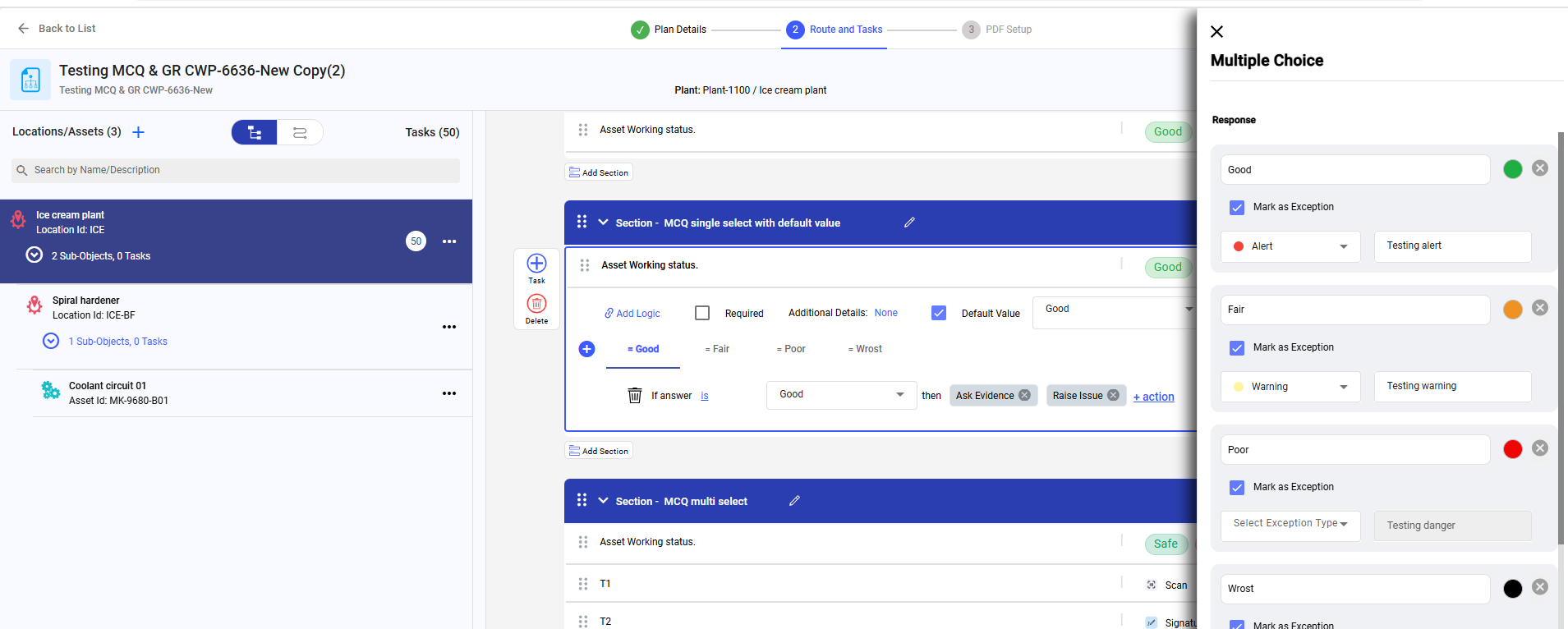
- In the Historian Tag field add the unique identifier
obtained from Aveva PI. Link the tag, if you want the operator’s reading to be
saved in your plant’s PI historian. When the operator submits the round, the
system automatically sends the reading to PI with the time it was recorded.
For example, link the task Record discharge pressure at gauge PG-101 to the PI tag for PG-101. Each submitted reading is added to PI.
Figure 4. Historian Tag 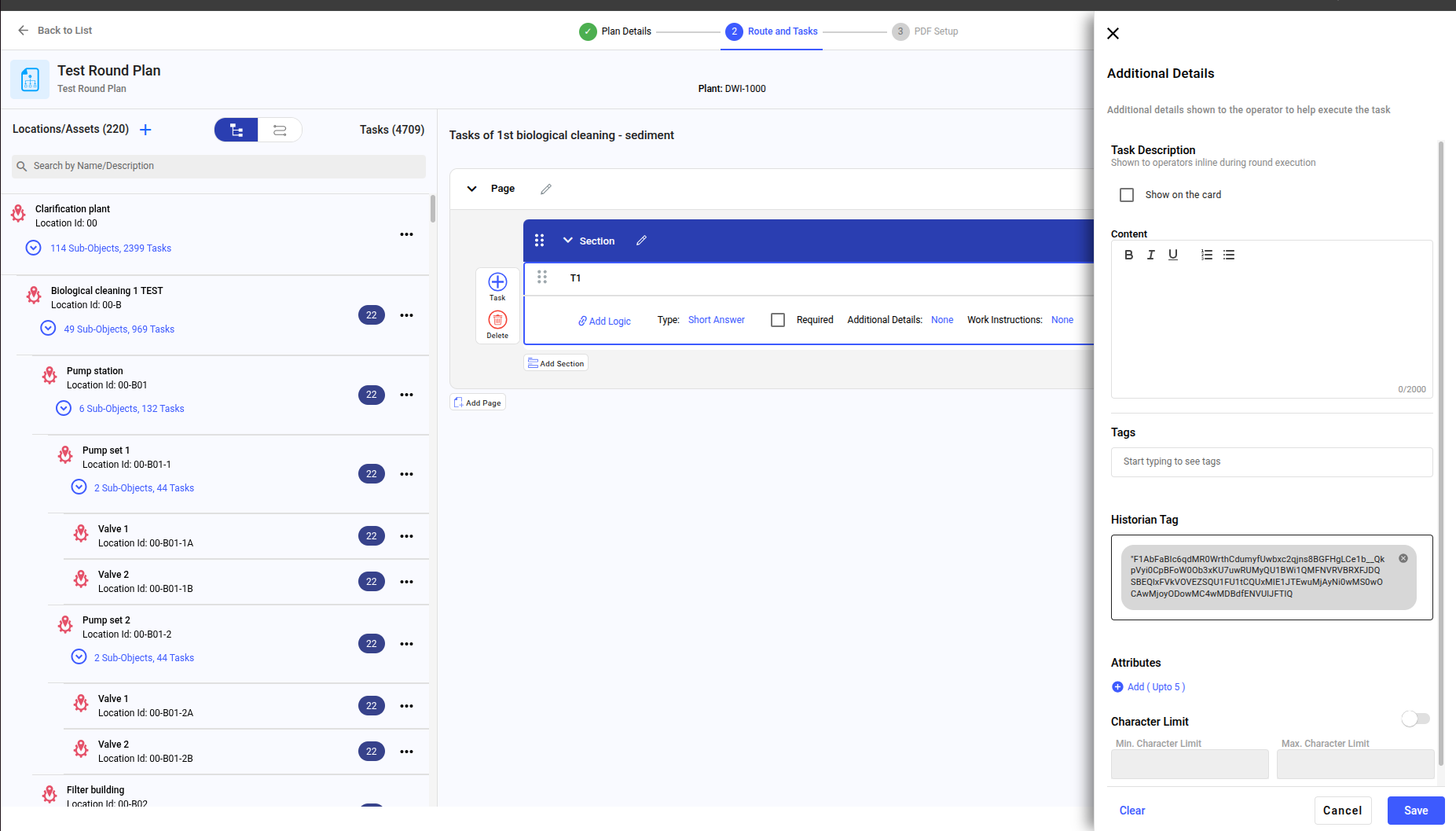
- For Multiple Choice and Picklist responses you can mark specific values as
exceptions — marking Abnormal on a motor condition
picklist, for instance — so exception reports flag them and planners can act.
The round plan has locations, assets, sections, and tasks configured.
Next: Choose the response type each task needs (see Choose the Right Response Type) and add conditional logic where required. Then preview the plan — see Preview and Send a Round Plan for Approval.