
Review and Approve Round Plan to Publish
As a configured approver, review the plan’s content and mobile experience before approving, rejecting, or reassigning the request.
Approval provides a checkpoint between authoring and scheduling. The reviewer checks the plan content and mobile experience before it becomes available for operational use.
For example, a pump-inspection plan appears in My Approvals after the Supervisor or Round Planner sends it for approval.
-
Click the round plan.
The round plan summary opens on the right side.
Figure 1. Approve Round Plan 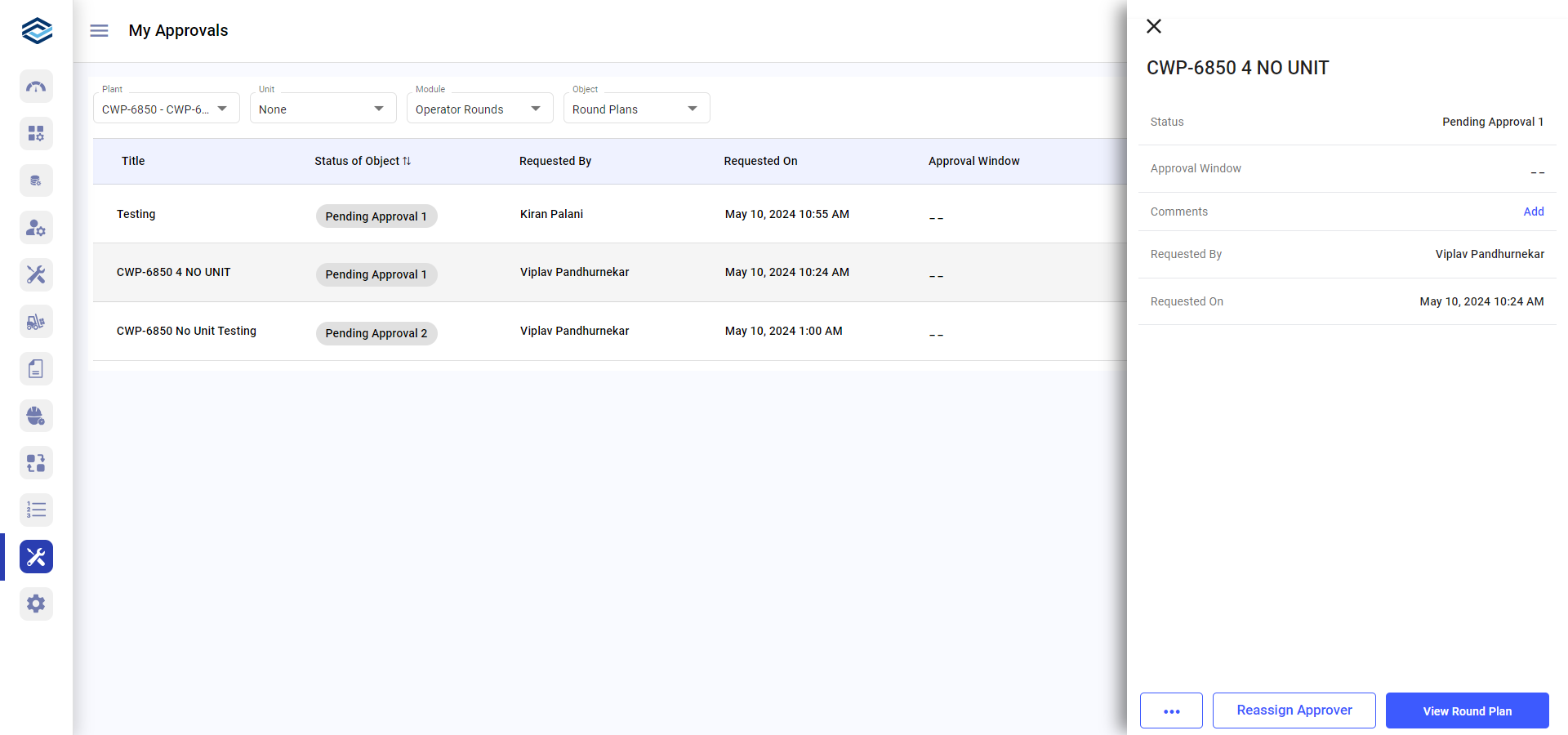
-
In the Add Approval Comment popup, add comments and
click Comment and Approve.
Or, to review the plan details before approving:
- Click View Round Plan to view the round plan details.
- Review the details and click Save and Next.
- Click Next.
- Click Approve.
Figure 2. Approve 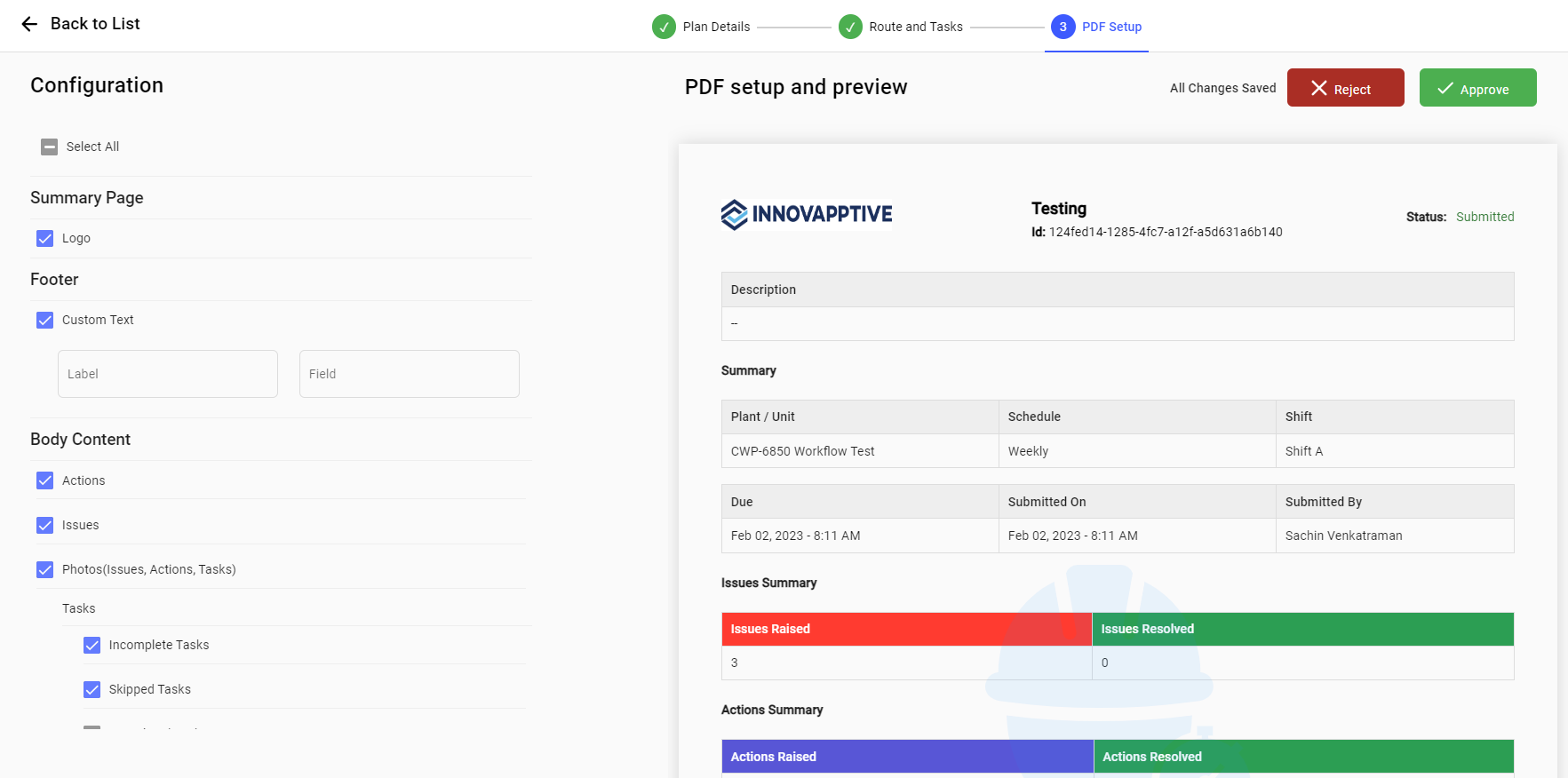
Note:You can click Reassign Approver to reassign the round plan to a user, user group, or position.
The approval decision and comments are recorded, and the round plan moves to the resulting workflow status.
Next: After the plan is approved and published, schedule and assign it. Use the audit trail when the decision or status must be reviewed.