
Search and Filter Rounds, Issues, and Actions

Use search when you know identifying details for a record, and apply filters when you need to narrow a larger list of round plans, scheduled rounds, Issues, or Actions.

The process is the same for searching and filtering any item. Only the screen you start from changes.
  1. On the left pane, click the section that holds the records you want to find.
    • Click the Round Plans section on the left pane for round plans.
    • Click Scheduler for published plans.
    • Click Archived for archived plans.
    • Click Observations for Issues and Actions.
Search the list. Search from the relevant module when you know a round-plan, round, Issue, or Action detail that can identify the record.
  1. Enter the name of the round, Issue, or Action in the Search field.
    Figure 1. Search
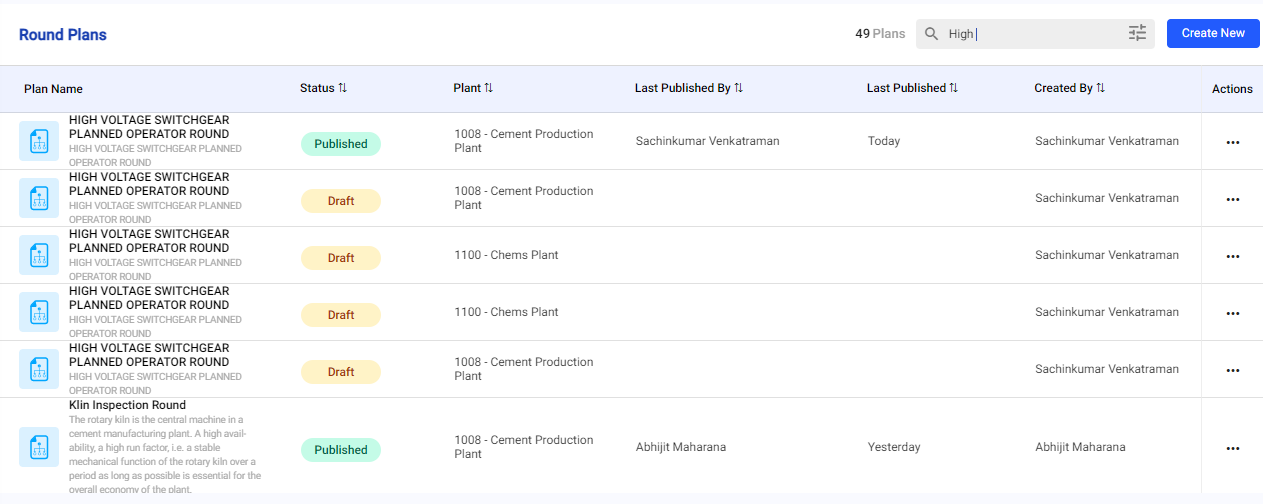

  2. Select the round, Issue, or Action from the list to view its details on the right side.
Filter the list. Apply filters such as plant, unit, status, date, priority, or assignee to narrow the records shown for the current task.
  1. To filter the rounds quickly, select one of the smart filters: Today, 7D, 30D, 3M, 6M, or custom fields.
  2. For additional filters, click the Filters icon next to the Search field.
  3. In the Filter window, select the Status, Modified By, Created By, and Plants values from the drop-down. For example, select Status = Open and Priority = High.
    Figure 2. Filter Rounds
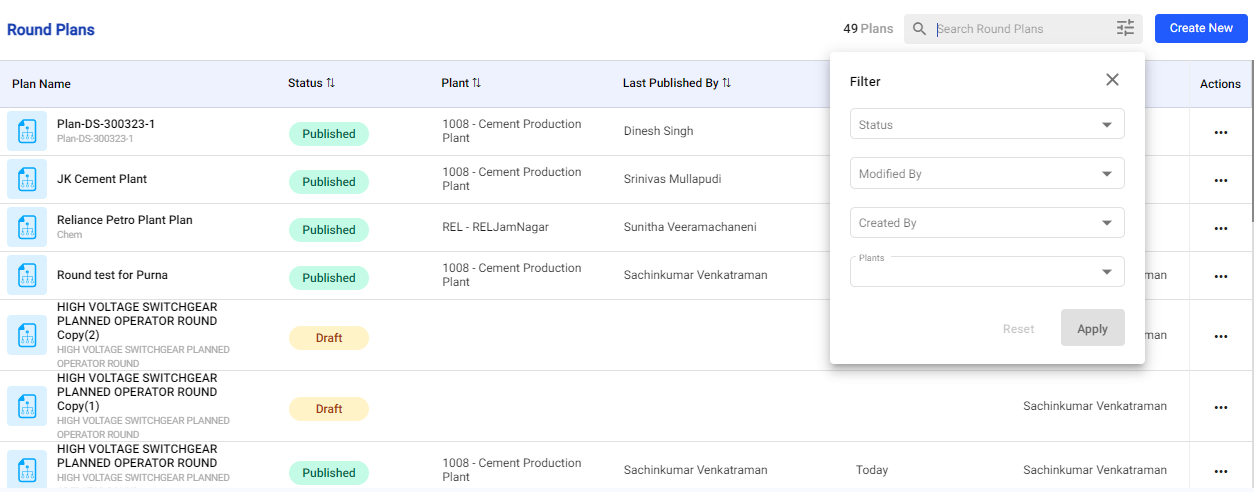

  4. Click Apply.
    The list now shows only the records that match the values you selected.