
Resolve and Close an Action
Resolve and close an Action after the assigned follow-up work is complete and its outcome has been recorded.
To resolve and close the Action:
-
Open an Action assigned to you that is in Open or In Progress state.
The Action opens showing its chat box and log history.
Figure 1. Actions Log History 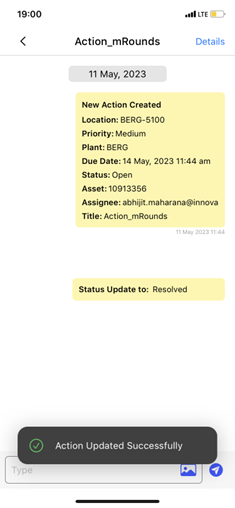
-
Enter your update in the text box and tap the Enter
 icon.
icon.
This sends your supervisor the updates related to the Action. You can also add images as evidence.
The Action is marked Resolved and the relevant teams are notified.
Next: Return to the active round or continue the remaining activities for your shift.