
Create an Action
Create an Action when the configured workflow allows a follow-up activity to have its own owner, priority, and due date.
To create an Action:
-
In the Actions screen, tap the Add Action
 button at the bottom.
-
In the Create Action screen, enter the Action details.
- Enter the action title in the Title field.
- Enter the action description in the Description field.
- Tap Add Photo in the Photo field to add images.
- Select the Priority as High, Medium, or Low.
Figure 1. Create Action 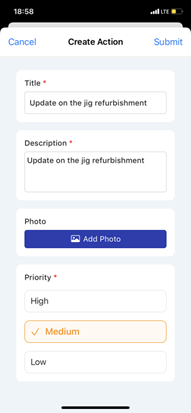
-
Assign the Action and set its due date and status.
- In the Assign to drop-down, choose
Users and select users or operators, or
Usergroup and select user groups. Tap
Save.Note:Actions assigned to both a User and a Usergroup are displayed in the My Actions tab for every user.
- Select the Due Date and Time.
- Select the Status — Open, In-Progress, or Resolved.
Figure 2. More Details 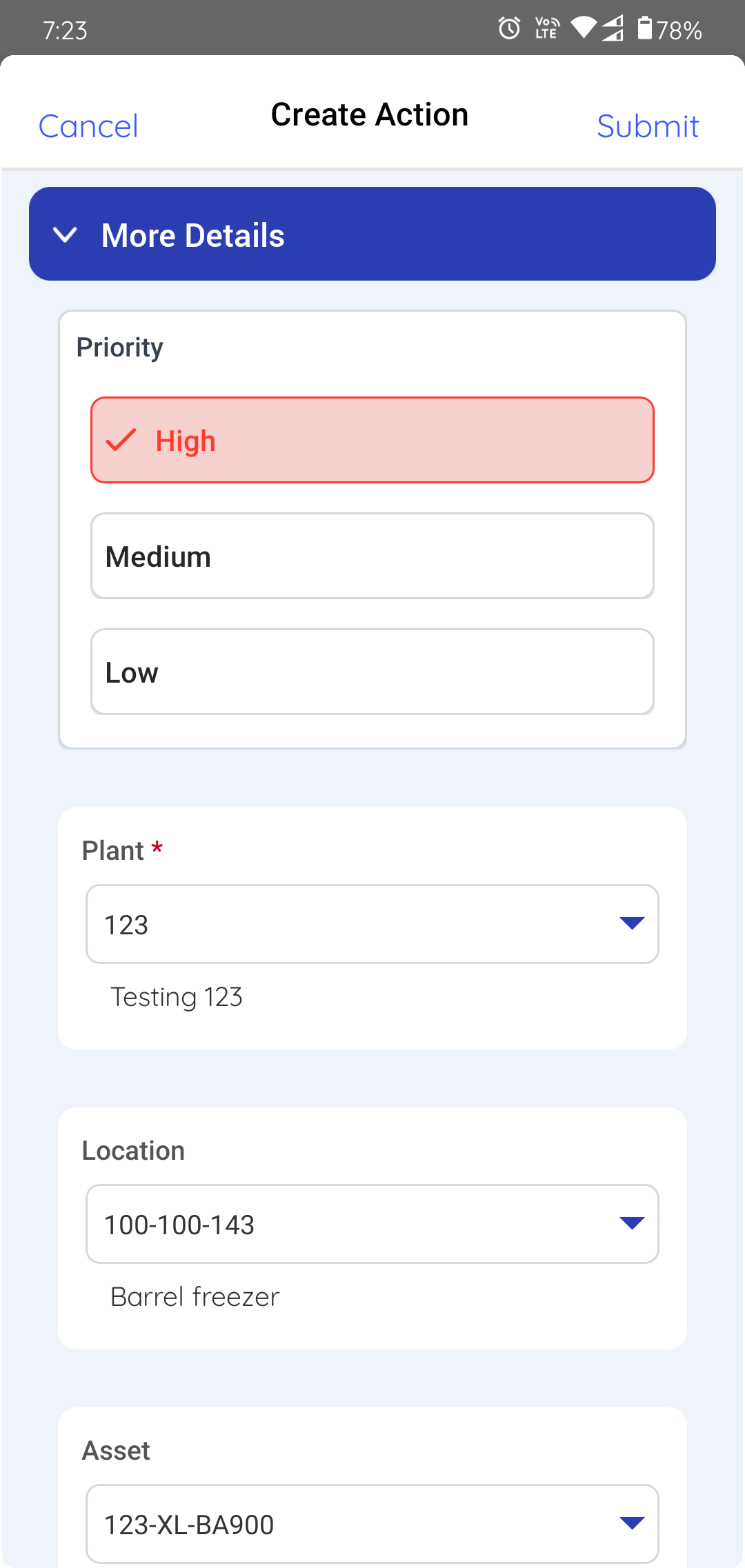
- In the Assign to drop-down, choose
Users and select users or operators, or
Usergroup and select user groups. Tap
Save.
The Action is created and appears in Open Actions. If it is assigned to you, it also appears in My Actions.
Next: If you are taking responsibility for the follow-up, assign the Action to yourself. Return to the round and continue the remaining tasks.