
Create an Issue
Create an Issue when a task reveals an abnormal condition that needs investigation or follow-up after the round.
Create an Issue directly from a round task or from the Issues screen.
-
Fill in the Create Issue screen.
Title, Description, and a photo describe the condition. Category and Priority decide what happens to the Issue next. Read these two rules before you fill the form.
Category changes where the Issue goes. Choosing Maintenance sets Convert to ERP Notification to Yes, and the Issue is converted to a notification automatically. It leaves mRounds and lands in the maintenance system.
The other categories — Observation, Incident, Near Miss, Hazard — keep the Issue in mRounds, where it is tracked and closed by your team.
Priority — check the risk matrix first. Tap the help icon next to Priority to see the instructions for determining risk-matrix-based Priority. Do this before you select a value.
For Shutdown and Turnaround priorities, selecting the consequence makes Impact, Likelihood and Spare availability available, and those are carried into SAP.
Table 1. Issue fields Field What it does Title and Description What the condition is and where the equipment is. Photo Evidence of the condition. Photos are stamped with the time and location they were captured. Event Execution Shutdown, Turnaround, or General — the work context the Issue belongs to. Plant, Unit, Location, Asset Where the condition is. Prefilled when you create the Issue from a round task. Assigned To The user or user group that owns the follow-up. Start and Due date and time When the follow-up should begin and when it is needed by. Status Open, In-Progress, or Resolved. Figure 1. Create Issue 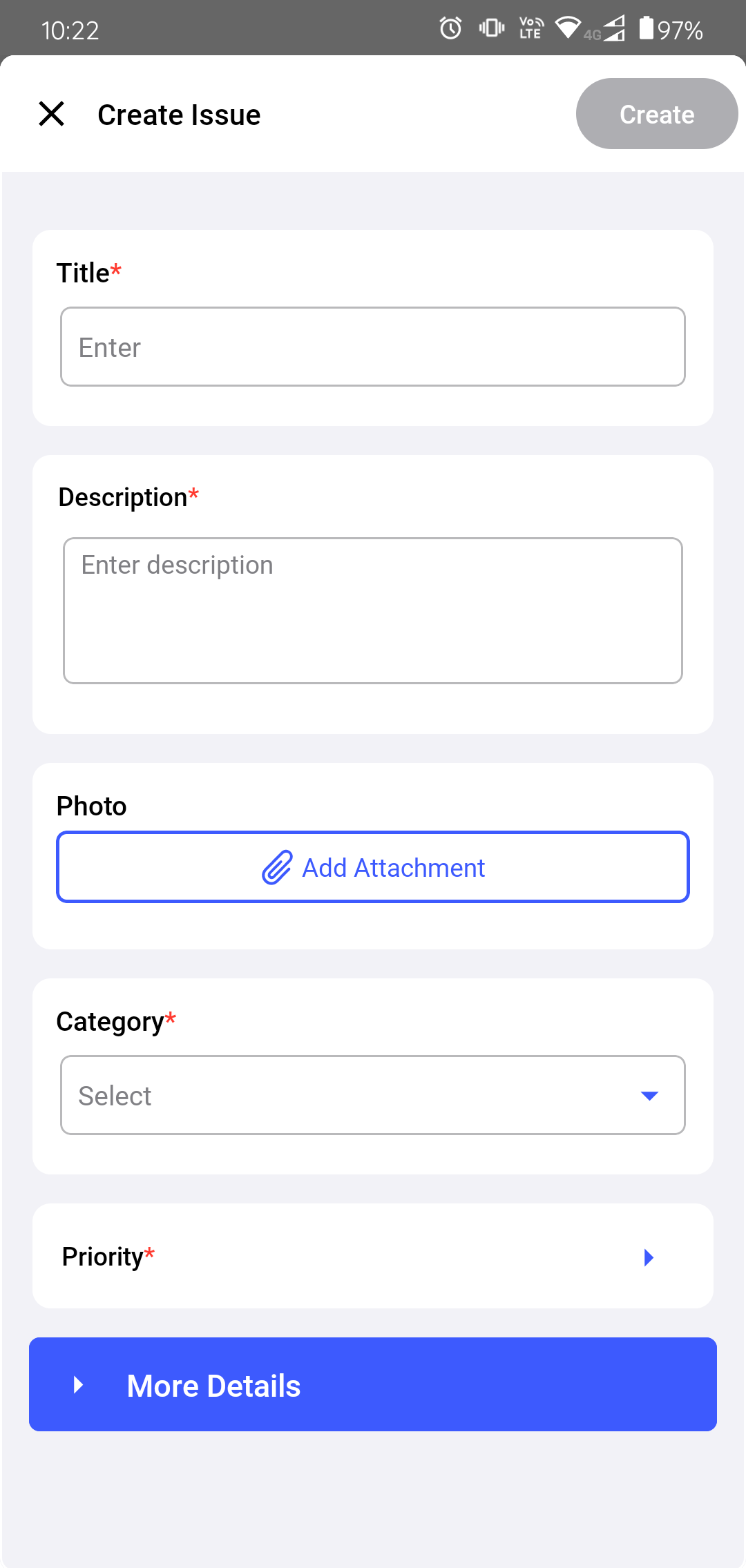
-
Expand More Details and complete the location, ownership, and
dates.
- Select the Plant, Unit,
Location, and Asset.Note:Plant and Unit auto-populate from your User Preferences.
When you scan an asset, these details are added instantly.
- Select an operator from Assign to, then tap Save.
- Select the Start Date and Time and the Due Date and Time.
- Select the Status.
Figure 2. Fill More Details 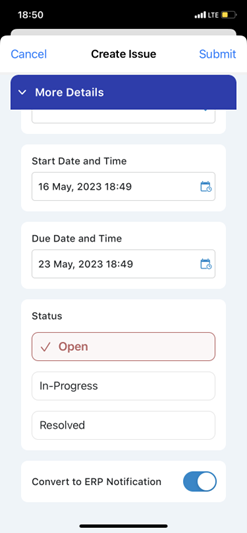
- Select the Plant, Unit,
Location, and Asset.
The Issue is created and appears in Open Issues. If it is assigned to you, it also appears in My Issues.
Next: If you are responsible for the investigation, assign the Issue to yourself. Return to the round and continue the remaining tasks.