Create a Round Plan Template
Create a reusable round-plan template when the same structure, sections, and tasks will support multiple plans or plants.
-
Expand Operator Rounds and select the
Templates section on the left menu.
The Templates screen lists the existing round templates.
- Click the Create New button on the right side.
-
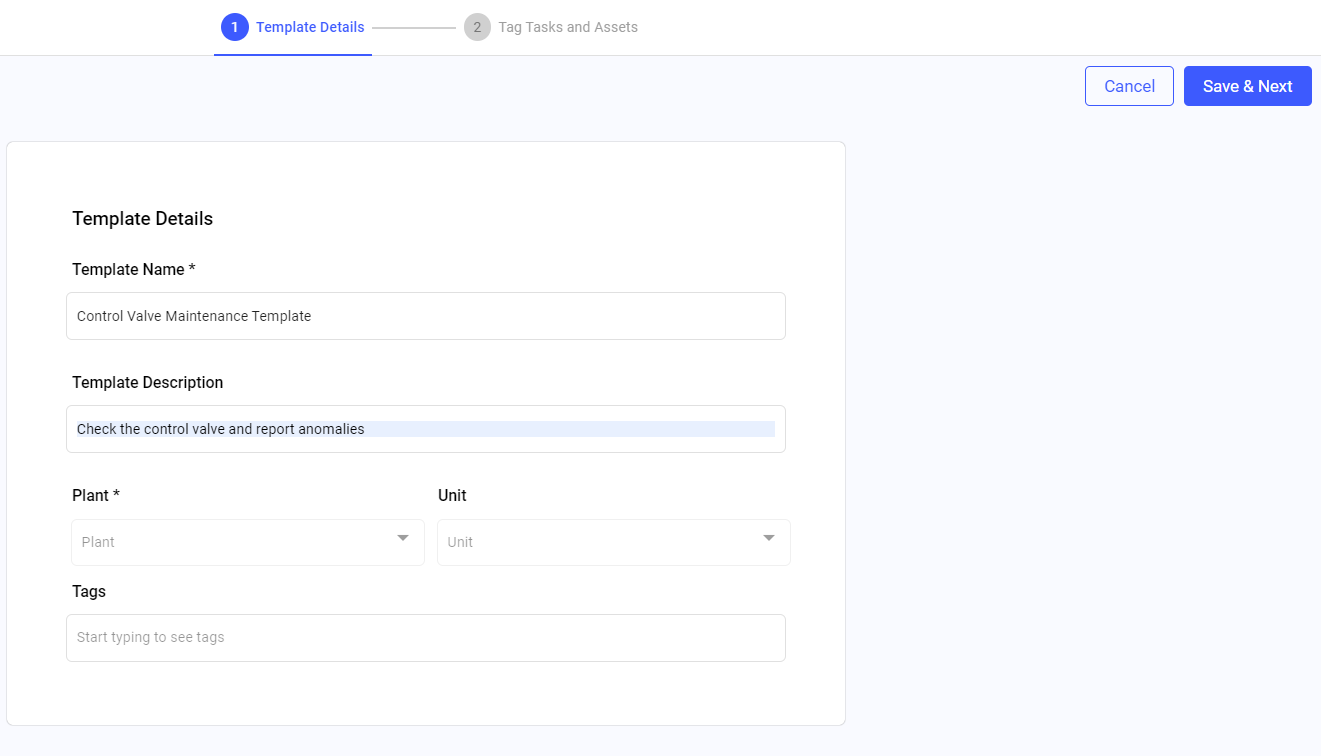
In the Template Details screen, fill in the following
details.
Table 1. Fill Template Details Field Description Template Name Enter a name of the template. For example, Asset Maintenance Template. Template Description Add a short description about the template. Plant Select a relevant plant from the drop-down. Unit Select a relevant unit from the drop-down. Tags Add relevant tags. Figure 1. Templates Details Screen
- Click the Save & Next button.
-
In the Select Locations/Assets window, select locations
or assets and click Add.
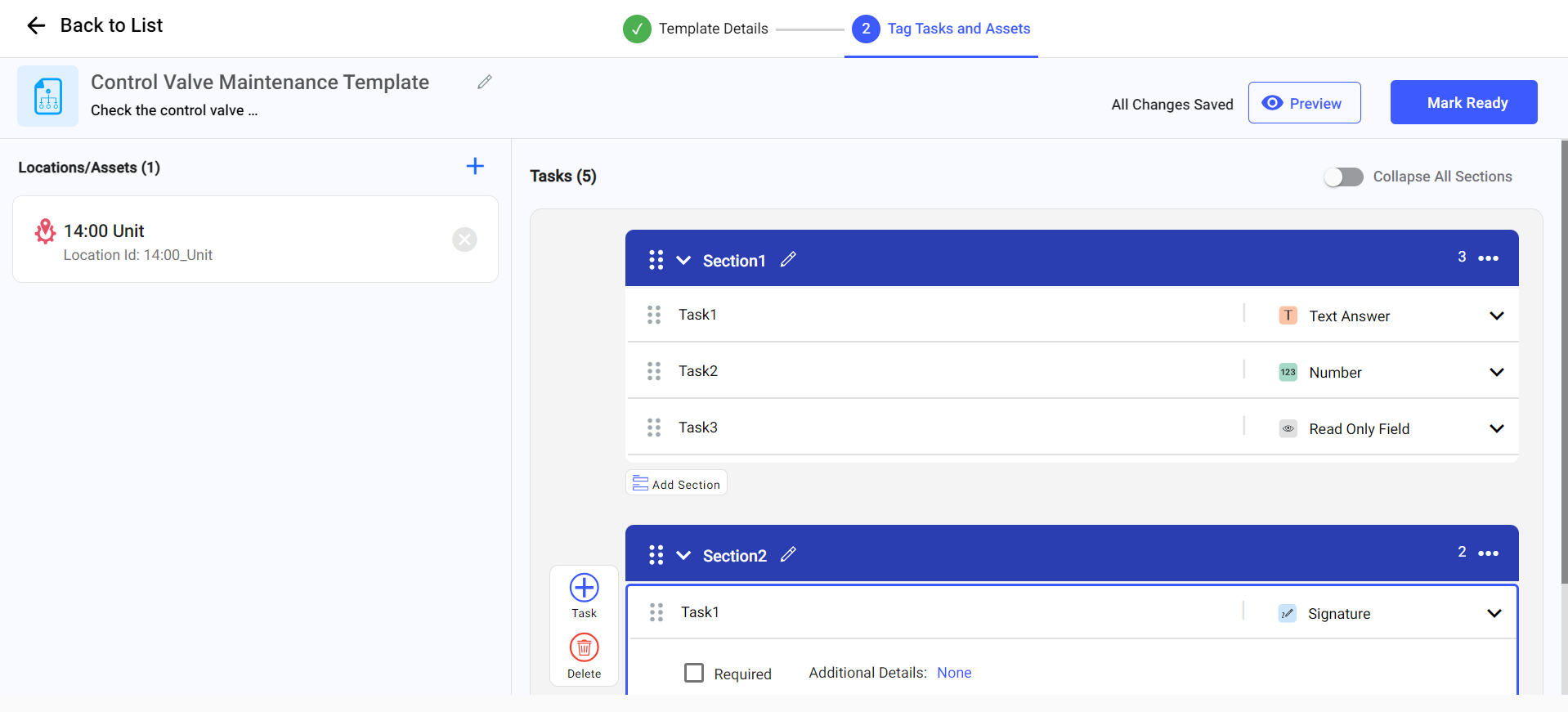
The selected locations and assets appear as a hierarchy on the left side.
Figure 2. Tag Tasks and Assets Screen
-
In the Tag Tasks and Assets screen, select a location or
asset on the left side.
Note:To add more locations and assets to the left side pane, click the Add Locations/Assets icon.
-
Add the pages, sections, and tasks for that location or asset, with their
response types and conditional logic.
For more information, see Create a New Round Plan.
For a Global Template, you can reuse Form content: Build a Global Template from content that already exists in a Form, instead of recreating the same sections and questions. Importing content from an existing Form is faster than recreating it, and it keeps the wording identical to what operators have already been answering.
Forms available for import are not restricted by plant, so a Global Template author can reuse existing Form content from across the organization.
You need access to author Global Templates. No additional configuration is required for the import itself. To decide between a local and a global template, see Choose a Local or Global Template.
-
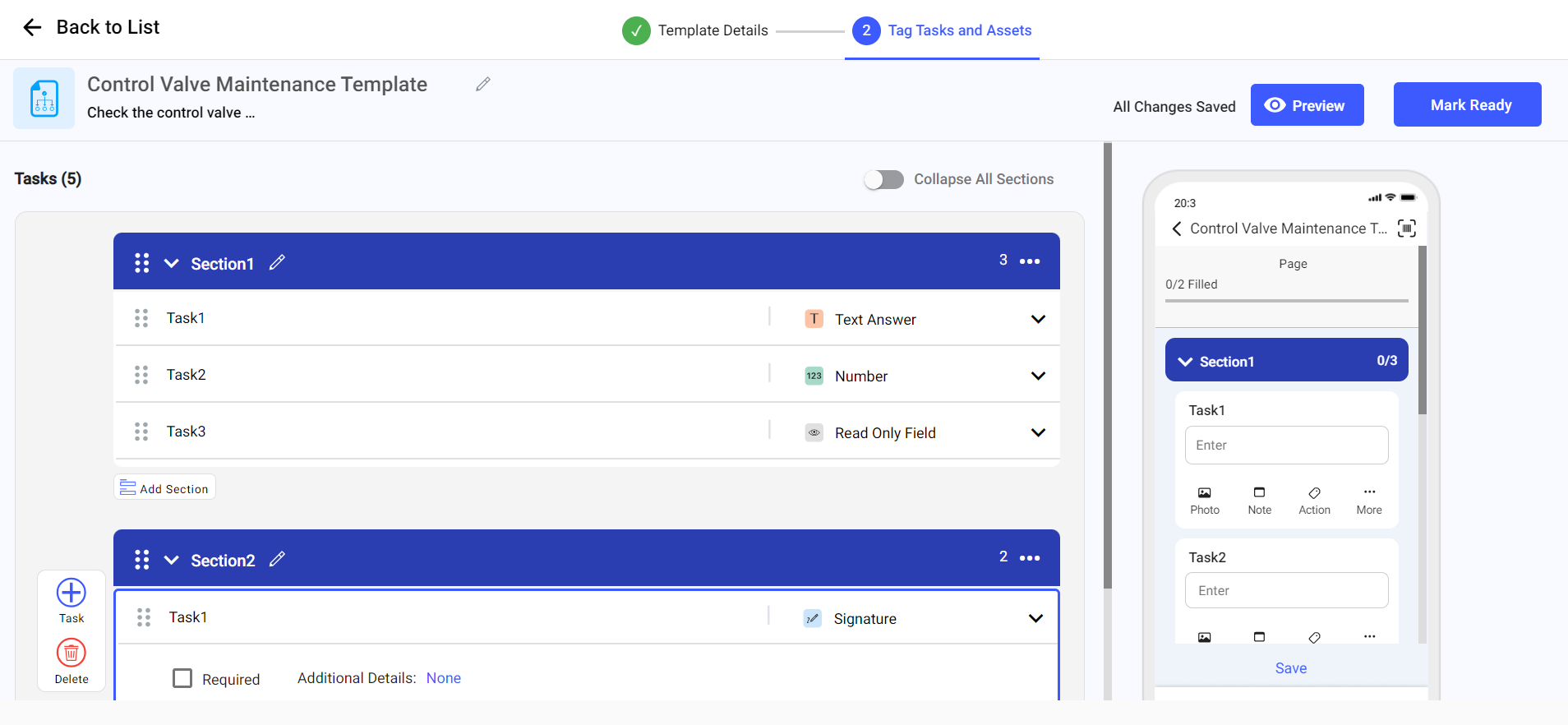
Click Preview to view the template preview.
Figure 3. Template Preview
- Click Mark Ready to save the template.
-
In the Round Plans that will reflect Template changes
window, select each round plan that must receive the changes, then click
Done.
This window lists the round plans already created from this template.
The template then appears in the Templates screen with Ready status. If you leave before submitting the template, it appears with Draft status instead.
The round plan template is created and is available from the Templates screen.

Related task: Create a Round Plan