
Add Attachments

While working on a work order, attach photos, videos, PDFs, or voice recordings to show the work you performed.

  1. Open the Work Orders screen.
  2. Open the assigned work order.
  3. Tap the Attachments tab.
    Figure 1. Add Attachments
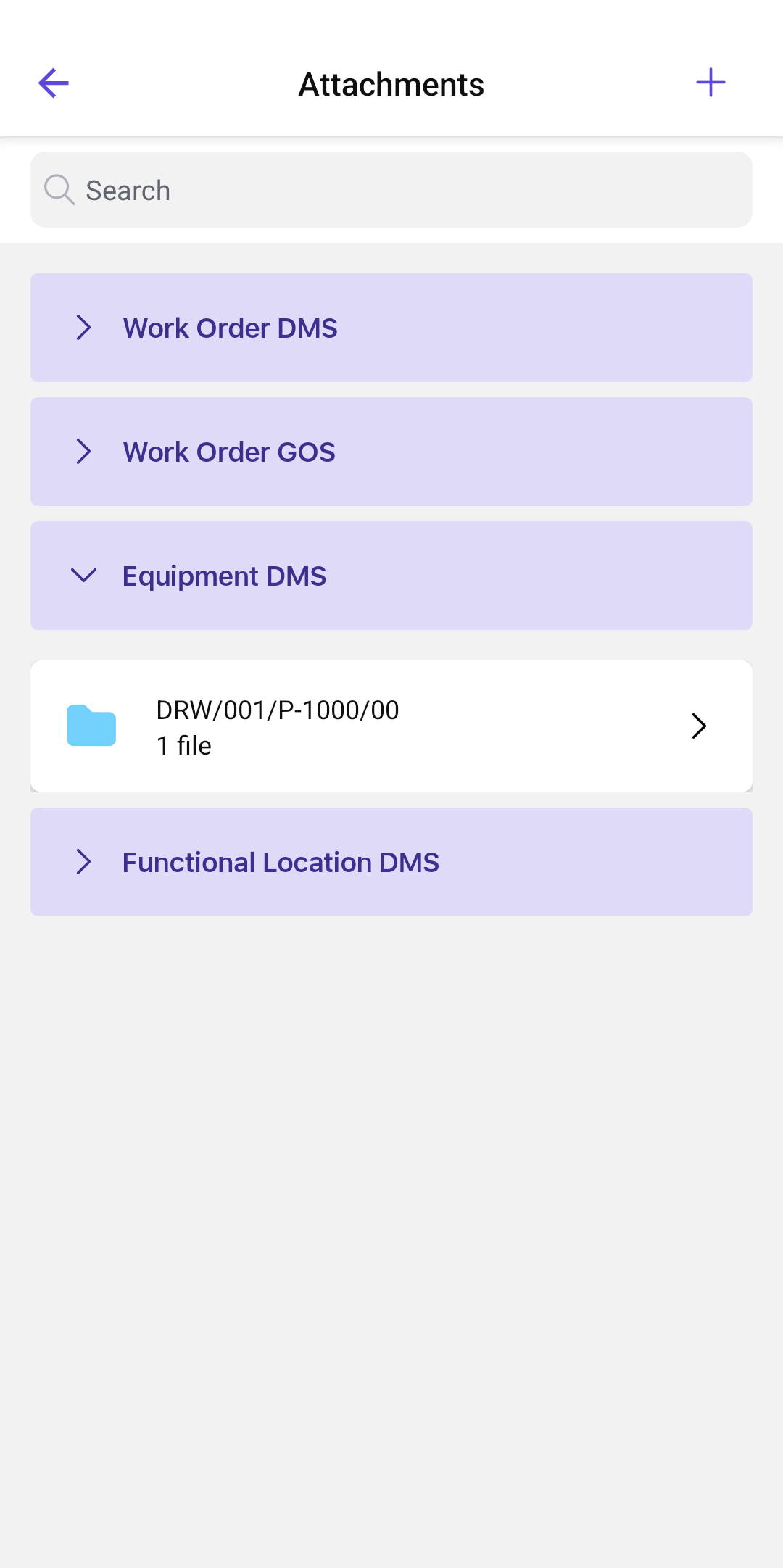

  4. Tap the Add Attachment icon on the top right corner.
  5. Select one of the following options from the pop-up:
    • Take Photo/Video: Capture a new photo or video.
    • Choose from Library: Select a photo or video from your device.
    • Record Voice Note: Tap the red button to record, then tap Done.
    • Upload Documents: Select a document from your device.
    Note:
    On PDFs and images, you can zoom in for detail, zoom out for context, and reset the view at any time.
  6. Select the file destination (GOS, DMS, or SharePoint).
    Note:
    When you add images, the Work Order GOS section expands automatically.
  7. Tap Save.

The attachment is saved at the selected work-order, operation, or form destination.

You can upload, retrieve, and view attachments, including previously cached files when offline.

Next: Return to the operation and finish the remaining work, then End and Confirm an Operation.