
Collect Components
Collect the components required for a work order by scanning QR codes or checking inventory stock.
You can view planned materials, storeroom availability, on-hand quantities, and asset-specific spare-part information, including Asset BOM relationships.
-
Select or scan the QR code to collect the components from the Inventory or
Kitting Area.
Figure 1. Components Screen 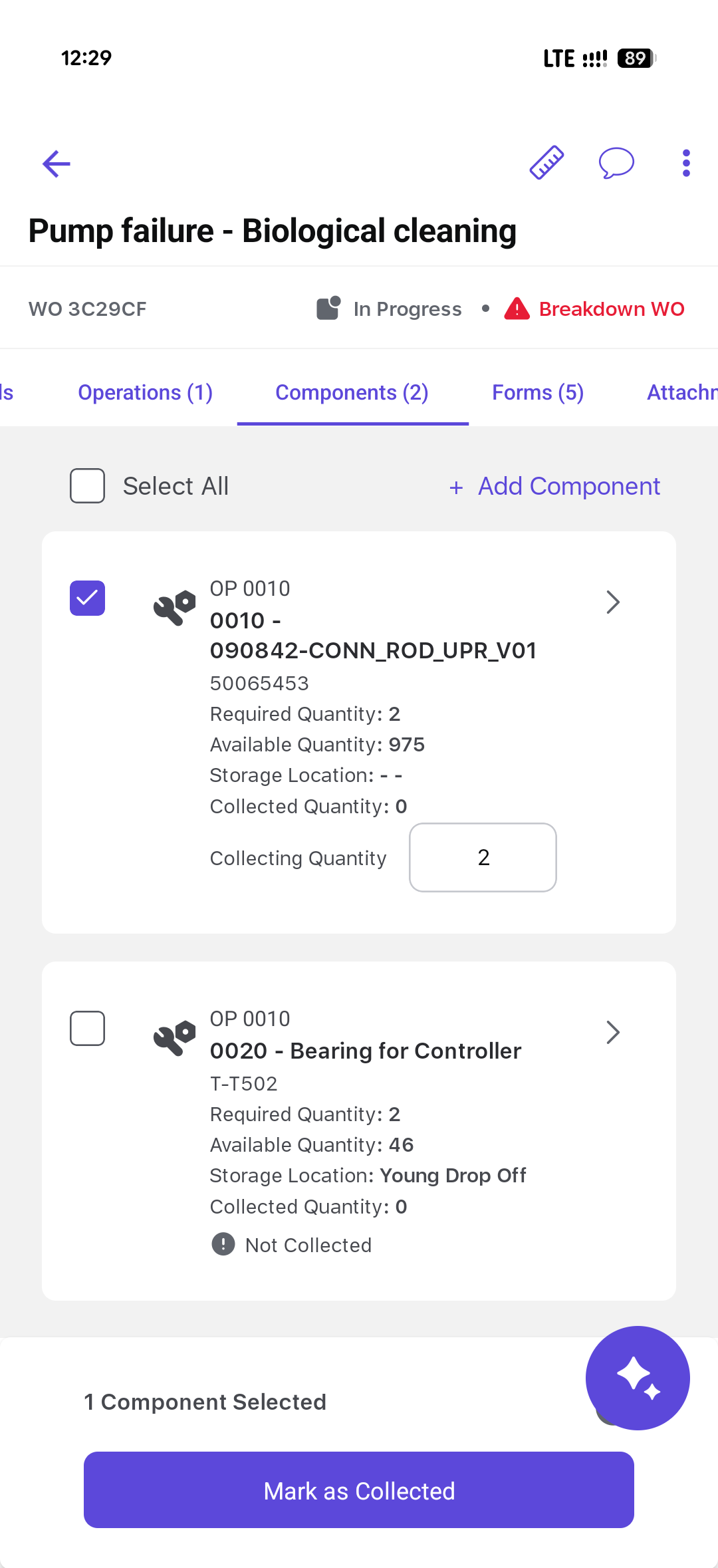
The collected component quantities and status are recorded for the work order.
Next: Start an Operation or Sub-operation, once the other checks shown for the job are complete.