
Confirm Transfer Order
A transfer order is a document, used in Warehouse Management, to capture the inward/outward movement of the material into/from the warehouse or from one storage bin to another. Use the Transfer Order Confirmation sub-module to confirm a transfer order or a transfer order item. As a prerequisite, ensure that the required quantity of the material is transferred from source location to destination.
- SU Management Enabled
- The SU Number field is displayed.
- The field is mandatory where required.
- Warehouse transactions are processed using standard SAP WM SU-managed warehouse functionality, including applicable validations.
- SU Management Disabled
- The SU Number field is hidden.
- SU-related processing and validations are not applied.
The application dynamically updates the screen based on the selected warehouse, ensuring that only relevant fields and validations are displayed.
To confirm a Transfer Order:
-
Tap Search.
Tap Search without any search criteria, the complete list of transfer orders is displayed.In the search results screen, you can:
- Tap the Search field to search the Putaway delivery document.
- Tap the Scan icon to scan the barcode of the Putaway document.
- Sort and filter the records. For more information, see Sort Records and Filter Records
Figure 1. Transfer Orders List 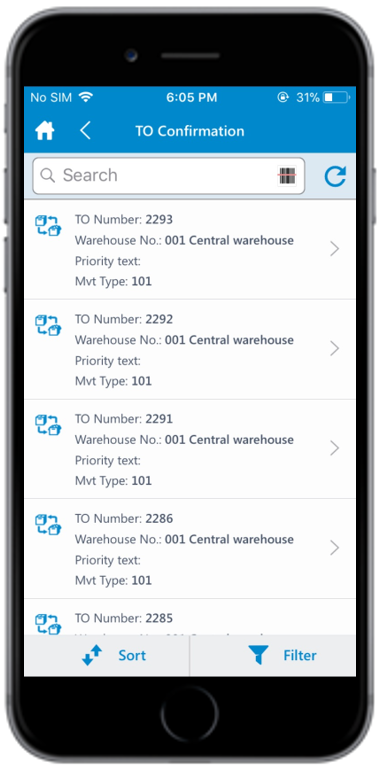
-
Enter this information:
- Mvt Type: This field is auto-populated. Tap to modify the value.
- Posting Date: This field is auto-populated. Tap
the Calendar
 icon to modify the date.
The transfer order is confirmed.