
Start a Round and Follow the Route
Start an assigned round and use the route to visit assets in a practical order. This helps you complete the planned checks without missing a location.
Accept the Shift Handover Report (Accept the Shift Handover Report). The Start Round button stays disabled until you do.
For example, a pump-inspection route may guide you through assets P-204, P-205, and P-206 in sequence.
To start a round and view the route:
-
Select a round from the assigned rounds list.
Important: You receive a push notification one hour before an assigned round becomes overdue. Tap the notification to jump straight to the round, issue, or action so nothing critical is missed.
Important:If a Dynamic Round is triggered by an alert, you receive a push notification. Tap it to open the round directly.
The Round Details screen shows round details, notes, and attachments.
If work instructions are attached, they appear under Work Instructions at the bottom of the Round Details screen. Each guide shows its thumbnail, title, and category. Tap a guide to open it. If your site uses Dozuki, the Dozuki logo appears next to Work Instructions.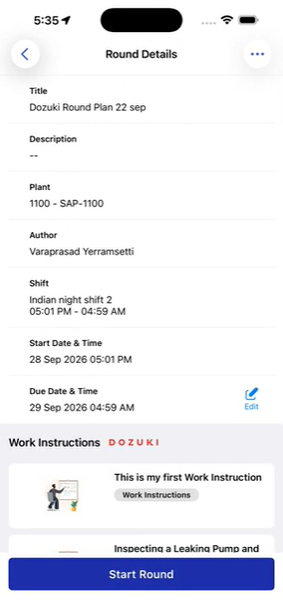
Tap the
 icon for more options.
Figure 1. Round Details 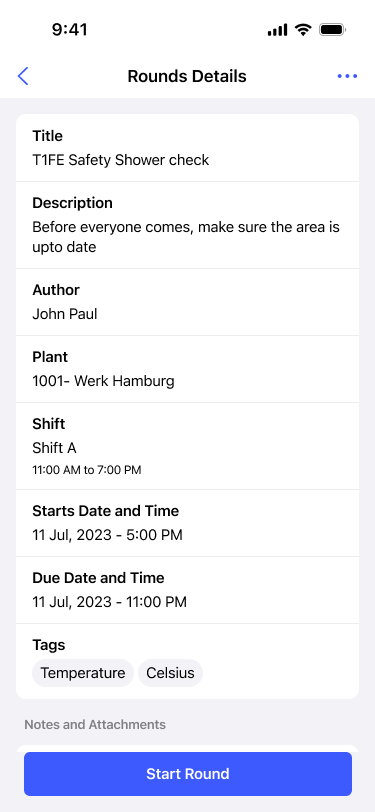
-
Review the route map to see the order in which to visit assets.
Figure 2. Assets Route 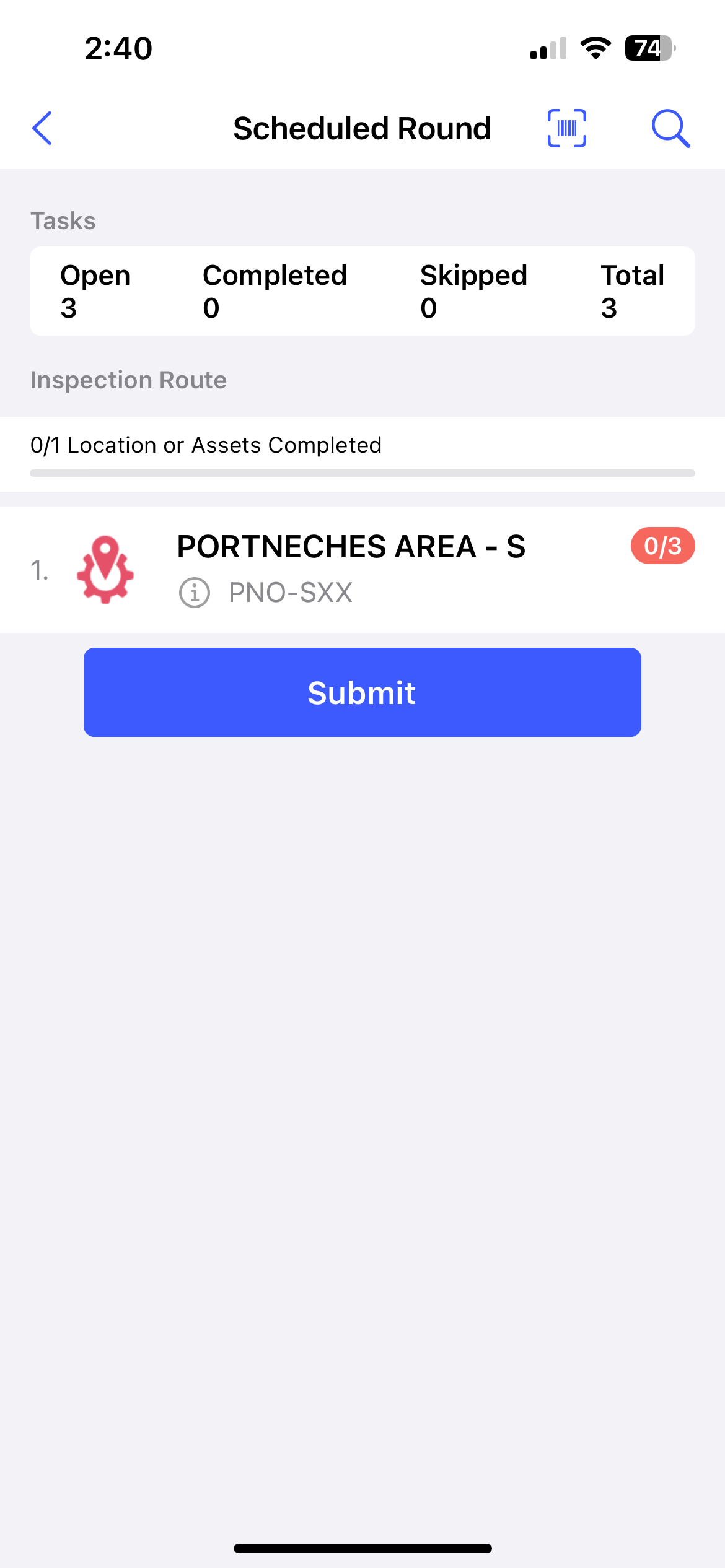
- The route orders assets first, second, third, and so on for the most logical, time-saving visit sequence.
- Tap an asset on the map to navigate to its location.
- The map shows your current location and the rounds assigned to you for the day.
- Check Tasks Summary at the top for Open, Completed, Skipped, and Total task counts.
- Check the Inspection Route section for the count of completed locations or assets.
- Tap the Info
 icon to see the asset details hierarchy.
You are on the Assets Route screen with the round timer running, ready to scan and verify the first asset.
When the action is unavailable: If Start Round stays disabled, confirm you have accepted the Shift Handover Report.
Next: At the first asset or location, scan and verify the asset when scanning is configured. Otherwise, continue directly to the task guidance and responses.