
Review Compliance
Use the Compliance Dashboard to compare completed, overdue, skipped, and other compliance measures, and find where scheduled checks are not being completed as planned.
The four measures. The dashboard reports four separate measures.
| Measure | What it tells you |
|---|---|
| Round Compliance | The percentage of completed versus incomplete rounds, based on each round's status. Shows which scheduled rounds were missed or left incomplete. |
| Scan Compliance | Scan overrides during rounds — where an Operator bypassed a scanning requirement. |
| Time Compliance | Expected against actual round duration, and any discrepancy between them. |
| Issues / Actions Compliance | Issues and Actions raised during execution, comparing those created against those resolved. |
-
Expand the Operator Rounds module and click
Compliance Dashboard on the left pane.
Figure 1. Compliance Dashboard 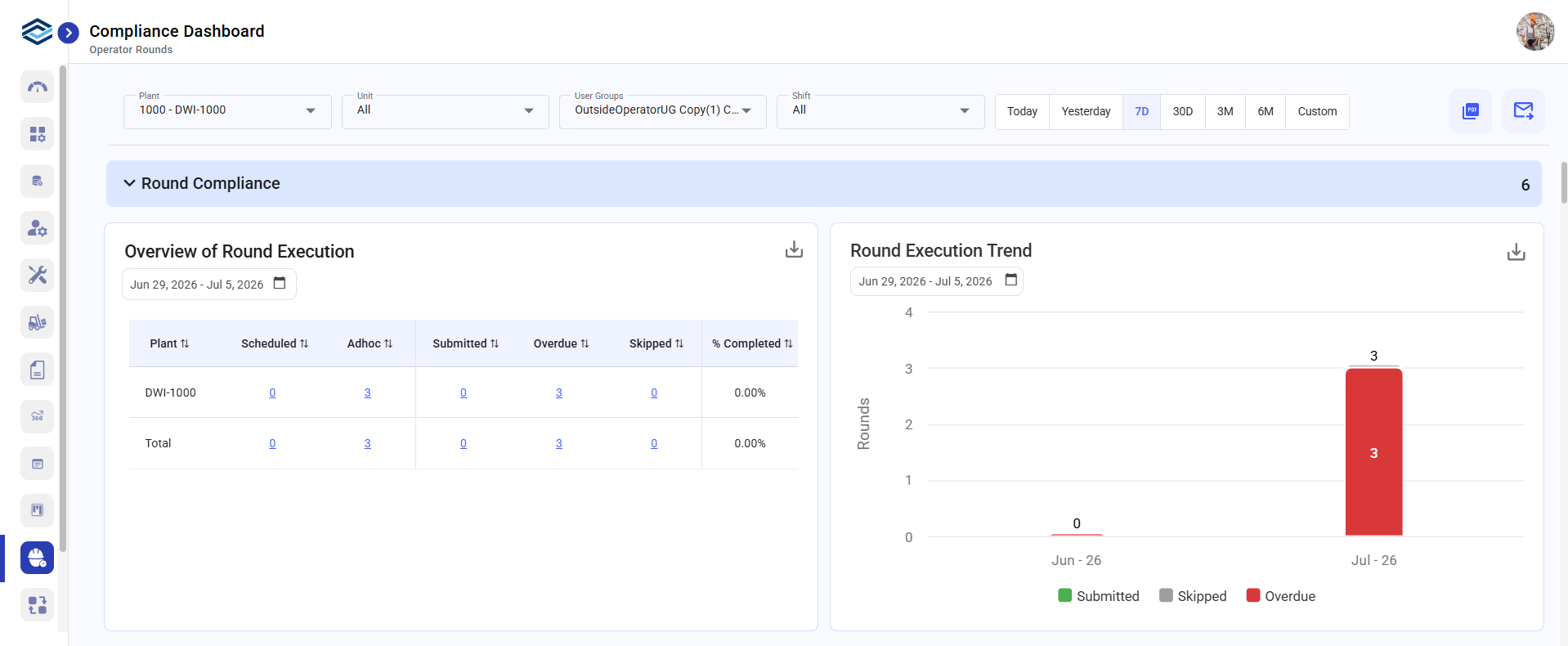
The dashboard shows round, scan, time, and Issue/Action compliance for the scope and period you selected.
To share what you found: click the PDF icon at the top right to download the dashboard, the Email icon to send it, or the Download icon on a widget to save that report as an image. See Share Dashboard Data as PDF Reports.
Next: Monitor Anomalies Using the Exceptions Dashboard, then open any affected record that needs investigation.